


Hello! Are you using A3UV well?
In this guide, we will learn how to modify the output coordinates of each WCV channel .
The above settings affect external factors in the bed.
The output coordinates for each color in WCV are wrong
This is required when W, C, and V are output in different locations .
1. Create a test output file
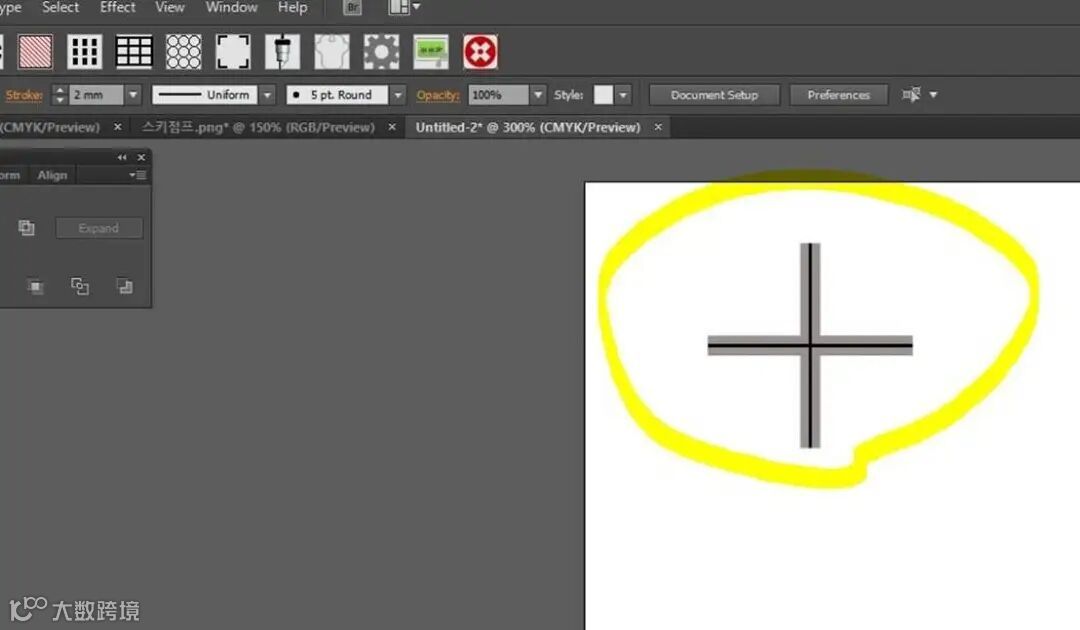
First, create a cross pattern file in an illustration program.
It's best to overlap W and C and make W a little thicker.
If you create and print the file above, you can see the difference in the output coordinates of W and C.
(The smaller you make it on an identifiable line, the faster the setup will be.)

Save the settings as WCV or the most commonly used output mode and test.
2. Check the current status after printing on OHP film.
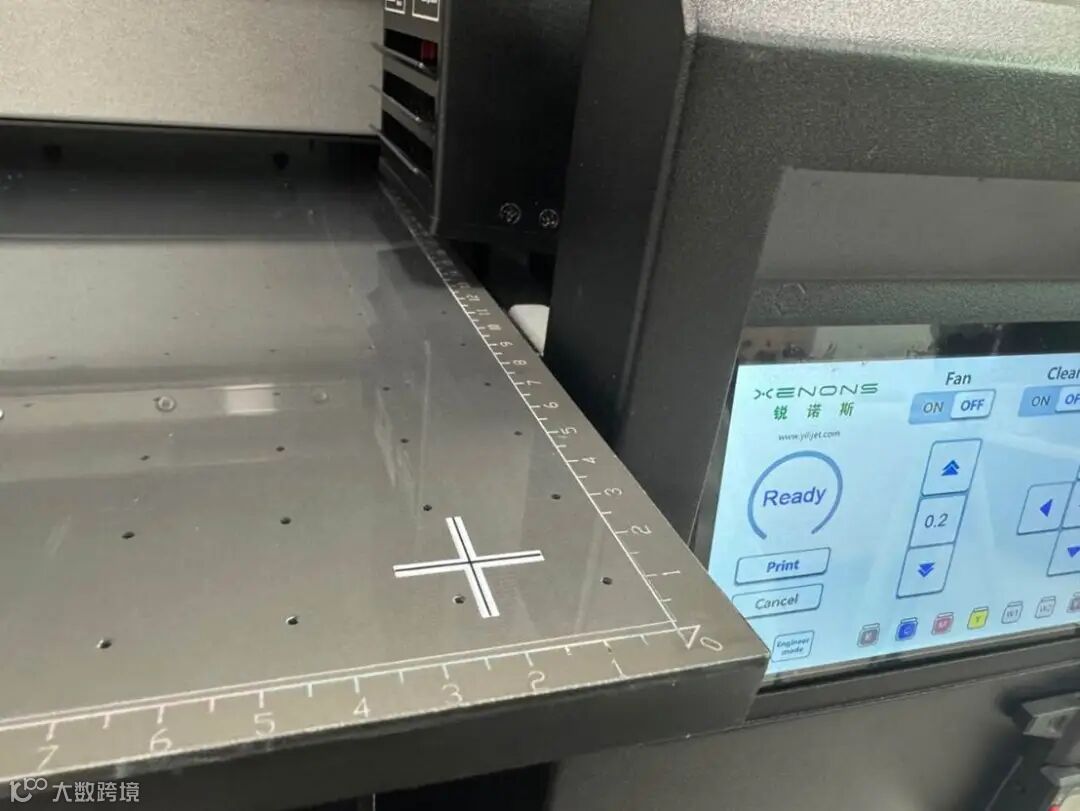
The photo above is what will be printed if the settings are normal.
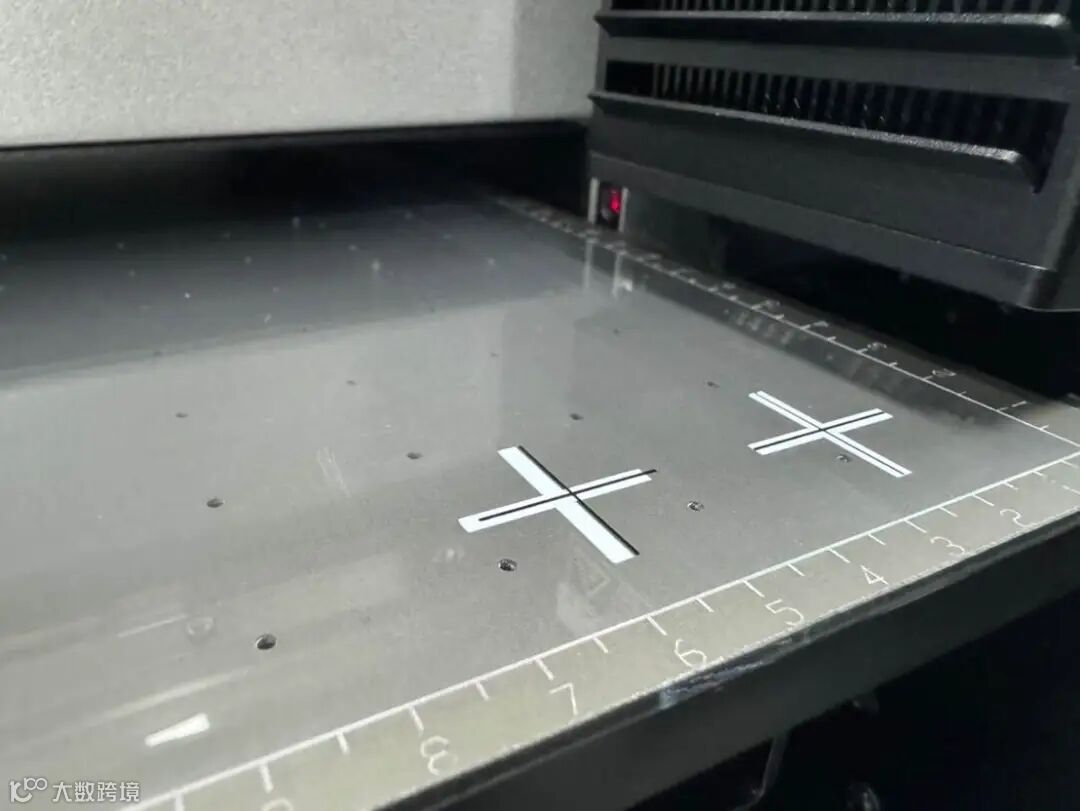
The photo above is what will be output if the settings are abnormal.
You can see that W and C (BLACK) are not symmetrical.
Let's returnthe abnormal settings to normal .
2. Enter FACTORY MODE
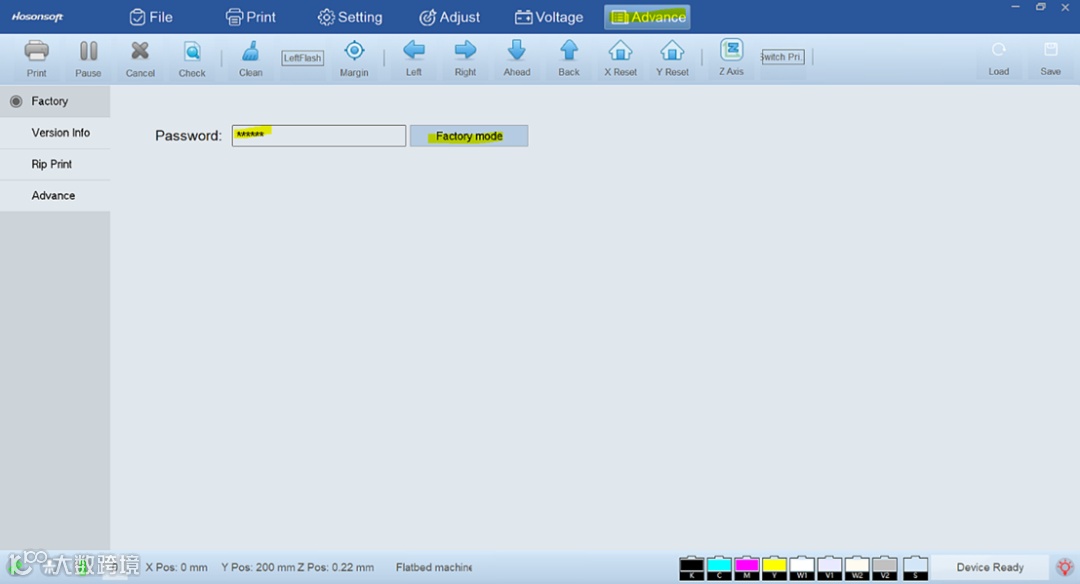
FACTORY MODE entry process
After entering Advance at the top right , click the mouse in the password field .
After that, press ctrl + F12 and change to factory mode as shown in the picture above.
Enter 222222 to enter.
(If not entered, press ctrl + function key + F12)
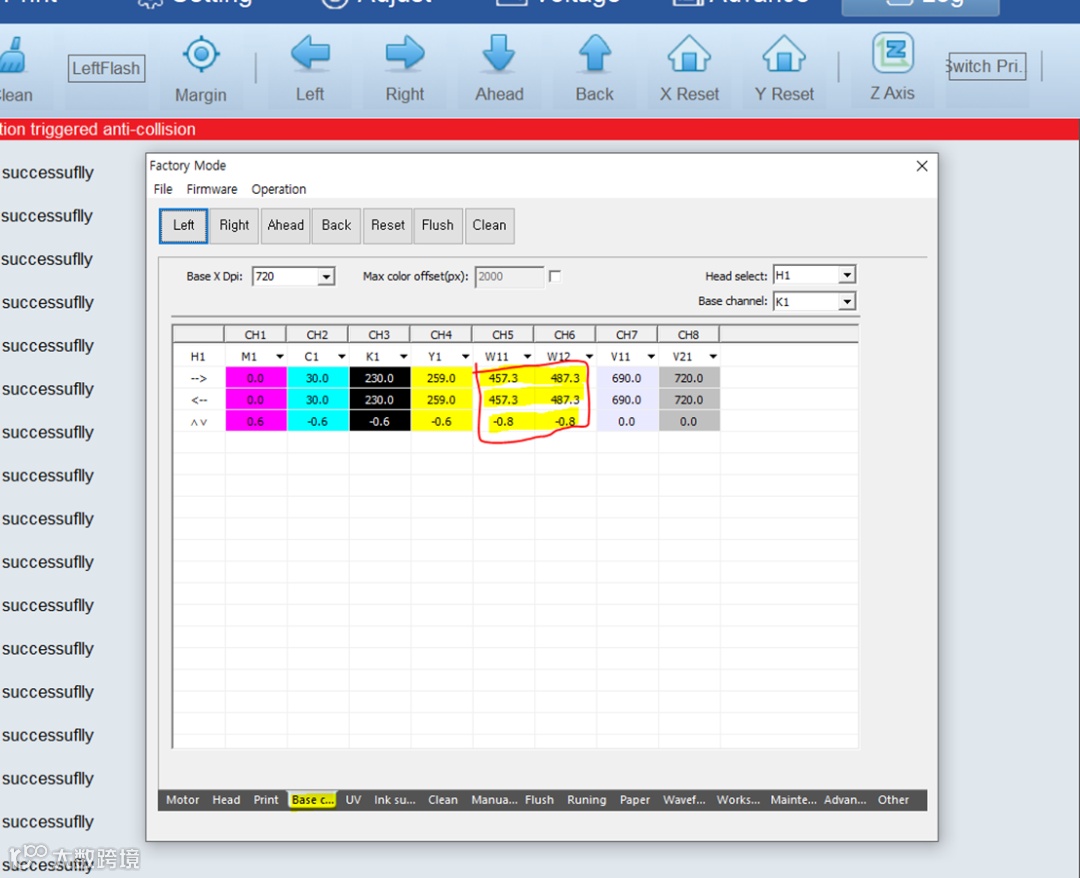
When you enter factory mode, a window will pop up.
Here, if you go to Base color, which is the 4th menu bar at the bottom,
The base color setting menu will appear as shown in the picture above .
Here we only need to modify the W marked with a square.
This is the process of fixing C (CMYK) and moving W to align the zero point.
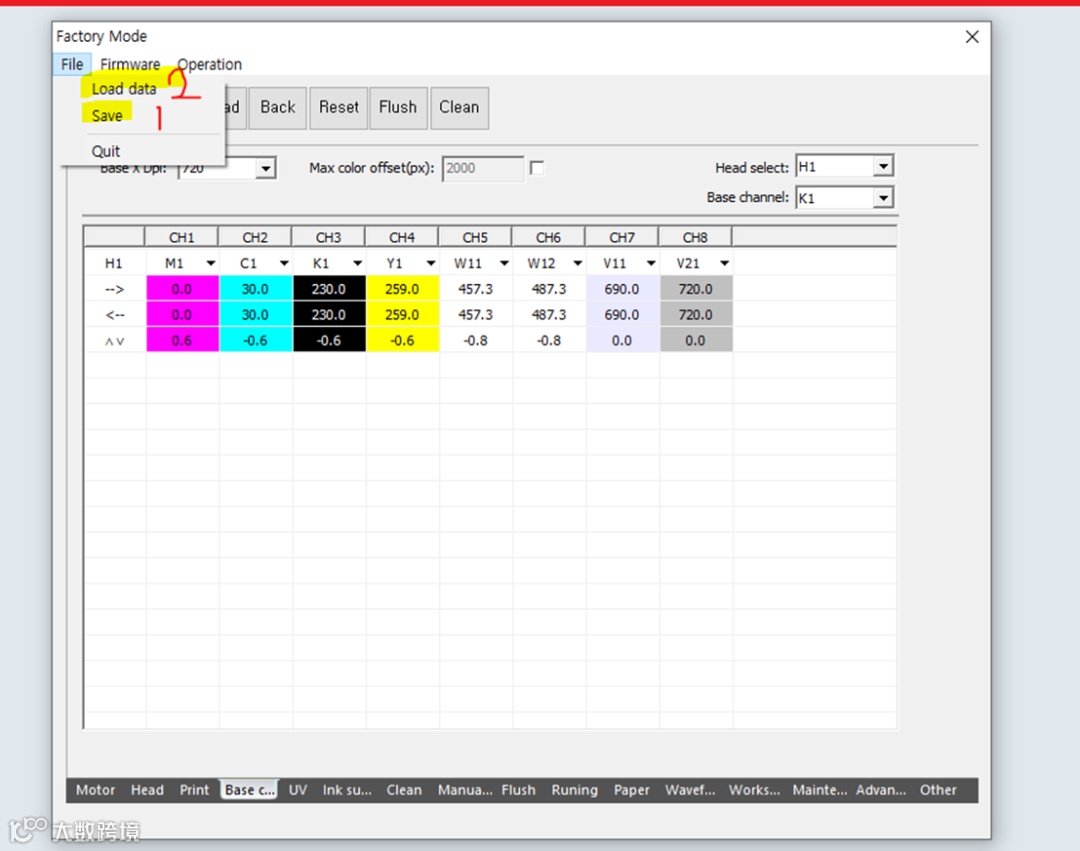
How to save settings
Here's how to save it.
You will have to change it little by little, print it out, and then set it again.
How do I save it?
You can save it from the top left corneras shown in the picture above .
Double checkthat the settings by saving and loading .
How should I set the coordinates?
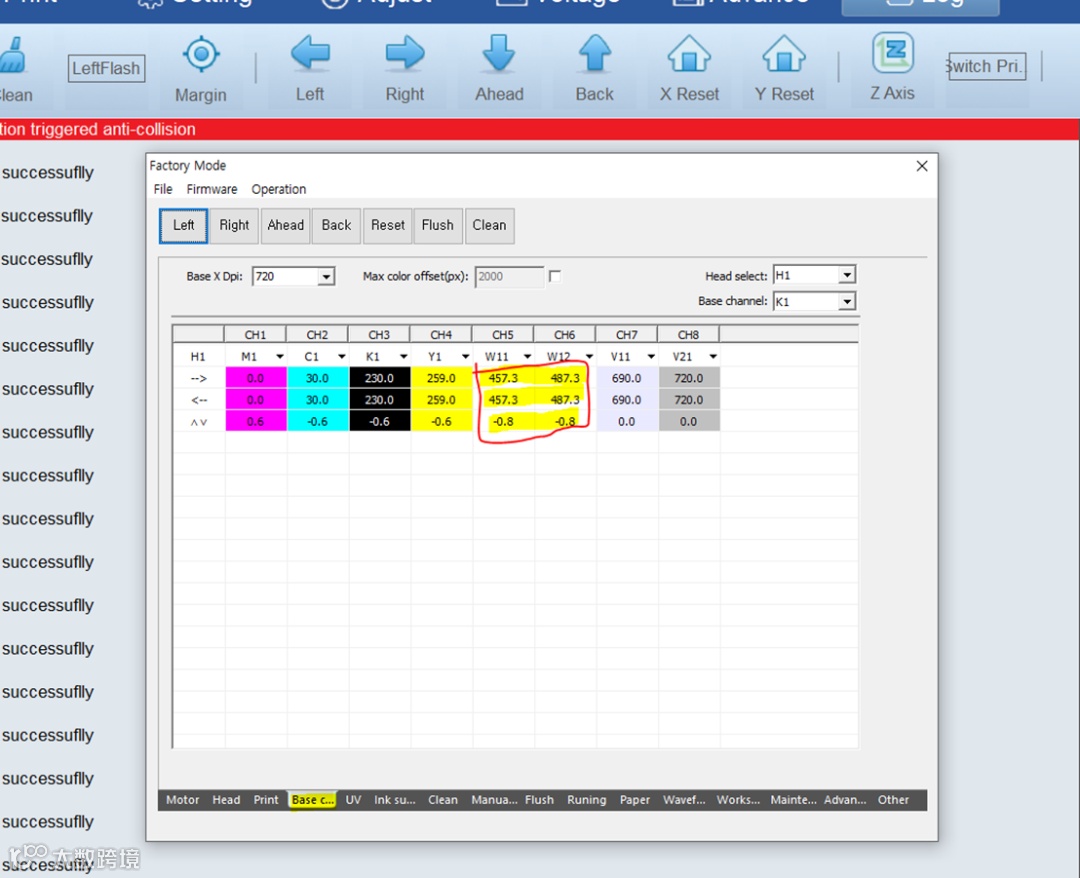
As shown in the picture above, the left and right settings of W11 and W12 must have a difference of 30 .
Also, for left and right, ' ->' and '<- ' must be set to the same value.
EX. 451 / 481
451 / 481
You can set the upper and lower settings the same way.
You can proceed with the settings while keeping this in mind.
Let me explain based on looking at the front of the printer.
right and left
Left = - (minus)
Right = + (plus)
Up and down
Towards my body = + (plus)
away from my body = - (minus)
The more +, the closer it gets to (0.0)
-You can think of it as moving away from (0.0) as the number increases.
Okay, now we're done setting up the coordinates.
Because you can set it up to the decimal point
It is possible to set it almost perfectly even with the human eye,
Because it is set by eye
There may be some errors.
In this case, when printing files with small letters and thin strokes,
There may be cases where white that should be underneath is visible.
There is another system that prevents this situation.
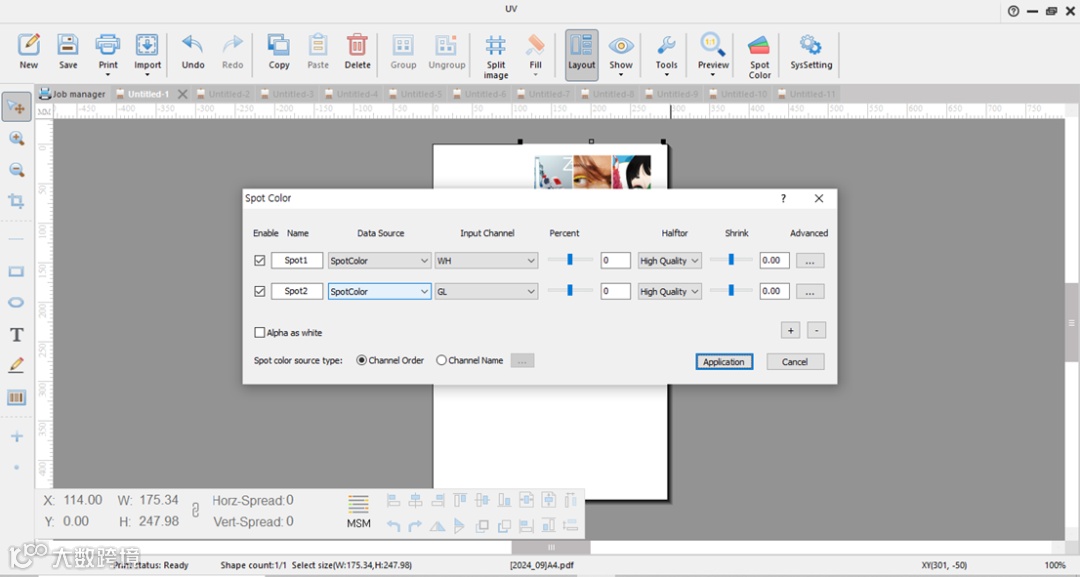
After opening the file, turn on the SPOT COLOR window.
If you look at the window above, you can see 0.00 written on the far right.
Depending on that number, you can make the checked spot color thicker or thinner .
If you see white when printing the same 3mm thin stroke,
You can use the numbers above to make the border thinner and hide the white.
Ex. You can derive detailed outputby giving an error value such as -0.08 .
If you add it on the contrary, it will make the border thicker
Even if 'W' and 'C' are the same size , 'W' will be printed thicker and may create a border.