


引言

在实时数据采集及分析等场景中,传统可视化工具常因海量数据渲染导致界面卡顿、内存溢出等问题。Qt框架凭借其高效的C++内核与跨平台特性,配合轻量级绘图库QCustomPlot独有的动态数据裁剪与GPU加速机制,可实现对百万级数据点的亚毫秒级响应。本文针对工业级数据吞吐需求,剖析如何通过双缓冲异步通信、曲线简化算法和显存优化策略,在嵌入式设备与桌面端构建无延迟可视化系统,为开发者提供高性能数据展示的工程实践指南。

QCustomPlot是一个基于Qt的第三方绘图库,该库提供了丰富的绘图功能。从QCustomPlot官网 下载最新源码,解压后得到 qcustomplot.h 和 qcustomplot.cpp,添加到工程中即可使用。在使用Qt开发数据可视化系统时常会有以下瓶颈:
1.CPU过载:频繁的数据计算和UI刷新。
2.内存拷贝:大规模数据传递时的冗余操作。
3.绘图API效率:低效的图形绘制指令(如逐点绘制)。
4.线程竞争:数据生成与UI更新线程的同步问题。

1. 线程模型
采用 生产者-消费者模式 分离数据采集与渲染:
数据采集线程(生产者)
class DataWorker : public QThread {void run() override {while (!isInterruptionRequested()) {QVector<double> newData = readFromSensor(); // 硬件或模拟数据emit dataChunkReady(newData);QThread::usleep(100); // 控制采集频率}}};
主线程(消费者)连接信号
connect(worker, &DataWorker::dataChunkReady,this, &MainWindow::handleDataUpdate);
2. 数据缓冲机制
使用 环形缓冲区(Ring Buffer) 避免内存重复申请:
class RingBuffer {public:void addData(const QVector<double>& data) {QMutexLocker locker(&m_mutex);if (m_buffer.size() + data.size() > m_capacity) {m_buffer = m_buffer.mid(data.size()); // 移除旧数据}m_buffer.append(data);}private:QVector<double> m_buffer;QMutex m_mutex;size_t m_capacity = 1e6; // 1百万点容量};

1. 增量绘图模式
禁用自动重绘,手动控制刷新频率:
初始化时关闭自动重绘
customPlot->setNotAntialiasedElements(QCP::aeAll);customPlot->setNoAntialiasingOnDrag(true);
定时器控制刷新(30 FPS)
QTimer *refreshTimer = new QTimer(this);connect(refreshTimer, &QTimer::timeout, :ml-search[this] {static QElapsedTimer fpsTimer;ui->customPlot->replot(QCustomPlot::rpQueuedReplot); // 增量重绘if (fpsTimer.elapsed() > 1000) {qDebug() << "FPS:" << 1000.0 / refreshTimer->interval();fpsTimer.restart();}});[b][font=宋体]refreshTimer->start(33);[/font][/b]
2. OpenGL加速
启用QCustomPlot的OpenGL渲染支持:
在pro文件中添加:
QT += opengl
主窗口初始化:
ui->customPlot->setOpenGl(true); // 开启OpenGLif (!ui->customPlot->openGl()) {qDebug() << "OpenGL acceleration not available!";}
3. 数据分块加载
动态加载可见区域数据,减少内存占用:
void MainWindow::onXRangeChanged(const QCPRange &newRange) {double from = newRange.lower;double to = newRange.upper;// 计算需要加载的数据块int chunkStart = qFloor(from / m_chunkSize) * m_chunkSize;int chunkEnd = qCeil(to / m_chunkSize) * m_chunkSize;// 异步加载数据块QtConcurrent::run(:ml-search[this, chunkStart, chunkEnd] {auto data = m_database.queryData(chunkStart, chunkEnd);QMetaObject::invokeMethod(this, :ml-search[this, data] {m_plot->graph(0)->addData(data.keys, data.values);}, Qt::QueuedConnection);});}

1. 数据压缩算法
对静态历史数据应用 垂线采样(LTTB) 降噪:
QVector<QPointF> lttbDownsample(const QVector<QPointF>& source, int threshold) {QVector<QPointF> result;// ...实现LTTB算法...return result;}
在数据更新时调用:
if (source.size() > 100000) { // 超过10万点则压缩auto sampled = lttbDownsample(source, 5000);m_plot->graph(0)->data()->set(sampled);} else {m_plot->graph(0)->data()->set(source);}
2. GPU直传技术
通过 QSSG缓冲对象 实现零拷贝GPU上传:
QOpenGLBuffer m_glBuffer;// 初始化GL缓冲m_glBuffer.create();m_glBuffer.bind();m_glBuffer.allocate(m_data.constData(), m_data.size() * sizeof(float));// 自定义绘制函数void CustomPlotGL::paintGL() {glEnableVertexAttribArray(0);glVertexAttribPointer(0, 2, GL_FLOAT, GL_FALSE, 0, 0);glDrawArrays(GL_LINE_STRIP, 0, m_dataSize);}

|
|
|
|
|
|
|
|
|
|
|
|
|
|
|
|
|
|
|
|
|
|
|
|
|

线程策略:数据生成、处理、渲染分离至不同线程
内存管理:使用环形缓冲和隐式共享(QSharedData)
渲染优化:结合OpenGL与增量更新,避免全量重绘
动态加载:根据视图范围按需加载数据块
降级策略:在低端设备自动切换采样率

实时动态曲、高级功能、多轴系统、数据交互(缩放、拖拽、提示框)、自定义样式与主题
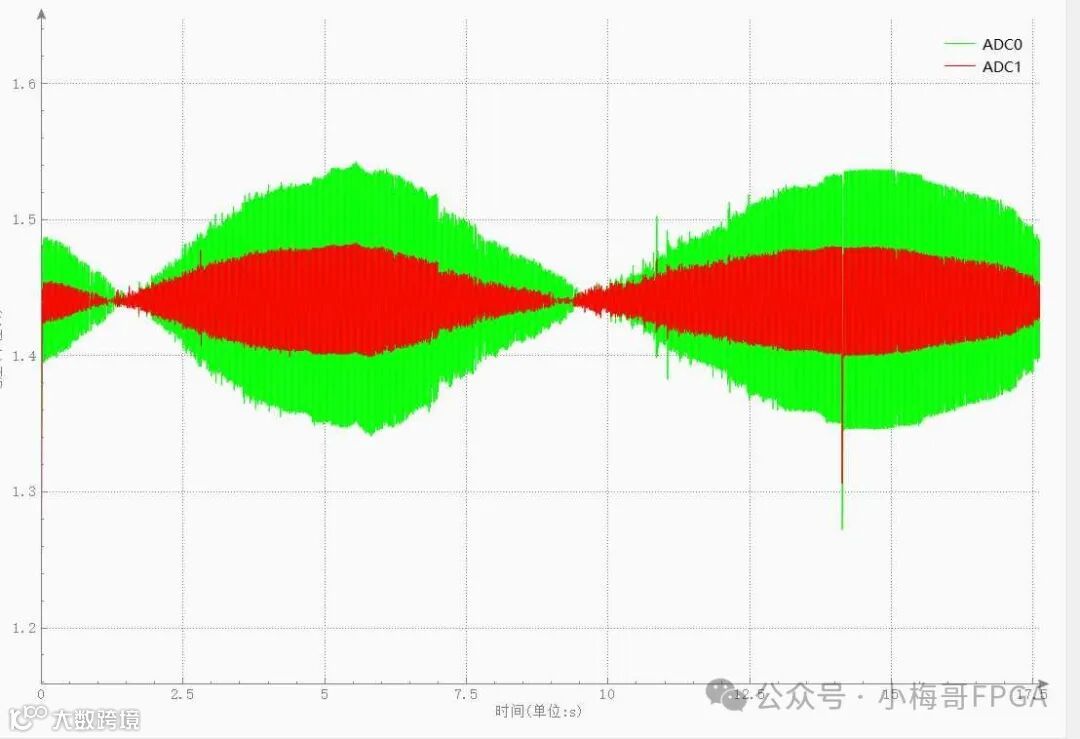
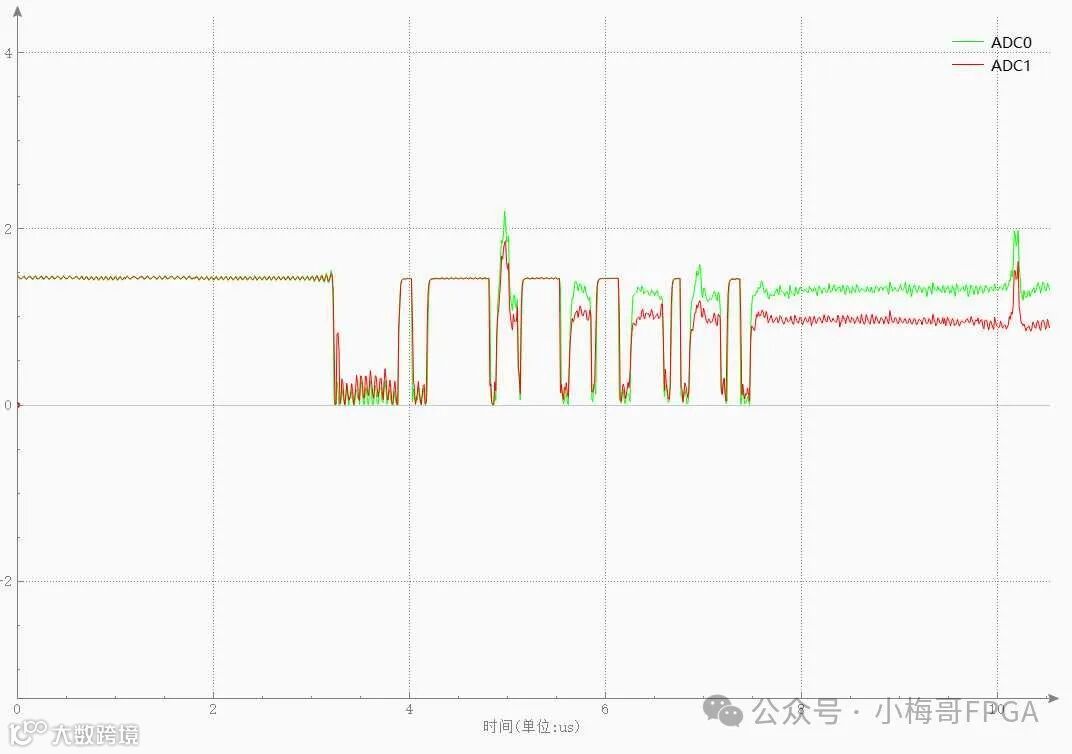
QPen pen;pen.setColor(QColor(128, 128, 128));pen.setWidth(1); // 设置线宽// 设置x轴和y轴刻度线的颜色customPlot->xAxis->setTickPen(pen);customPlot->yAxis->setTickPen(pen);customPlot->xAxis->setBasePen(pen);customPlot->yAxis->setBasePen(pen);// 设置x轴和y轴的颜色customPlot->xAxis->setSubTickPen(pen);customPlot->yAxis->setSubTickPen(pen);// 设置x轴和y轴数据的颜色customPlot->xAxis->setTickLabelColor(QColor(128, 128, 128));customPlot->yAxis->setTickLabelColor(QColor(128, 128, 128));// 设置网格的颜色pen.setStyle(Qt:otLine); // 网格线样式为点线customPlot->xAxis->grid()->setPen(pen);customPlot->yAxis->grid()->setPen(pen);//设置图表的轴和范围customPlot->xAxis->setUpperEnding(QCPLineEnding::esSpikeArrow);customPlot->yAxis->setUpperEnding(QCPLineEnding::esSpikeArrow);customPlot->xAxis->setLabel("时间(单位:s)");customPlot->yAxis->setLabel("电压(单位:v)");customPlot->xAxis->setLabelColor(QColor(128, 128, 128));customPlot->yAxis->setLabelColor(QColor(128, 128, 128));//添加一条曲线customPlot->addGraph();customPlot->addGraph();//设置画笔颜色customPlot->graph(0)->rescaleAxes(true);customPlot->graph(0)->setPen(QPen(Qt::green));customPlot->graph(0)->setName("ADC0"); //设置图例名称customPlot->graph(1)->rescaleAxes(true);customPlot->graph(1)->setPen(QPen(Qt::red));customPlot->graph(1)->setName(QString::fromLocal8Bit("ADC1"));//设置初始图表的x与y轴范围customPlot->xAxis->setRange(0,1); //x轴范围customPlot->yAxis->setRange(-3.3,3.3); //y轴范围customPlot->graph(1)->addData(count,y); // 添加数据if(count<=50){ui->customPlot->xAxis->setRange(0, count, Qt::AlignLeft);}else{ui->customPlot->xAxis->setRange(count-1, 1, Qt::AlignLeft);}//刷新customPlot->replot()
效果图
以下是新开的“小梅哥FPGA”服务号,该账号设有客服,为大家提供在线解答服务。欢迎大家来提问!
欢迎关注!我们将持续分享FPGA学习与使用中的问题及解决思路。



END