


Note: Make sure the app is not killed by the mobile phone system. The app has to be running in the background all the time.
iOS Instructions
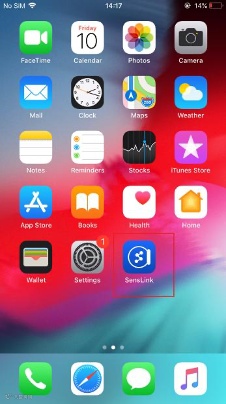
1.Install the SensLink app and make sure Bluetooth is turned on.

(download it via QR code or search "SensLink" from app store)
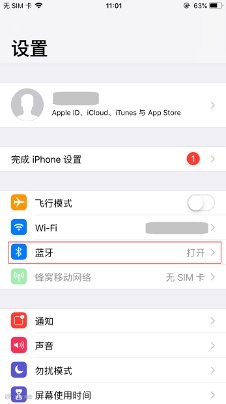
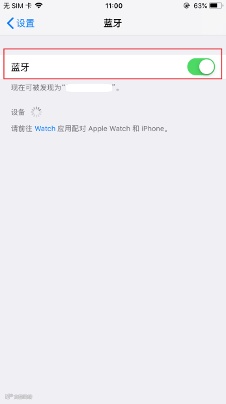
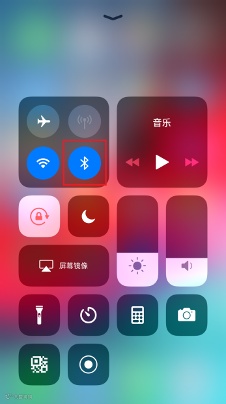
2. Open SensLink and authorize the app.
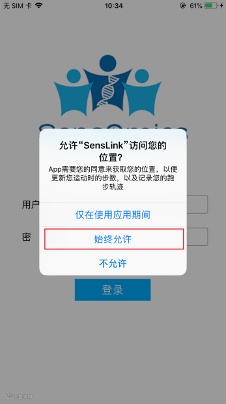
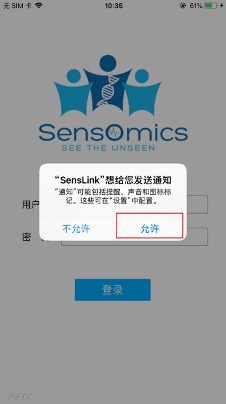
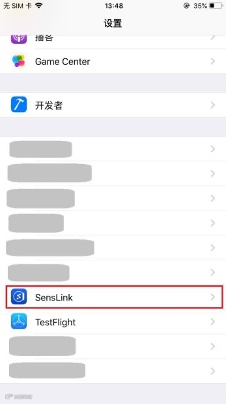
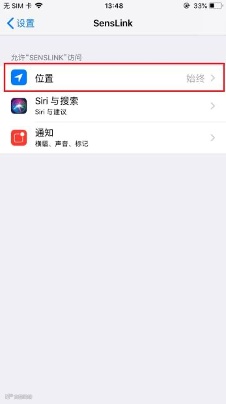
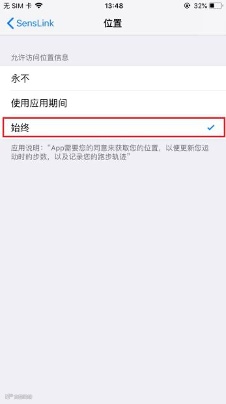
You need to “Always” allow SensLink to access your location. If “Always Allow” did not pop up, go to Settings > SensLink > Location > select “Always”.
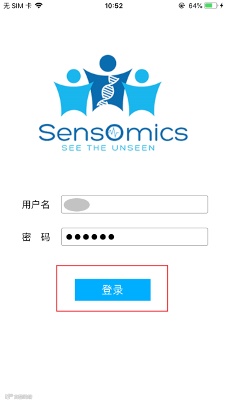
3. Enter your user name and password, and tap login.

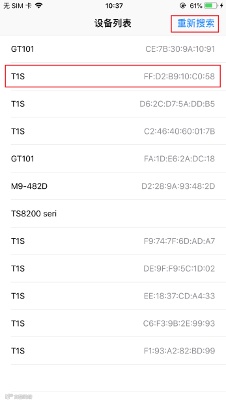
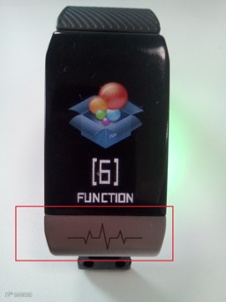
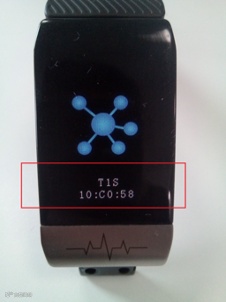
4. Connect your SensWatch to your mobile device by selecting the corresponding serial number. You can find the serial number by tapping the metal sheet on your SensWatch to switch to the “FUNCTION” page, long-pressing the metal sheet to enter the page, and then tapping the metal sheet again until you see the serial number. If you were unable to find your SensWatch, you can tap "Search again" in the upper right corner to search for nearby devices. Please do not tap "Search again" too frequently because it takes time for your phone to search. Once your SensWatch is successfully connected, you can now enter the main page of the SensLink app.
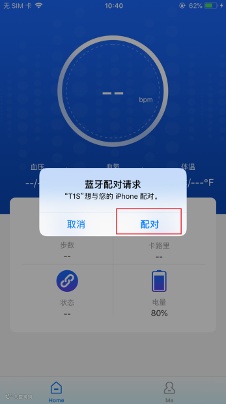
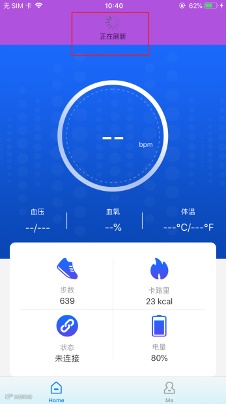
5. Once you get to the main page, you will see a pop-up screen requesting permission for Bluetooth pairing. Please tap “Pair” and wait until you see the data display on screen. It usually takes 10-60 seconds for the data to show up on your screen. If there is no data shown, you can drag down to refresh the page. In order to ensure the stability of transferring data from your SensWatch to the SensLink app, please do not refresh the page too frequently.
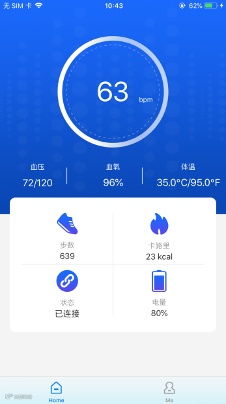
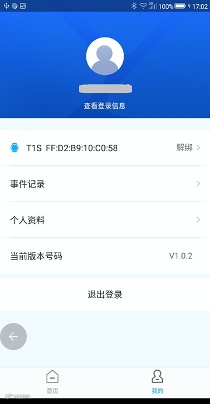
6. You can tap the "Me" button at the bottom to view user name, device name, device number, personal information, and current version of the app.
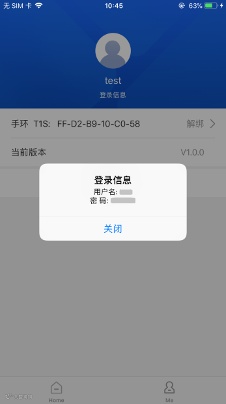
7. By tapping "Accounts info", a pop-up window displaying the user name and user password will appear.
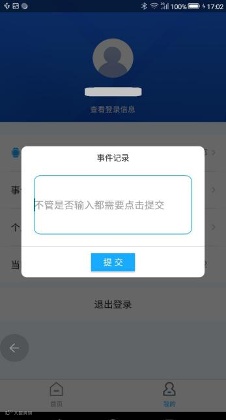
8. By tapping “Event markers”, a pop-up screen will appear and prompt you to record the event.
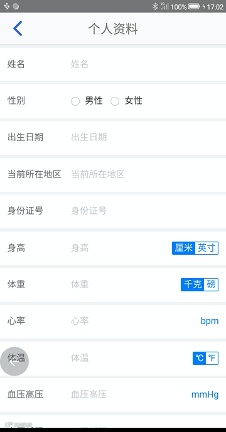
9. By tapping “Personal information”, you can view and edit your personal information.
10. If you want to disconnect the SensWatch, tap "disconnect". Please follow the instructions on the pop-up window to disconnect the device. Otherwise, you will not be able to connect to this device later on.
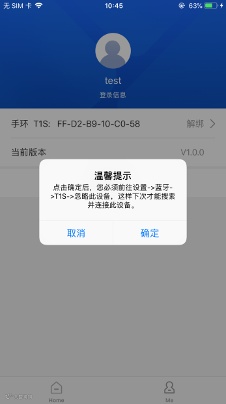
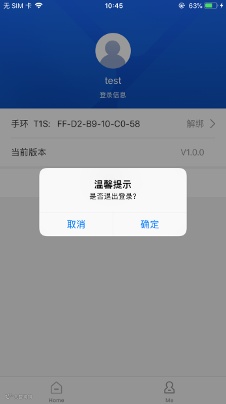
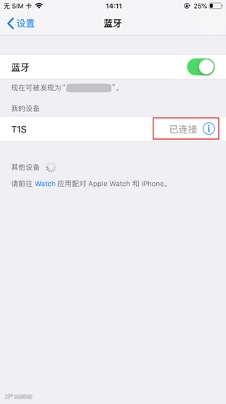
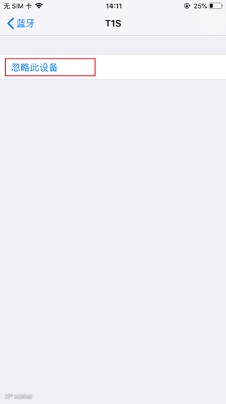
11. If you want to log out of the app, tap “Log out” and go to Settings > Bluetooth > T1S > Forget This Device.
If you have any questions about how to using SensWatch, please contact us by email: support@sensomics.com