大数跨境
0
0

无线行空板, 远程控制人脸追踪的麦轮小车

无线行空板, 远程控制人脸追踪的麦轮小车 蘑菇云创造
2023-09-21
1
导读:行空板与麦轮小车!

点击 蘑菇云创造 关注我们


无线行空板, 远程控制人脸追踪的麦轮小车


一. 项目介绍


行空板与麦轮小车!想象一下,你可以坐在家里,不用繁琐的线连接电脑,不用趴在地上调试小车,优雅地通过网络远程控制行空板和麦轮小车,实现对人脸的追踪和调控。
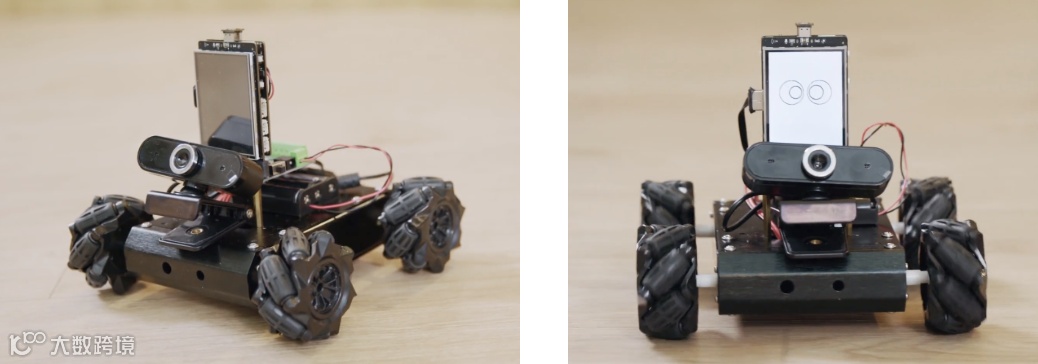


1.  行空板介绍

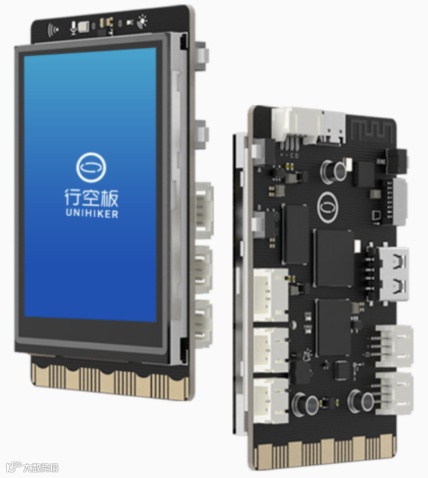
首先介绍一下行空板。它是一款专为Python学习和使用设计的单板微型计算机。这意味着只要你的手机、电脑、平板等设备能够与行空板在同一个网络中,就能通过网络访问它。行空板不仅集成了LCD彩屏,让你可以直观地查看数据,还具备WiFi和蓝牙功能,方便与其他设备连接和交互。此外,行空板还内置了各种常用传感器,可以感知周围的环境。


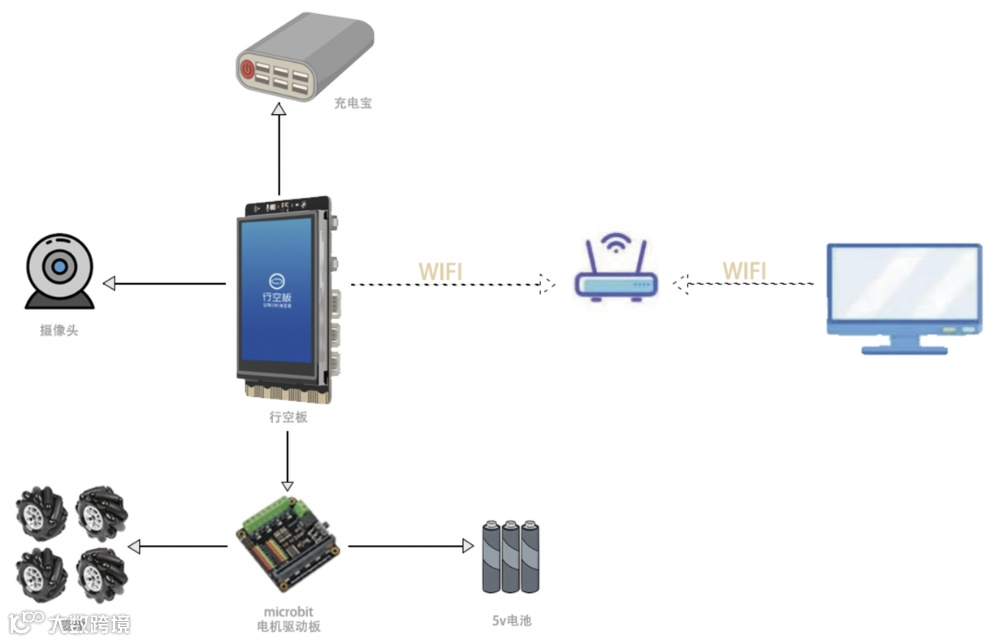
行空板因为具有WiFI可以无线调试,可以通过GPIO控制电机驱动,同时有屏幕可以显示状态,因此适合作为本项目的主控。


2. 麦轮介绍

可以全向运动的麦克纳姆轮(Mecanum Wheel),可以实现在狭小空间内,进行灵活转向移动的功能。相较于普通车轮需要车轴与复杂机械结构来实现特定方向的旋转,麦克纳姆轮却可以在任意方向自由旋转,无需任何附加装置,实现前行、横移、斜行、旋转。产生的合力保证了这个平台在最终的自由地移动,而不改变小车自身的方向。
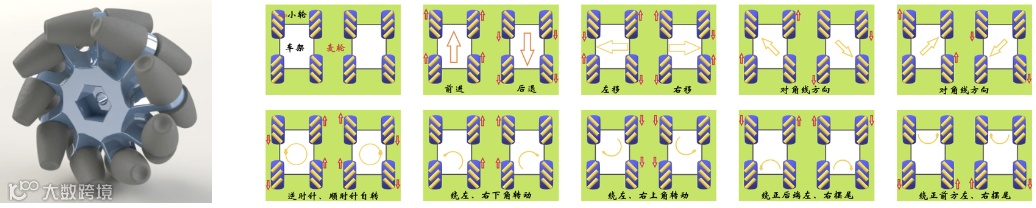


更多驱动原理可跳转至:行空、掌控和麦轮十八法:https://mc.dfrobot.com.cn/thread-315270-1-1.html


3. OpenCV介绍

OpenCV(Open Source Computer Vision Library)是一个开源的计算机视觉库,由一系列 C 函数和少量 C++ 类构成,同时提供了Python、Ruby、MATLAB等语言的接口,实现了图像处理和计算机视觉方面的很多通用算法。其中包含了人脸识别的功能。可以通过训练模型进行视觉图像的识别,包括输出人脸和位置,就是本次项目中会用到的实现追踪效果的视觉算法。



4. 硬件选型
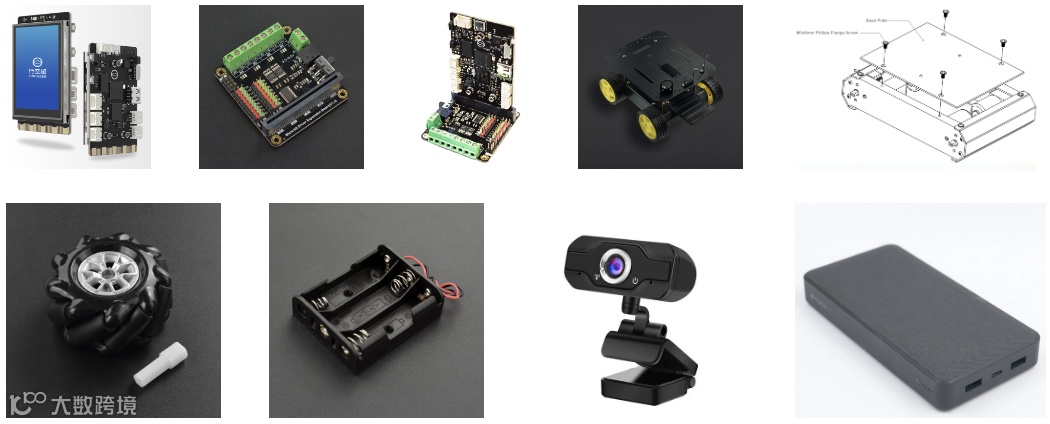


材料清单


5. 硬件连接


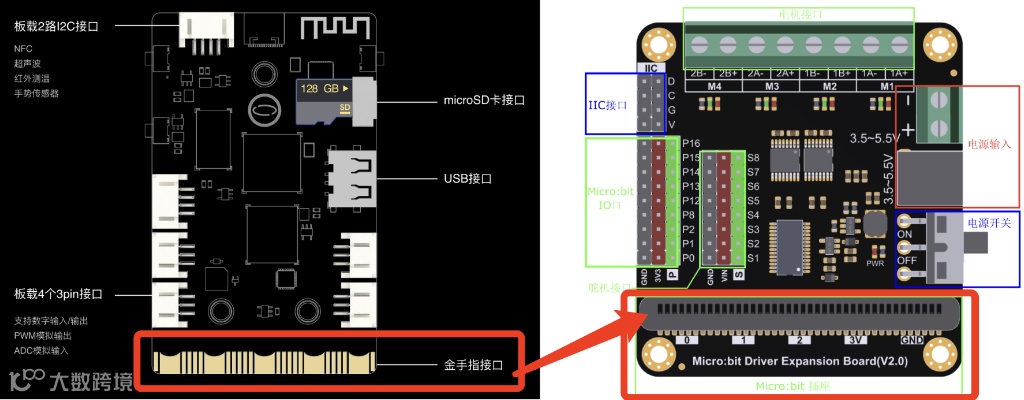
  • 将行空板的金手指插入microbit扩展板的扩展插槽内。


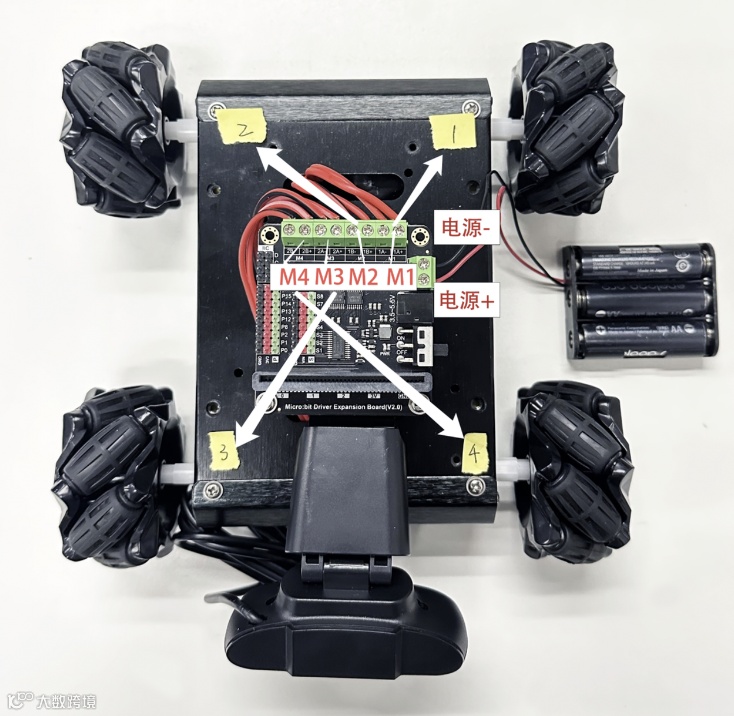
  • 按图示将四个麦轮连接到microbit电机驱动板上,并安装三节AA电池供电。

  • 麦轮安装的时候需要保持x型的组合方式。


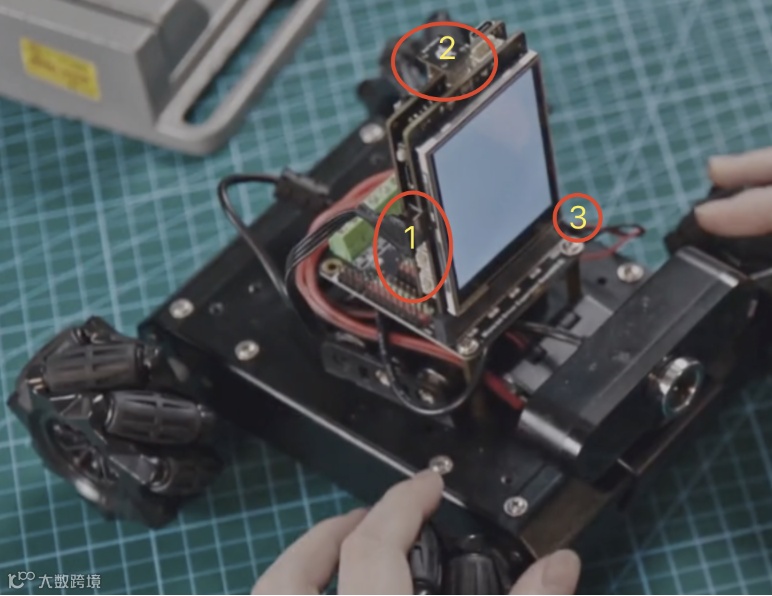
运行程序前,确定已做以下三个步骤,否则程序上传会出现报错。

  • 确定摄像头的usb插好。

  • 确定行空板已单独供电。

  • 确定将电机驱动版的电源开关打开。


二. 远程调试行空板


下面遇到了调试这个关键的问题,当小车需要实时在地上跑动进行调试时,拖着一根数据线总是不是很优雅。远程上传调试功能显得尤为重要。行空板的wifi功能可以满足这一点!


行空板可以连接Wi-Fi实现无线编程,首先需要将行空板连接到与电脑连接的同一个WiFi下,有两种配网方法。


1. 配置方法一:USB连接电脑有线配网


1.1 使用USB线连接行空板到电脑时,行空板会虚拟为一个RNDIS网卡设备,此时板子IP地址固定为‘10.1.2.3’。
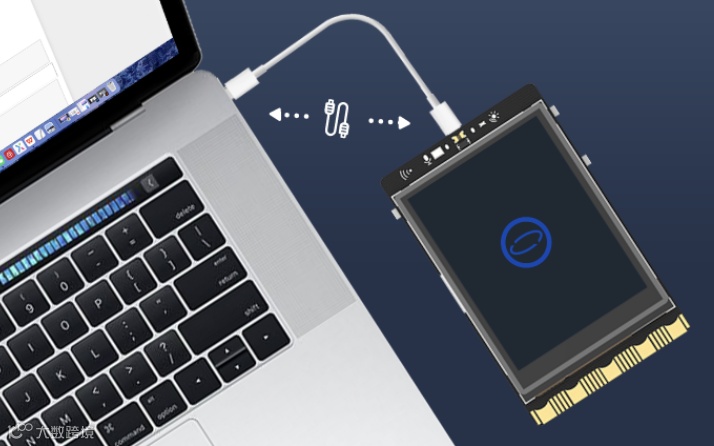


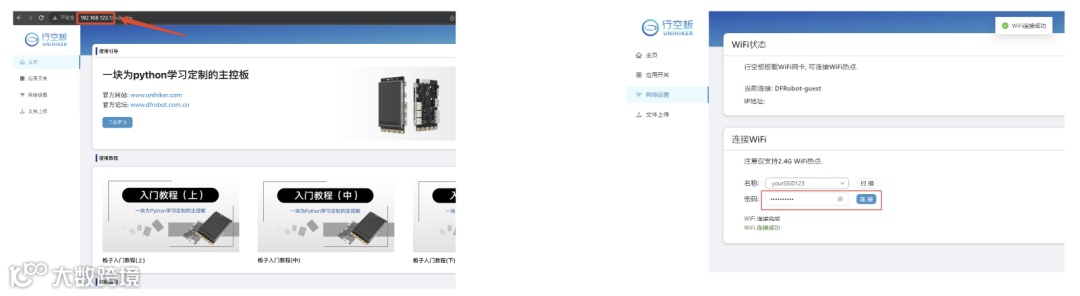
1.2 将行空板连接局域网wifi:在浏览器中输入行空板ip:10.1.2.3。点击网络设置,输入需要连接的wifi(注意需要使用2.4G Wi-Fi)。然后电脑连接同一个热点,输入行空板的IP即可开始编程。


2. 配置方法二:使用行空板热点模式无线配网

2.1 首先开启行空板的无线热点
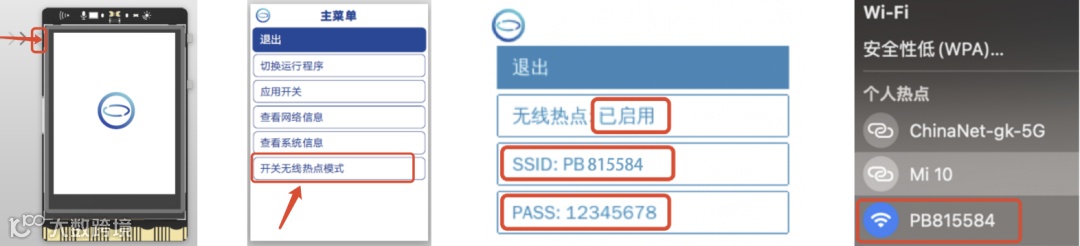


按home键进入主菜单,打开‘开关无线热点模式’,查看ssid(热点名称)和pass(热点密码)


使用可以连接wifi的电脑或手机连接到行空板的热点。


2.2 长按Home按键进入行空板板载菜单,其中查看网络信息页面可以看到行空板作为无线热点的时候IP地址固定是192.168.123.1
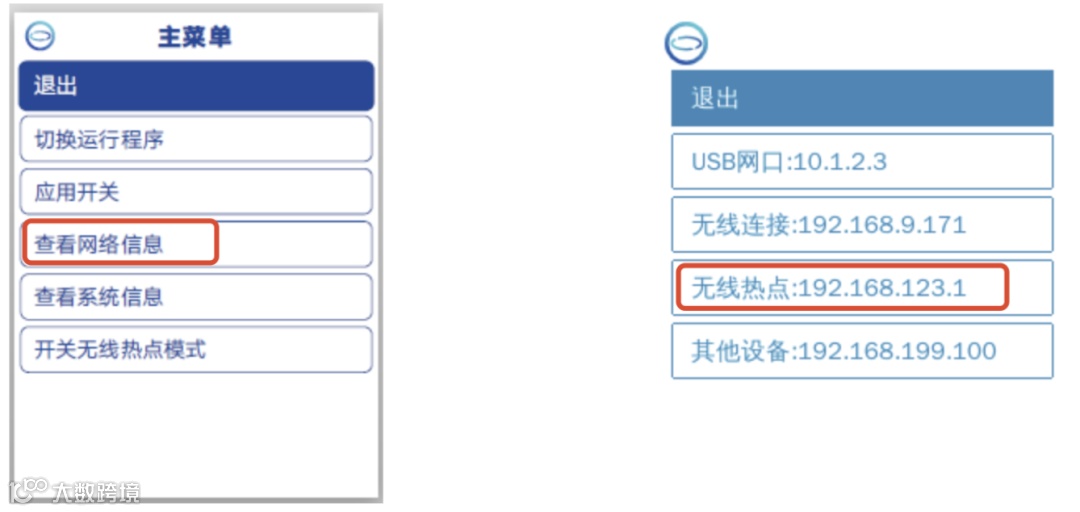


2.3 将行空板连接局域网wifi:在浏览器中输入行空板ip:192.168.123.1。点击网络设置,选择需要连接的wifi(注意需要使用2.4G Wi-Fi),输入密码连接成功。然后电脑连接同一个热点,输入板子的IP即可开始编程。
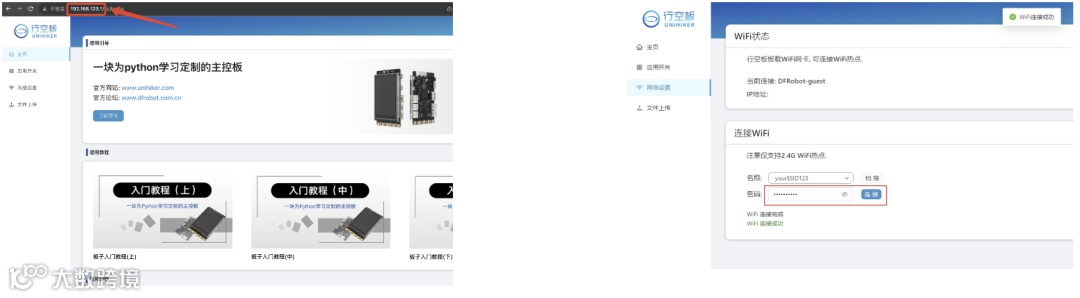


到现在配置行空板远程调试的功能就完成啦!


三. 编写Python代码


1. 编程平台:使用mind+或vscode编写代码。


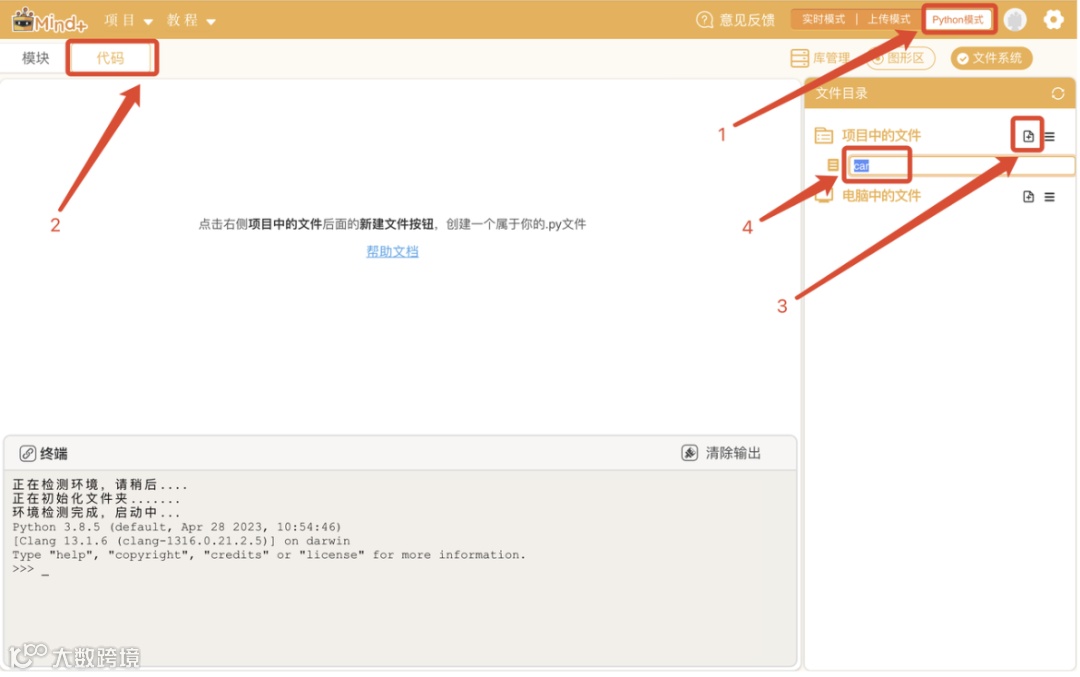
mind+:进入‘Python模式’和‘代码’区域。新建文件并命名,点击“终端”按钮,然后“连接远程终端”,输入一步行空板配网得到的IP地址即可。


详细教程:行空板官方文档-Mind+使用教程:https://www.unihiker.com.cn/wiki/mindplus


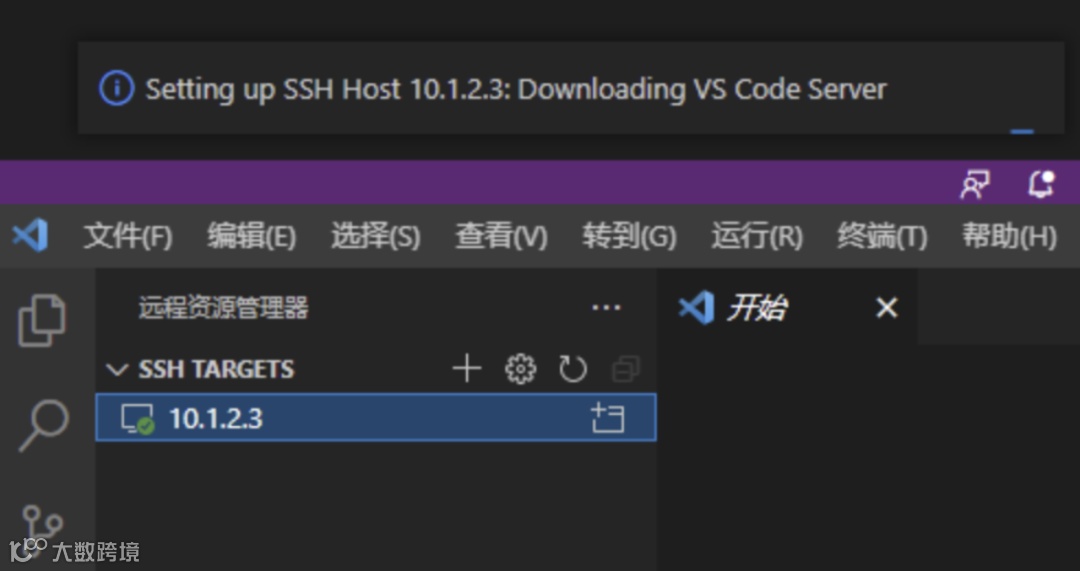
vscode:安装Remote和python插件,输入上一步行空板配网得到的IP地址即可,通过SSH方式远程连接行空板编程。


详细教程:行空板官方文档-VScode连接:https://www.unihiker.com.cn/wiki/vscode


2. 代码逻辑与编写

使用OpenCV库识别人脸并计算出在所处画面的位置,当位置小于20或大于80时,驱动麦轮向左转或向右转达到追踪转向的效果。
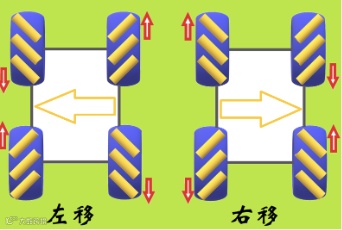


如上图驱动原理所示,麦轮追踪人脸向左或向右转的驱动逻辑:


当摄像头左侧识别到人时,小车向右转动(面对人的视角)-- M1 & M2顺时针转动,M3 & M4逆时针转动。


当摄像头右侧识别到人时,小车向左转动(面对人的视角)-- M1 & M2逆时针转动,M3 & M4顺时针转动。


步骤1 导入opencv、pingpong库,初始化行空板和四个麦轮电机


代码:

import cv2

from pinpong.libs.microbit_motor import DFMotor

from pinpong.board import Board

import time

Board("unihiker").begin()

# Initialize motors

p_dfr0548_motor_one = DFMotor(1)

p_dfr0548_motor_two = DFMotor(2)

p_dfr0548_motor_three = DFMotor(3)

p_dfr0548_motor_four = DFMotor(4)


步骤2 设定转向功能

  • ccw表示逆时针方向(Counter Clockwise Direction)

  • cw表示顺时针方向(Clockwise Direction)

  • 向左转:M1 & M2顺时针转动,M3 & M4逆时针转动。


代码: 

def Left():    

# Set motor speeds and directions to turn left    

p_dfr0548_motor_one.speed(180)    

p_dfr0548_motor_one.run(p_dfr0548_motor_one.CCW)    

p_dfr0548_motor_two.speed(180)    

p_dfr0548_motor_two.run(p_dfr0548_motor_two.CCW)    

p_dfr0548_motor_three.speed(180)    

p_dfr0548_motor_three.run(p_dfr0548_motor_three.CW)    

p_dfr0548_motor_four.speed(180)    

p_dfr0548_motor_four.run(p_dfr0548_motor_four.CW)    


向右转:M1 & M2逆时针转动,M3 & M4顺时针转动。


代码:

def Right():

    # Set motor speeds and directions to turn right

    p_dfr0548_motor_one.speed(180)

    p_dfr0548_motor_one.run(p_dfr0548_motor_one.CW)

    p_dfr0548_motor_two.speed(180)

    p_dfr0548_motor_two.run(p_dfr0548_motor_two.CW)

    p_dfr0548_motor_three.speed(180)

    p_dfr0548_motor_three.run(p_dfr0548_motor_three.CCW)

    p_dfr0548_motor_four.speed(180)

    p_dfr0548_motor_four.run(p_dfr0548_motor_four.CCW)


未检测到:M1 & M2 & M3 & M4停止。


代码:

def Stop():

    # Stop all motors

    p_dfr0548_motor_one.stop()

    p_dfr0548_motor_two.stop()

    p_dfr0548_motor_three.stop()

    p_dfr0548_motor_four.stop()


步骤3 加载人脸识别的分类模型,并加载摄像机

  • casecade.load(cv2.data.haarcascades + "haarcascade_frontalface_default.xml"),加载opencv人脸识别模型

  •  cap = cv2.VideoCapture(0) 打开默认的摄像头

代码:

casecade = cv2.CascadeClassifier()

casecade.load(cv2.data.haarcascades  "haarcascade_frontalface_default.xml")


cap = cv2.VideoCapture(0)

while not (cap.isOpened()):

    print("Camera not found")

    time.sleep(1)


步骤4 设定摄像机参数


代码:

cap.set(cv2.CAP_PROP_FRAME_WIDTH, 320)

cap.set(cv2.CAP_PROP_FRAME_HEIGHT, 240)

cap.set(cv2.CAP_PROP_BUFFERSIZE, 1)

cv2.namedWindow('camera',cv2.WND_PROP_FULLSCREEN)    

cv2.setWindowProperty('camera', cv2.WND_PROP_FULLSCREEN, cv2.WINDOW_FULLSCREEN)


步骤5 循环判断功能逻辑编写


打开摄像头获取视频流。---> 循环读取每一帧,进行人脸检测。---> 如果没有检测到人脸,停止小车。---> 如果检测到人脸,获取人脸位置,画出矩形框。---> 根据人脸在画面中的位置,如果横轴x<20小车需要向左转, 如果横轴x>80小车向右转,否则停止。---> 显示画面并判断是否退出循环。


  • cap.read(),读取当前帧图像到img。

  •  cv2.flip,翻转图像,使其左右镜像。

  •  img = cv2.resize(img, (240, 320)), 裁剪图像到240*320的比例。

  • cv2.rectangle(img, (x,y), (x+w,y+h), (255,0,0), 2, cv2.FILLED) ,  在img图像上以(x,y)和(x+w,y+h)为对角顶点绘制一个蓝色线条宽度为2的矩形框,并填充这个矩形。

  • cv2.putText(img, str(x), (100, 30), cv2.FONT_HERSHEY_SIMPLEX, 0.8, (0, 255, 0) , 1) ,在img图像上的(100,30)坐标位置,使用SIMPLEX字体、0.8倍缩放比例、绿色、线宽为1绘制字符串内容str(x)。

代码: 

while True:

    # Read frame from the camera

    success, img = cap.read()

    img = cv2.flip(img, 1)

    if success:

        h, w, c = img.shape 

        w1 = h*240//320 # change the height to fit the render image

        x1 = (w-w1)//2 # midpoint of width without resizing

        img = img[:, x1:x1+w1] # crop into the center 

        img = cv2.resize(img, (240, 320)) # resize according to the screen keeping the aspect ratio 

        outImg = cv2.cvtColor(img, cv2.COLOR_BGR2GRAY)

        poss = casecade.detectMultiScale(outImg, 1.5, 3)

        print(poss)

        if len(poss) == 0:

            Stop()

        else:

            for pos in poss:

                x = pos[0]

                y = pos[1]

                w = pos[2]

                h = pos[3]

                cv2.rectangle(img, (x,y), (x+w,y+h), (255,0,0), 2, cv2.FILLED)


                cv2.putText(img, str(x), (100, 30), cv2.FONT_HERSHEY_SIMPLEX, 0.8, (0, 255, 0) , 1)


                if x < 20:

                    Left()

                    print("car left")

                    time.sleep(0.01)

                elif x > 80:

                    Right()

                    print("car right")

                    time.sleep(0.01)

                else:

                    Stop()

        # show the window

        cv2.imshow("camera", img)

        if cv2.waitKey(10) & 0xff== ord('a'):

            break


步骤6 最后关闭摄像头,停止电机


代码: 

Stop()

cap.release() 

cv2.destroyAllWindows() 


完整代码


代码:

#coding:utf-8

# 功能:追踪人脸平移的麦轮小车

# 硬件:行空板、DFR0548电机驱动、FIT0701摄像头、ROB0003海盗船四轮平台+60mm麦轮FIT0765、FIT0619三节5号电池盒、移动电源


import cv2

from pinpong.libs.microbit_motor import DFMotor

from pinpong.board import Board

import time


Board("unihiker").begin()


# Initialize motors

p_dfr0548_motor_one = DFMotor(1)

p_dfr0548_motor_two = DFMotor(2)

p_dfr0548_motor_three = DFMotor(3)

p_dfr0548_motor_four = DFMotor(4)


def Left():

    # Set motor speeds and directions to turn left

    p_dfr0548_motor_one.speed(180)

    p_dfr0548_motor_one.run(p_dfr0548_motor_one.CCW)

    p_dfr0548_motor_two.speed(180)

    p_dfr0548_motor_two.run(p_dfr0548_motor_two.CCW)

    p_dfr0548_motor_three.speed(180)

    p_dfr0548_motor_three.run(p_dfr0548_motor_three.CW)

    p_dfr0548_motor_four.speed(180)

    p_dfr0548_motor_four.run(p_dfr0548_motor_four.CW)


def Right():

    # Set motor speeds and directions to turn right

    p_dfr0548_motor_one.speed(180)

    p_dfr0548_motor_one.run(p_dfr0548_motor_one.CW)

    p_dfr0548_motor_two.speed(180)

    p_dfr0548_motor_two.run(p_dfr0548_motor_two.CW)

    p_dfr0548_motor_three.speed(180)

    p_dfr0548_motor_three.run(p_dfr0548_motor_three.CCW)

    p_dfr0548_motor_four.speed(180)

    p_dfr0548_motor_four.run(p_dfr0548_motor_four.CCW)


def Stop():

    # Stop all motors

    p_dfr0548_motor_one.stop()

    p_dfr0548_motor_two.stop()

    p_dfr0548_motor_three.stop()

    p_dfr0548_motor_four.stop()


# Load the face cascade classifier

casecade = cv2.CascadeClassifier()

casecade.load(cv2.data.haarcascades + "haarcascade_frontalface_default.xml")


# Initialize the camera

cap = cv2.VideoCapture(0)

while not (cap.isOpened()):

    print("Camera not found")

    time.sleep(1)


# Set camera properties

cap.set(cv2.CAP_PROP_FRAME_WIDTH, 320)

cap.set(cv2.CAP_PROP_FRAME_HEIGHT, 240)

cap.set(cv2.CAP_PROP_BUFFERSIZE, 1)

cv2.namedWindow('camera',cv2.WND_PROP_FULLSCREEN)    

cv2.setWindowProperty('camera', cv2.WND_PROP_FULLSCREEN, cv2.WINDOW_FULLSCREEN)   


while True:

    # Read frame from the camera

    success, img = cap.read()

    img = cv2.flip(img, 1)

    if success:

        h, w, c = img.shape 

        w1 = h*240//320 # change the height to fit the render image

        x1 = (w-w1)//2 # midpoint of width without resizing

        img = img[:, x1:x1+w1] # crop into the center 

        img = cv2.resize(img, (240, 320)) # resize according to the screen keeping the aspect ratio 

        outImg = cv2.cvtColor(img, cv2.COLOR_BGR2GRAY)

        poss = casecade.detectMultiScale(outImg, 1.5, 3)

        print(poss)

        if len(poss) == 0:

            Stop()

        else:

            for pos in poss:

                x = pos[0]

                y = pos[1]

                w = pos[2]

                h = pos[3]

                cv2.rectangle(img, (x,y), (x+w,y+h), (255,0,0), 2, cv2.FILLED)


                cv2.putText(img, str(x), (100, 30), cv2.FONT_HERSHEY_SIMPLEX, 0.8, (0, 255, 0) , 1)


                if x < 20:

                    Left()

                    print("car left")

                    time.sleep(0.01)

                elif x > 80:

                    Right()

                    print("car right")

                    time.sleep(0.01)

                else:

                    Stop()

        # show the window

        cv2.imshow("camera", img)

        if cv2.waitKey(10) & 0xff== ord('a'):

            break


# Stop motors and release the camera

Stop()

cap.release() 

cv2.destroyAllWindows() 


3. 情绪表情显示模式

如果我把移动平台想象成一个情感上独立的实体与我互动,那么相机图像就可以用它自己的“面部表情”代替。当我检测到我的位置不同时,它会向左或向右转动,同时触发不同的表情。通过拟人化,它成为一个能够表达其内部状态的反应灵敏的伴侣,而不仅仅是一个带有摄像头的小车。这使得交互更加自然和有吸引力。
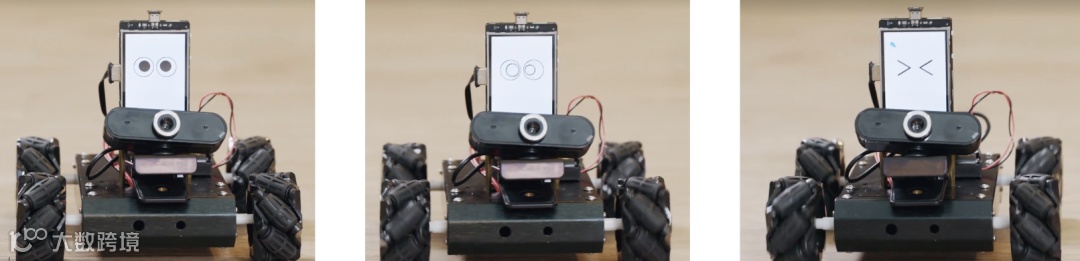


3.1 调整思路

要达到这个目的,需要将屏幕显示的内容从opencv的窗口显示换成unihiker的GUI表情显示,因此需要修改代码这几个地方:


(1)去除opencv窗口相关的部分代码


代码:

#窗口全屏的代码

#cv2.namedWindow('camera',cv2.WND_PROP_FULLSCREEN)    

#cv2.setWindowProperty('camera', cv2.WND_PROP_FULLSCREEN, cv2.WINDOW_FULLSCREEN)


#在图片上显示人脸框以及实时位置坐标的代码

#cv2.rectangle(img, (x,y), (x+w,y+h), (255,0,0), 2, cv2.FILLED)

#cv2.putText(img, str(x), (100, 30), cv2.FONT_HERSHEY_SIMPLEX, 0.8, (0, 255, 0) , 1)


#将窗口显示到屏幕的代码

#cv2.imshow("camera", img)


(2)增加uinihiker库的GUI初始化代码


代码:

from unihiker import GUI

u_gui=GUI()


(3)增加屏幕表情显示的初始化代码,并在需要进行动作的地方加上表情切换显示的代码


  • 表情初始化

  • 切换表情 

代码:

emj=u_gui.draw_emoji(emoji="Smile",x=0,y=0,duration=0.2)   


emj.config(emoji="Peace")

emj.config(emoji="shock")

emj.config(emoji="Nerve")


(4)由于去掉了摄像头画面和人脸框的显示,因此还需要增加一个标志用来提示当前摄像头识别的位置,这里在屏幕最底下用一根可变位置的横线来表示
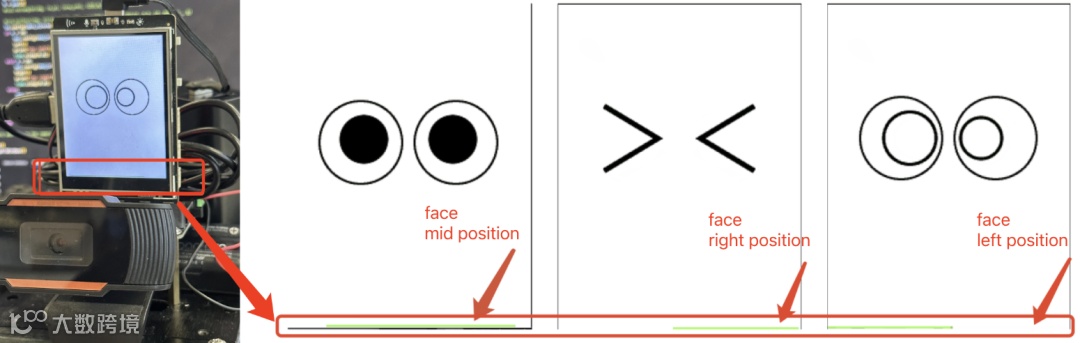


  • 横线初始化

  • 更新横线的位置


代码:

#显示到屏幕最底下,不影响画面显示

ln=u_gui.draw_line(x0=0, y0=318, x1=0, y1=318, width=2, color=(122,222,44))


#更新横线的起点和终点坐标为识别框的宽度

ln.config(x0=x,x1=x+w)


3.2 情绪显示模式完整代码


代码:

#coding:utf-8


import cv2

from pinpong.libs.microbit_motor import DFMotor

from pinpong.board import Board

import time


Board("unihiker").begin()


# Initialize motors

p_dfr0548_motor_one = DFMotor(1)

p_dfr0548_motor_two = DFMotor(2)

p_dfr0548_motor_three = DFMotor(3)

p_dfr0548_motor_four = DFMotor(4)


def Left():

    # Set motor speeds and directions to turn left

    p_dfr0548_motor_one.speed(180)

    p_dfr0548_motor_one.run(p_dfr0548_motor_one.CCW)

    p_dfr0548_motor_two.speed(180)

    p_dfr0548_motor_two.run(p_dfr0548_motor_two.CCW)

    p_dfr0548_motor_three.speed(180)

    p_dfr0548_motor_three.run(p_dfr0548_motor_three.CW)

    p_dfr0548_motor_four.speed(180)

    p_dfr0548_motor_four.run(p_dfr0548_motor_four.CW)


def Right():

    # Set motor speeds and directions to turn right

    p_dfr0548_motor_one.speed(180)

    p_dfr0548_motor_one.run(p_dfr0548_motor_one.CW)

    p_dfr0548_motor_two.speed(180)

    p_dfr0548_motor_two.run(p_dfr0548_motor_two.CW)

    p_dfr0548_motor_three.speed(180)

    p_dfr0548_motor_three.run(p_dfr0548_motor_three.CCW)

    p_dfr0548_motor_four.speed(180)

    p_dfr0548_motor_four.run(p_dfr0548_motor_four.CCW)


def Stop():

    # Stop all motors

    p_dfr0548_motor_one.stop()

    p_dfr0548_motor_two.stop()

    p_dfr0548_motor_three.stop()

    p_dfr0548_motor_four.stop()


# Load the face cascade classifier

casecade = cv2.CascadeClassifier()

casecade.load(cv2.data.haarcascades + "haarcascade_frontalface_default.xml")


# Initialize the camera

cap = cv2.VideoCapture(0)

while not (cap.isOpened()):

    print("Camera not found")

    time.sleep(1)


# Set camera properties

cap.set(cv2.CAP_PROP_FRAME_WIDTH, 320)

cap.set(cv2.CAP_PROP_FRAME_HEIGHT, 240)

cap.set(cv2.CAP_PROP_BUFFERSIZE, 1)

#cv2.namedWindow('camera',cv2.WND_PROP_FULLSCREEN)    

#cv2.setWindowProperty('camera', cv2.WND_PROP_FULLSCREEN, cv2.WINDOW_FULLSCREEN)   


# show emoji and line

from unihiker import GUI


u_gui=GUI()

ln=u_gui.draw_line(x0=0, y0=318, x1=0, y1=318, width=2, color=(122,222,44))

emj=u_gui.draw_emoji(emoji="Smile",x=0,y=0,duration=0.2)


while True:

    # Read frame from the camera

    success, img = cap.read()

    img = cv2.flip(img, 1)

    if success:

        h, w, c = img.shape 

        w1 = h*240//320 # change the height to fit the render image

        x1 = (w-w1)//2 # midpoint of width without resizing

        img = img[:, x1:x1+w1] # crop into the center 

        img = cv2.resize(img, (240, 320)) # resize according to the screen keeping the aspect ratio 

        outImg = cv2.cvtColor(img, cv2.COLOR_BGR2GRAY)

        poss = casecade.detectMultiScale(outImg, 1.5, 3)

        print(poss)

        if len(poss) == 0:

            emj.config(emoji="Peace")

            ln.config(x0=0,x1=0)

            Stop()

        else:

            for pos in poss:

                x = pos[0]

                y = pos[1]

                w = pos[2]

                h = pos[3]

                #cv2.rectangle(img, (x,y), (x+w,y+h), (255,0,0), 2, cv2.FILLED)


                #cv2.putText(img, str(x), (100, 30), cv2.FONT_HERSHEY_SIMPLEX, 0.8, (0, 255, 0) , 1)

                ln.config(x0=x,x1=x+w)

                if x < 20:

                    emj.config(emoji="shock")

                    Left()

                    print("car left")

                    time.sleep(0.01)

                elif x > 80:

                    emj.config(emoji="Nerve")

                    Right()

                    print("car right")

                    time.sleep(0.01)

                else:

                    emj.config(emoji="Peace")

                    Stop()

        # show the window

        #cv2.imshow("camera", img)

        if cv2.waitKey(10) & 0xff== ord('a'):

            break


# Stop motors and release the camera

Stop()

cap.release() 

cv2.destroyAllWindows() 


由行空板、麦克纳姆轮和OpenCV组成的应用,展现了远程无线控制和计算机视觉的强大潜力,我们可以做更多创意应用打造出各种智能、交互式的机器人和系统。在不久的将来,这种将控制、视觉和网络融为一体的系统可能会应用在更多领域中,改善我们的生活和工作。可以期待行空板和更多技术结合带来的无限可能!


往期推荐

用行空板自制桌面盖革计数器—实时核辐射监测

【成长营】从0到1,科创教育成长计划正式开始啦!

【通知】云雀气象仪上线开卖啦!

【零基础上手视频剪辑技能】14-添加背景音乐

【云雀气象仪基础应用教程】第二课:气象数据采集与存储

【零基础上手视频剪辑技能】13-添加基础音乐

【云雀气象仪基础应用教程】第一课:气象数据实时观测

【零基础上手视频剪辑技能】12-添加功能贴纸

【科学探究】空气质量跟踪与分析


【声明】内容源于网络
0
0
蘑菇云创造
蘑菇云是DFRobot旗下专注于AI人工智能、创客、STEAM、劳动教育的科技创新教育品牌;以为中国培养下一代科技创新人才为使命,为学校提供k12全龄段科技创新教育解决方案。
内容 969
粉丝 0
蘑菇云创造 蘑菇云是DFRobot旗下专注于AI人工智能、创客、STEAM、劳动教育的科技创新教育品牌;以为中国培养下一代科技创新人才为使命,为学校提供k12全龄段科技创新教育解决方案。
总阅读1.4k
粉丝0
内容969