


点击 蘑菇云创造,关注我们
Python程序员在对Arduino进行编程时面临的第一个挑战是语言不同。Arduino IDE使用受C和C++启发的语言。事实上,像Arduino这样的平台可以很好地与Python配合使用,特别是对于需要与传感器和其他物理设备集成的应用程序。如果您已经了解Python的基础知识,那么您将能够通过使用Python来控制Arduino来开始使用它。
本教程的主要目标是向您展示如何通过PinPong库使用Python与Arduino进行通信,以开发您自己的电子项目。
为什么是PinPong库?
PinPong库是一个用于控制开源硬件开发板的Python库。它基于Firmata协议并兼容MicroPython语法。通过PinPong库,您可以使用Python代码来控制各种常见的开源硬件设备。其基本原理是将特定的固件刷新到硬件板上,使板与计算机之间能够通过串行通信来执行各种命令。
PinPong库的名称由“Pin”和“Pong”组成。“Pin”指的是针,而“Pong”则源自经典游戏Pong,象征着信号的来回传输。
PinPong库的设计旨在让开发者在开发过程中摆脱特定硬件型号的限制,让他们专注于软件实现。即使您最初使用Arduino开发程序,也可以通过修改硬件参数轻松切换到其他兼容板,例如PinPong板。
PinPong库的主要特点
高灵活性:支持Arduin 板,包括Uno、Leonardo、Mega2560、ESP32 板(如 HandPy)、micro:bit、Unihiker等。它还支持50+传感器,并将逐步支持其他开发板和扩展库。
与MicroPython的兼容性:MicroPython是Python编程语言的一种变体,广泛使用并以其简单性和可读性而闻名。通过与MicroPython兼容,PinPong简化了开发过程,并允许开发人员利用现有的Python知识来编程和控制其硬件。
如何安装PinPong库
在安装PinPong库之前确认您的计算机上已安装Python 3。
在Windows上安装PinPong库
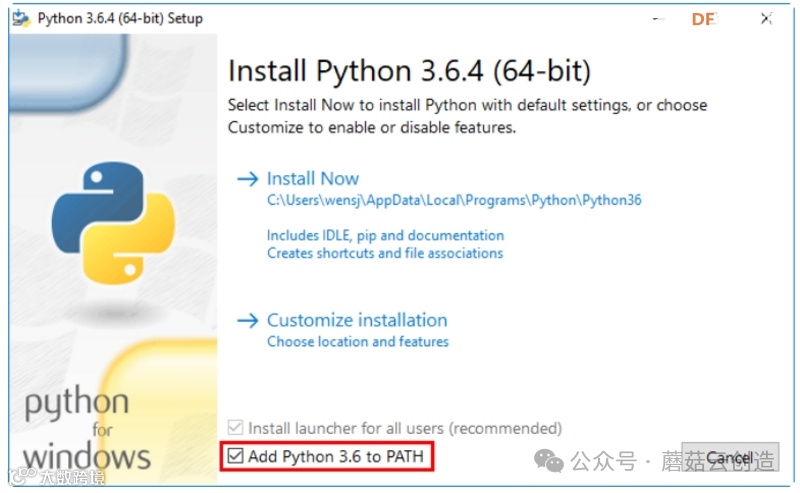
下载完成后,按照提示继续安装。注意安装过程的最后一步,勾选“Add to PATH”选项,将Python添加到系统的环境变量中。
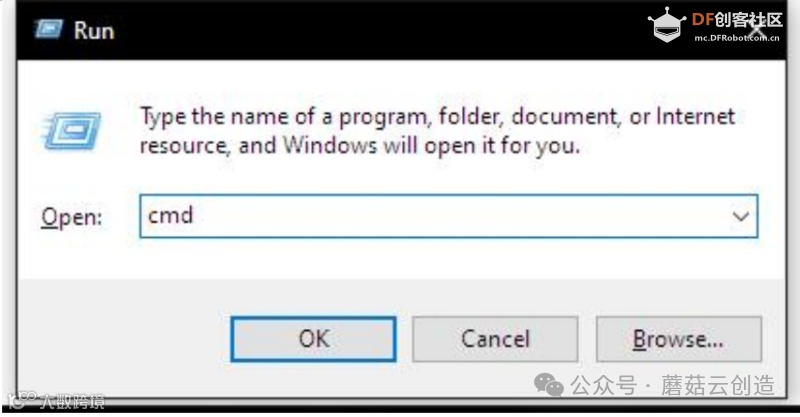
1.打开命令提示符
使用Win+R快捷键,输入“cmd”,然后按Enter。
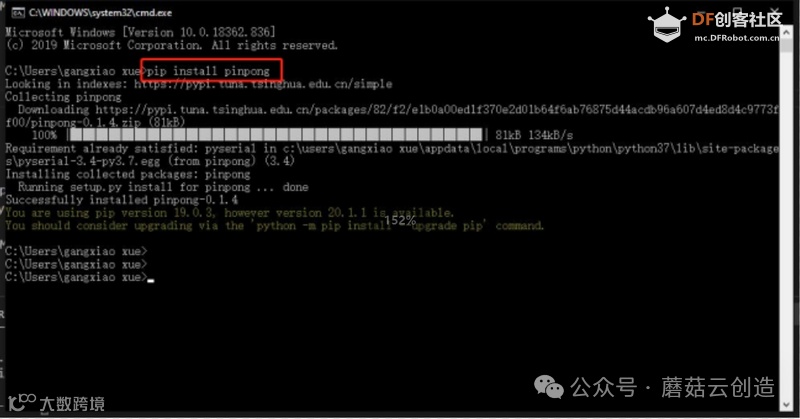
2.安装PinPong库
在命令提示符窗口中输入“pip install pinpong”,等待片刻安装完成。
3.信息查询
要获取当前版本信息、官方文档网站、库列表和端口号,请在“帮助命令”提示符中输入“pingpong”。
在Linux上安装PinPong库
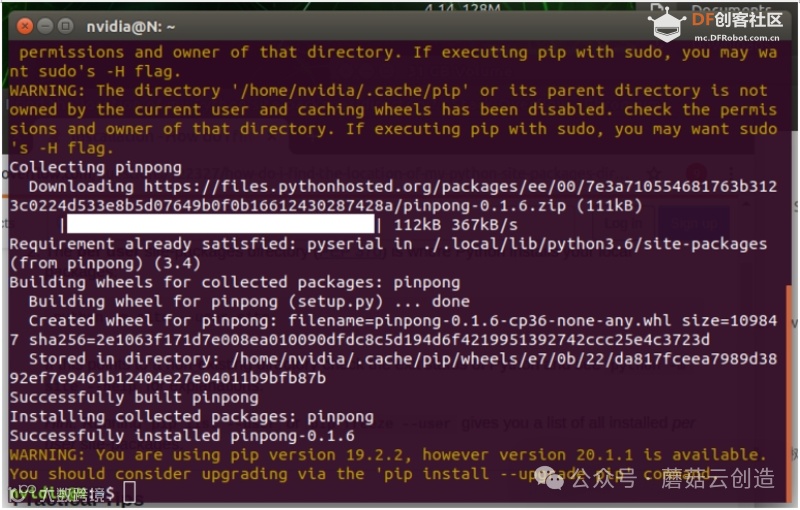
安装Python 3后,您可以通过在终端中输入“sudo pip install pinpong”来继续PinPong安装。
在Mac操作系统上安装PinPong库
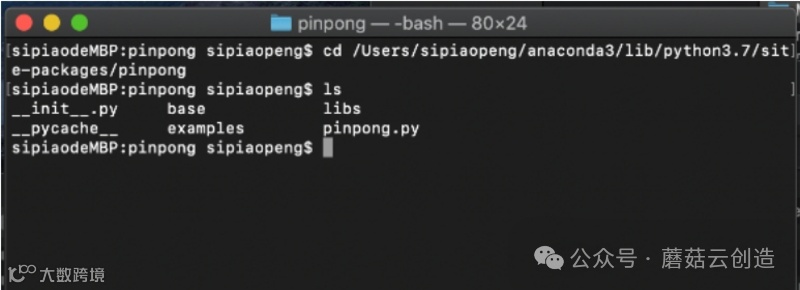
安装Python 3后,您可以按照以下步骤继续安装PinPong库:
1.打开任意Finder窗口,然后按Shift+Command+U。
2.双击“终端”应用程序。
3.在终端中,输入命令“sudo pip install pinpong”来安装PinPong库。
PinPong库的基本示例
必备的PinPong库示例,包括基础库示例、通用库示例和扩展库示例,对于初学者来说是必不可少的。这些示例可以帮助初学者理解和学习如何利用这些库来开发PinPong相关的应用程序或项目。
基本PinPong库示例:
这些示例程序可以帮助您快速验证模块的使用情况。将代码复制粘贴到Python编辑器中,根据您使用的板子型号修改板子初始化配置。基本库示例中的模块是通过Board库导入的。基本PinPong库包含以下项目。
示例:LED闪烁
将Arduino主控板连接到Windows或Linux计算机。控制Arduino UNO板载LED每秒闪烁一次。
-*- coding: UTF-8 -*-Experiment effect: Control the onboard LED of the Arduino UNO to blink once per secondConnection: Use a Windows or Linux computer to connect to an Arduino main control boardimport timefrom pinpong.board import Board, PinBoard("uno").begin() # Initialization, select board type (uno, microbit, RPi, handpy) and port number. If no port number is entered, automatic detection will be performedBoard("uno", "COM36").begin() # Initialization with specified port on WindowsBoard("uno", "/dev/ttyACM0").begin() # Initialization with specified port on LinuxBoard("uno", "/dev/cu.usbmodem14101").begin() # Initialization with specified port on Macledwhile True:led.write_digital(1) # Output high level Method 2print("1") # Print information in the terminaltime.sleep(1) # Wait for 1 second to maintain the stateled.write_digital(0) # Output low level Method 2print("0") # Print information in the terminaltime.sleep(1) # Wait for 1 second to maintain the state
还有其他可用的PinPong库示例,演示如何使用按钮控制Arduino UNO的板载LED、改变LED的亮度以及测试模拟引脚中断功能。欲了解更多详情,请访问:https://wiki.dfrobot.com/basic_library_examples
实用PinPong库示例:
公共库示例中的模块是通过板库导入的。
示例:控制伺服电机:
-*- coding: UTF-8 -*-Connection: Connect an Arduino main control board to a Windows or Linux computer, and connect a servo to D4import timefrom pinpong.board import Board,Pin,Servo # Import Servo libraryBoard("uno").begin() # Initialization, select the board type (uno, microbit, RPi, handpy) and port number. If no port number is entered, automatic recognition will be performed#Board("uno","COM36").begin() # Initialization by specifying the port under Windows#Board("uno","/dev/ttyACM0").begin() # Initialization by specifying the port under Linux#Board("uno","/dev/cu.usbmodem14101").begin() # Initialization by specifying the port under Macs1 = Servo(Pin(Pin.D4)) # Initialize the servo pin by passing Pin into Servowhile True:#s1.angle(0) # Control the servo to turn to the 0 degree position Method 1s1.write_angle(0) # Control the servo to turn to the 0 degree position Method 2print("0")time.sleep(1)#s1.angle(90) # Control the servo to turn to the 90 degree positions1.write_angle(90) # Control the servo to turn to the 90 degree position Method 2print("90")time.sleep(1)#s1.angle(180) # Control the servo to turn to the 180 degree positions1.write_angle(180) # Control the servo to turn to the 180 degree position Method 2print("180")time.sleep(1)#s1.angle(90) # Control the servo to turn to the 90 degree positions1.write_angle(90) # Control the servo to turn to the 90 degree position Method 2print("90")time.sleep(1)
除此之外,PinPong库中还有其他实用示例。这些示例包括控制蜂鸣器产生声音、从超声波传感器读取数据、从DHT传感器获取温度和湿度读数以及管理 WS2812单线RGB LED灯。有关更多详细信息,请参阅提供的链接。
https://wiki.dfrobot.com/common_library_examples
扩展PinPong库示例:
扩展库示例中的模块是通过libs库导入的。您可以通过终端输入“pinpong”查询支持的列表和使用方式。所有示例程序代码都可以在安装目录的“examples”文件夹中找到。
示例:颜色识别
将TCS34725颜色传感器连接到Arduino板的I2C引脚(SCL和SDA),该板已连接到Windows或Linux计算机。从I2C TCS34725颜色传感器检索颜色值。
-*- coding: UTF-8 -*-Experiment effect: Read the values of the I2C TCS34725 color sensorWiring: Connect an Arduino main control board to a Windows or Linux computer, and connect the TCS34725 color sensor to the I2C port SCL and SDAimport timefrom pinpong.board import Boardfrom pinpong.libs.dfrobot_tcs34725 import TCS34725 # Import the tcs34725 library from libsBoard("uno").begin() # Initialization, choose the board type (uno, leonardo, xugu) and port number. If the port number is not entered, automatic recognition will be performed#Board("uno","COM36").begin() # Initialization with specified port on Windows#Board("uno","/dev/ttyACM0").begin() # Initialization with specified port on Linux#Board("uno","/dev/cu.usbmodem14101").begin() # Initialization with specified port on Mactcs = TCS34725() # Sensor initializationprint("Color View Test!");while True:if tcs.begin(): # Look for the sensor, return True if foundprint("Found sensor")break # If found, break the loopelse:print("No TCS34725 found ... check your connections")time.sleep(1)while True:r,g,b,c = tcs.get_rgbc() # Get the RGBC dataprint(r,g,b,c)print("C=%d\tR=%d\tG=%d\tB=%d\t"%(c,r,g,b))'''# Data conversionr /= cg /= cb /= cr *= 256g *= 256b *= 256;print("------C=%d\tR=%d\tG=%d\tB=%d\t"%(c,r,g,b))'''time.sleep(1)
其他扩展PinPong库示例,例如从I2C TCS34725颜色传感器、I2C超声波传感器(URM09)、I2C MLX90614红外温度传感器读取值,以及使用I2C NFC模块读取卡信息,您可以访问下面的链接了解更多详细信息。
https://wiki.dfrobot.com/extended_library_examples
通过PinPong库使用Python进行Arduino项目
自动植物浇水系统
为了保证植物的健康生长,定期浇水是必要的。然而,我们经常忘记给植物浇水,这可能会导致植物枯萎。为了避免此类问题,我们可以设计一个自动植物浇水系统。
自动植物浇水系统的第一步
驱动继电器
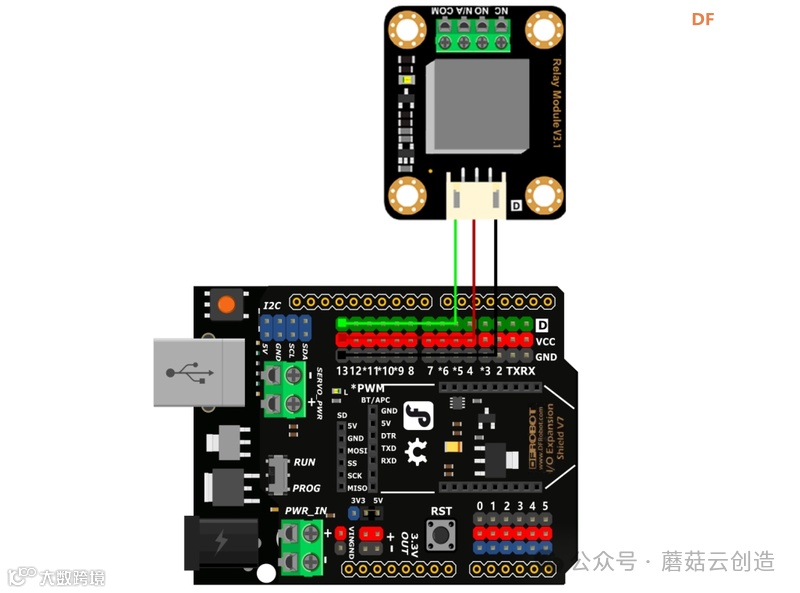
硬件设置:
·控制器:Arduino UNO、IO传感器扩展板V7.1
·模块:继电器模块
·连接:A 型至 B 型 USB 电缆
·将继电器连接到数字引脚 13
开始编码
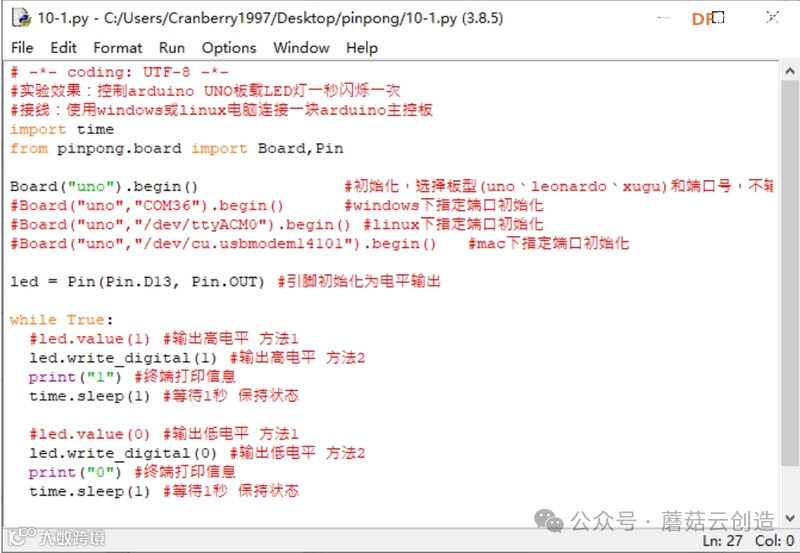
通过切换数字引脚的高电平和低电平状态来控制继电器。我们可以参考基础库官方文档中的“Digital Output”示例。运行该程序将使继电器在开关时发出咔哒声并伴随着LED的闪烁。
自动植物浇水系统的第二步
用继电器控制水泵
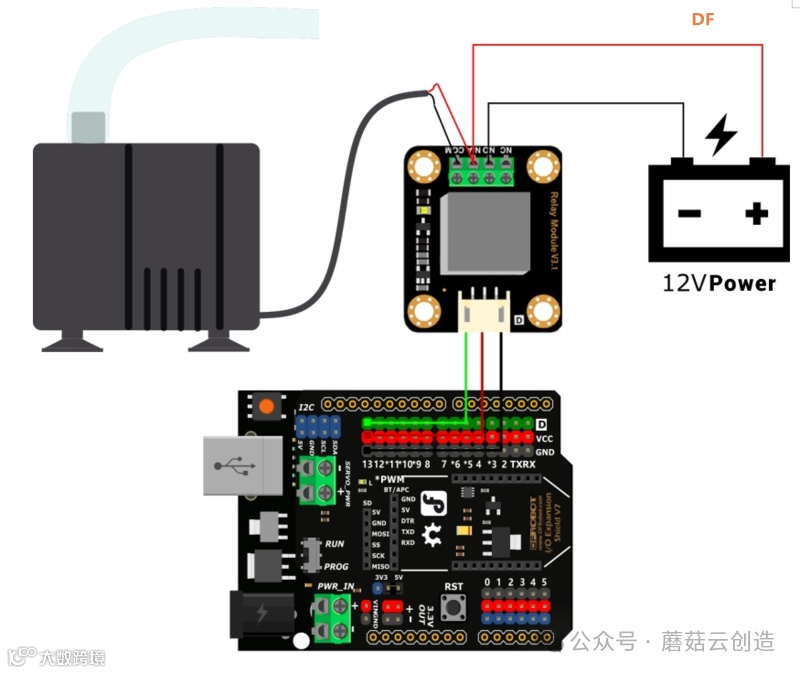
要实现浇水功能,我们需要用到水泵。然而,大多数水泵工作在12V,而Arduino UNO的输出电压为5V,不足以直接驱动水泵。这种情况下,我们就需要使用继电器来控制水泵。
硬件设置
·控制器:Arduino UNO、IO传感器扩展板V7.1
·模块:继电器模块、水泵、12V电源
·连接:A 型至 B 型 USB 电缆
·将继电器连接到数字引脚 13
·将水泵连接至继电器
开始编码
您可以使用time模块的time.strftime()函数来确定时间。在示例中,它将“浇水”设置为每天的15:30:10。实际使用时,可以相应添加继电器控制功能。

import timewhile True:time_now=time.strftime("%H:%M:%S,time.localtime())if time_now == "15:30:10":print("浇花")time.sleep(1)
添加继电器,实现每日定时浇水功能。
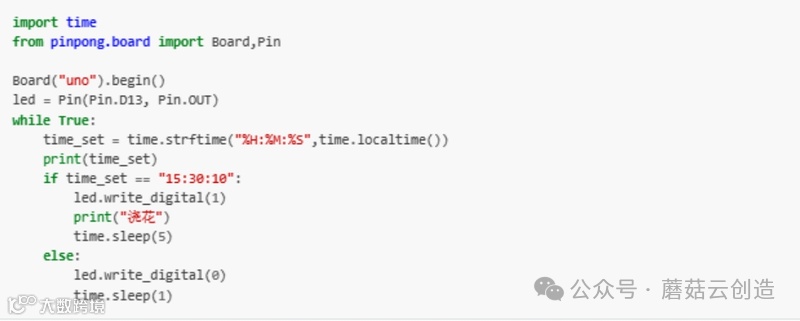
import timefrom pinpong.board import Board,PinBoard("uno").begin()led = Pin(Pin.D13, Pin.OUT)while True:time_set = time.strftime("%H:%M:%S",time.localtime())print(time_set)if time_set == "15:30:10":led.write_digital(1)print("浇花")time.sleep(5)else:led.write_digital(0)time.sleep(1)
结论:
PinPong库为Python开发人员提供了一种控制Arduino板的便捷方法。它简化了与Arduino的通信过程,使得使用Python编程语言控制Arduino变得更加容易和灵活。无论您是初学者还是经验丰富的开发人员,PinPong库都是构建各种物联网和嵌入式系统项目的宝贵工具。因此,如果您是一名希望探索Arduino世界的Python程序员,本教程将为您提供一个很好的起点。
往期推荐
[行空板+大模型]智能家居助手——GPT3.5 function calling控制硬件