


【点击上方「蓝字」关注DF创客社区,一起成为技术颜控】

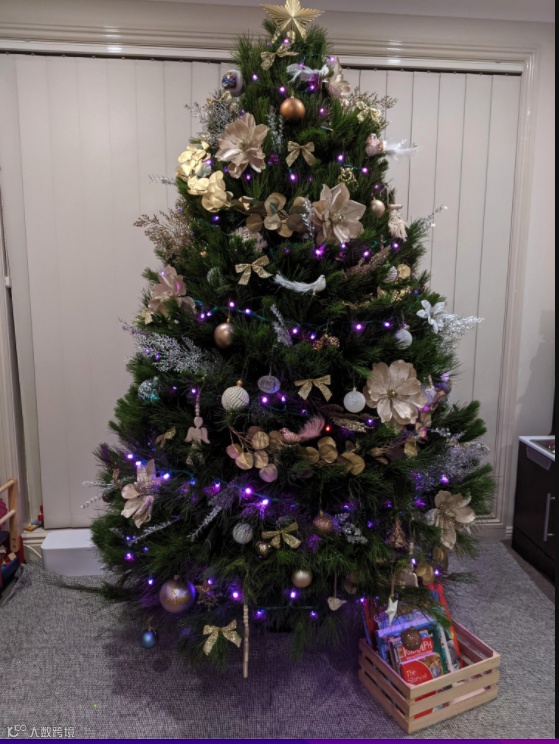
圣诞节马上就要临近了,大家有没有开始装扮圣诞树呢!
本期给大家带来一个用 NeoPixel 库点亮圣诞树的项目。项目非常的简单,即使你没有任何基础,也可以跟着教程搭建!
一棵盛装打扮的圣诞树绝对是节日的氛围担当!绿树银花,一杯热咖啡,在麋鹿和圣诞树的陪伴下,我们可以倒数着新年的钟声!愿所有美好如期而至,愿所有幸运不期而遇。
组件清单
-
树莓派 Zero V2 x 1 -
NeoPixel LED 灯条(5×50 规格) x 5 -
5v PSU x 1 -
绝缘胶带 x 1 -
电线盒 x 1
配置树莓派
1、配置树莓派、安装 Node-RED 和其他软件包。常规安装树莓派系统。
参考教程:安装树莓派系统[1]
2、运行以下命令安装 Node-RED
bash <(curl -sL https://raw.githubusercontent.com/node-red/linux-installers/master/deb/update-nodejs-and-nodered)
将 Node-RED 设置为启动时自动启动:
sudo systemctl enable nodered.service
3、运行以下命令安装 Unicorn HAT 驱动:
安装 Unicorn HAT 驱动[2]
该驱动将实现树莓派与 NeoPixels 库的连接:
curl -sS get.pimoroni.com/unicornhat | bash
安装 Unicorn HAT 后,它将会更改音频的设置并重启。
注意:如果上述命令因为权限而无法运行,请在命令前面添加sudo 并在出现提示时输入密码。
设置 Node-RED
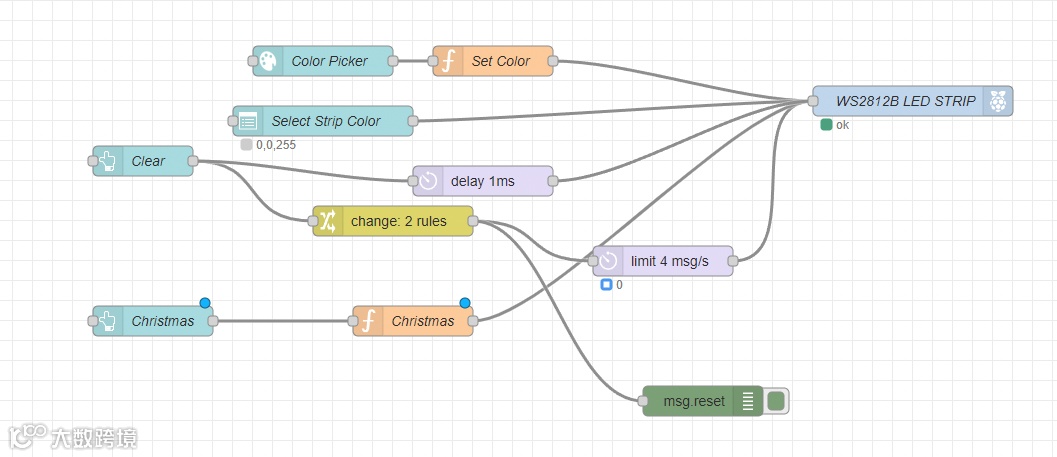
当树莓派配置好后,再设置 Node-RED 服务器。在树莓派上安装http://localhost:1880或在本地网络的计算机上搜索服务器。在另一台机器上浏览时请使用主机名或 IP 地址设置为http://<hostname>:1880。你可以通过在树莓派上运行hostname -I来找到 IP 地址。
我们需要添加几个模块,让 LED 灯点亮起来。
1、点击以下链接添加模块:
-
node-red-dashboard[3]
-
node-red-node-pi-neopixel[4]
2、如果你更喜欢通过命令行的方式来添加模块,可按照链接查找命令,并确保你位于正确的目录路径下,以便 Node-RED 可以找到它们。
3、通过导航到网页上的 UI 添加模块
单击右上角的Menu按钮 -> 选择Manage palett -> 选择Install -> 在搜索字段中输入node-red-dashboard-> 在最上面的选项上选择install -> 完成后,输入node-red-node-pi-neopixel-> 在唯一可用选项上选择install-> 最后,选择Close。
目前,Node-RED 已经拥有了运行 LED 和用户界面所需的所有模块。现在可以添加定义使用、树莓派和 LED 灯的输入和输出了。
单击右上角的Menu按钮,选择Import,然后将以下内容粘贴到打开的对话框中:
[{"id":"85fce9c6579baaa0","type":"tab","label":"Christmas Lights Simple","disabled":false,"info":"","env":[]},{"id":"cc28a93a30fc342a","type":"ui_colour_picker","z":"85fce9c6579baaa0","name":"Color Picker","label":"COLOR PICKER","group":"d2ace9cc.9f3998","format":"rgb","outformat":"string","showSwatch":true,"showPicker":true,"showValue":true,"showHue":false,"showAlpha":false,"showLightness":true,"square":"false","order":1,"width":0,"height":0,"passthru":true,"topic":"","x":370,"y":360,"wires":[["024561a721d6f79c"]]},{"id":"024561a721d6f79c","type":"function","z":"85fce9c6579baaa0","name":"Set Color","func":"var count = global.get('count')||0;\nmsg.payload = msg.payload.replace(/[rgb()\\s]/g,\"\");\nif(count===0){\n msg.payload = msg.payload;\n}\nelse{\n msg.payload = (count-1) + \",\" + msg.payload;\n}\n\nreturn msg;","outputs":1,"noerr":0,"x":540,"y":360,"wires":[["c0297b03d780b3ae"]]},{"id":"693df877b38a2cf1","type":"ui_button","z":"85fce9c6579baaa0","name":"Clear","group":"d2ace9cc.9f3998","order":6,"width":0,"height":0,"passthru":false,"label":"CLEAR","tooltip":"","color":"","bgcolor":"","icon":"","payload":"0,0,0","payloadType":"str","topic":"","x":190,"y":460,"wires":[["a96f4433de81777e","663a12cf6cede0ef"]]},{"id":"206d8115b7db9943","type":"ui_dropdown","z":"85fce9c6579baaa0","name":"Select Strip Color","label":"SELECT STRIP COLOR","tooltip":"","place":"SELECT STRIP COLOR","group":"d2ace9cc.9f3998","order":4,"width":0,"height":0,"passthru":true,"multiple":false,"options":[{"label":"RED","value":"255,0,0","type":"str"},{"label":"GREEN","value":"0,255,0","type":"str"},{"label":"BLUE","value":"0,0,255","type":"str"},{"label":"WHITE","value":"255,255,255","type":"str"},{"label":"PURPLE","value":"255,0,255","type":"str"},{"label":"CYAN","value":"0,255,255","type":"str"},{"label":"YELLOW","value":"255,255,0","type":"str"}],"payload":"","topic":"","topicType":"str","className":"","x":370,"y":420,"wires":[["c0297b03d780b3ae"]]},{"id":"9d8f5d23eeba3096","type":"delay","z":"85fce9c6579baaa0","name":"","pauseType":"rate","timeout":"1","timeoutUnits":"seconds","rate":"4","nbRateUnits":"0.0101","rateUnits":"second","randomFirst":"1","randomLast":"5","randomUnits":"seconds","drop":false,"outputs":1,"x":710,"y":560,"wires":[["c0297b03d780b3ae"]]},{"id":"c0297b03d780b3ae","type":"rpi-neopixels","z":"85fce9c6579baaa0","name":"WS2812B LED STRIP","pixels":"250","bgnd":"","fgnd":"","wipe":"0","mode":"pixels","rgb":"grb","brightness":"40","gamma":true,"x":960,"y":400,"wires":[]},{"id":"40080ab07f9975a1","type":"ui_button","z":"85fce9c6579baaa0","name":"Christmas","group":"d2ace9cc.9f3998","order":5,"width":0,"height":0,"passthru":true,"label":"Christmas","tooltip":"","color":"","bgcolor":"","icon":"","payload":"true","payloadType":"bool","topic":"","x":200,"y":620,"wires":[["5db1f6bc1f363b40"]]},{"id":"34273e36c70ad99f","type":"debug","z":"85fce9c6579baaa0","name":"","active":true,"tosidebar":true,"console":false,"tostatus":false,"complete":"reset","targetType":"msg","x":750,"y":700,"wires":[]},{"id":"5db1f6bc1f363b40","type":"function","z":"85fce9c6579baaa0","name":"Christmas","func":"var numberOfLEDs = 250;\n\nvar j = 0\n\nwhile (j<numberOfLEDs+1){\n var setColor = j+','+ 255 +','+ 0 +','+ 0;\n node.send({payload:setColor});\n j++;\n var setColor = j+','+ 0 +','+ 255 +','+ 0;\n node.send({payload:setColor});\n j++;\n var setColor = j+','+ 0 +','+ 0 +','+ 255;\n node.send({payload:setColor});\n j++;\n}","outputs":1,"noerr":0,"initialize":"","finalize":"","libs":[],"x":460,"y":620,"wires":[["c0297b03d780b3ae"]]},{"id":"a96f4433de81777e","type":"change","z":"85fce9c6579baaa0","name":"","rules":[{"t":"set","p":"reset","pt":"msg","to":"payload","tot":"msg"},{"t":"delete","p":"payload","pt":"msg"}],"action":"","property":"","from":"","to":"","reg":false,"x":440,"y":520,"wires":[["9d8f5d23eeba3096","34273e36c70ad99f"]]},{"id":"663a12cf6cede0ef","type":"delay","z":"85fce9c6579baaa0","name":"","pauseType":"delay","timeout":"1","timeoutUnits":"milliseconds","rate":"1","nbRateUnits":"1","rateUnits":"second","randomFirst":"1","randomLast":"5","randomUnits":"seconds","drop":false,"outputs":1,"x":530,"y":480,"wires":[["c0297b03d780b3ae"]]},{"id":"d2ace9cc.9f3998","type":"ui_group","name":"Christmas tree","tab":"14b7bf29.77ead1","order":1,"disp":true,"width":"6","collapse":false},{"id":"14b7bf29.77ead1","type":"ui_tab","name":"Lights","icon":"dashboard","order":1,"disabled":false,"hidden":false}]
选择Import后,你可以看到如图所示的流程。选择右上角的Deploy,打开一个新选项并导航到 UI 为http://hostname:1880/ui(将 hostname 替换为树莓派的 IP 地址),完成后可以看到用户界面的图像。
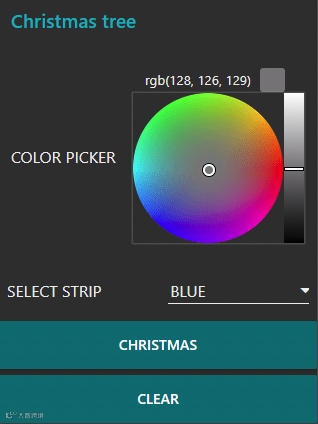
注意:此代码 LED 灯光的强度设置为40%,这样可以减少 PSU 的功率消耗,LED 灯的亮度也不错。如果你想调整亮度,只需双击流程最后的 “rpi-neopixels node”,进行调整即可。
布线
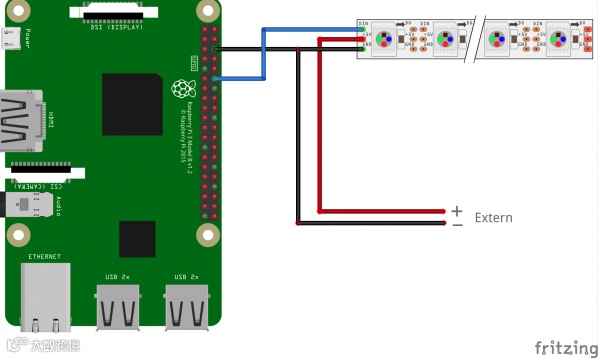
布线前请确保关闭树莓派。布线到树莓派非常的简单,可以参考链接这个部分的内容:
布线到树莓派[5]
只需要连接地线和 LED 的线即可,请确保连连线正确。
LED 灯条的连接方式如下:
-
Vin-红色 -
Ground-白色-树莓派引脚 6 -
Signal-绿色-树莓派引脚 12 (GPIO 18)
因为音频在 GPIO 上使用相同的引脚,所以音频在树莓派上为 HDMI。连接到树莓派后,可以将 PSU 连接到 LED 灯条。你可以根据自己的喜好选择 LED 灯的数量和长度,然后连接到 PSU,最后将 PSU 隐藏在圣诞树的后面。
请确保所有裸露的电线用绝缘胶带包裹好,并将电线放入电线盒中,防止小孩触电。
完成所有接线后,就可以为树莓派和 LED 灯供电。树莓派启动后,从你选择的设备转到http://hostname:1880/ui (可将 hostname 替换为树莓派的 IP 地址)。
同时可以将 UI 的快捷方式保存到手机上,这样就可以随时访问。

按下按钮,圣诞树就会点亮啦!好心情是不是随之而来呢!
参考资料
安装树莓派系统: https://shumeipai.nxez.com/2013/09/07/how-to-install-and-activate-raspberry-pi.html
[2]安装 Unicorn HAT 驱动: https://learn.pimoroni.com/article/getting-started-with-unicorn-hat
[3]node-red-dashboard: https://flows.nodered.org/node/node-red-dashboard
[4]node-red-node-pi-neopixel: https://flows.nodered.org/node/node-red-node-pi-neopixel
[5]布线到树莓派: https://tutorials-raspberrypi.com/connect-control-raspberry-pi-ws2812-rgb-led-strips/
原文链接:https://www.instructables.com/Raspberry-Pi-Controlled-NeoPixel-Christmas-Tree-Li/
项目作者: Ekul92
翻译:趣无尽
译文首发于:趣无尽
硬件军火库
点击了解详情👆
大家有什么想要交流的,欢迎在下方留言!
往期项目回顾
点击阅读👆