WPF 实现饼状统计图
-
框架支持 .NET4 至 .NET8; -
Visual Studio 2022;
ChartPie 详解
-
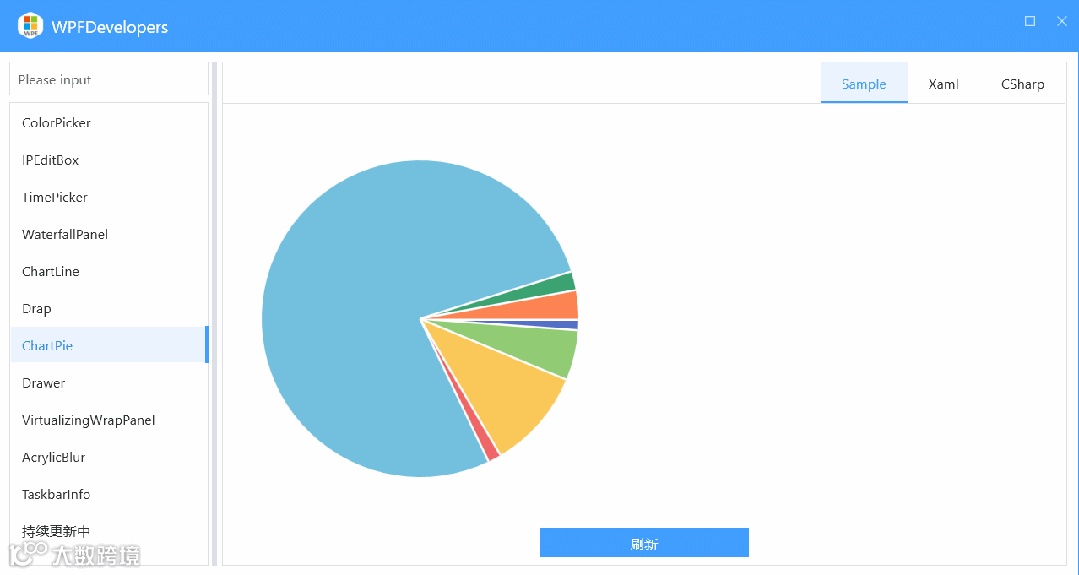
新增依赖属性 Datas存储饼图的数据,当数据发生更改时触发控件的重绘。 -
构造初始化颜色组 ( vibrantColors) 为了区分每个扇形区显示不同的颜色。
绘制饼图
var drawingPen = CreatePen(2);
var boldDrawingPen = CreatePen(4);
var pieWidth = ActualWidth > ActualHeight ? ActualHeight : ActualWidth;
var pieHeight = ActualWidth > ActualHeight ? ActualHeight : ActualWidth;
centerX = pieWidth / 2;
centerY = pieHeight / 2;
radius = ActualWidth > ActualHeight ? ActualHeight / 2 : ActualWidth / 2;
-
计算饼图的宽度和高度,以确保饼图是圆形的。 -
计算圆心与半径。
绘制每个扇形
var angle = 0d;
var prevAngle = 0d;
var sum = Datas.Select(ser => ser.Value).Sum();
var index = 0;
var isFirst = false;
foreach (var item in Datas)
{
    // 计算起始和结束角度
    var arcStartX = radius * Math.Cos(angle * Math.PI / 180) + centerX;
    var arcStartY = radius * Math.Sin(angle * Math.PI / 180) + centerY;
    angle = item.Value / sum * 360 + prevAngle;
    var arcEndX = 0d;
    var arcEndY = 0d;
    if (Datas.Count() == 1 && angle == 360)
    {
        isFirst = true;
        arcEndX = centerX + Math.Cos(359.99999 * Math.PI / 180) * radius;
        arcEndY = radius * Math.Sin(359.99999 * Math.PI / 180) + centerY;
    }
    else
    {
        arcEndX = centerX + Math.Cos(angle * Math.PI / 180) * radius;
        arcEndY = radius * Math.Sin(angle * Math.PI / 180) + centerY;
    }

    var startPoint = new Point(arcStartX, arcStartY);
    var line1Segment = new LineSegment(startPoint, false);
    var isLargeArc = item.Value / sum > 0.5;
    var arcSegment = new ArcSegment
    {
        Size = new Size(radius, radius),
        Point = new Point(arcEndX, arcEndY),
        SweepDirection = SweepDirection.Clockwise,
        IsLargeArc = isLargeArc
    };
    var center = new Point(centerX, centerY);
    var line2Segment = new LineSegment(center, false);
    var pathGeometry = new PathGeometry(new[]
    {
        new PathFigure(center, new List<PathSegment>
        {
            line1Segment,
            arcSegment,
            line2Segment
        }, true)
    });

    pathGeometries.Add(pathGeometry,
        $"{item.Key} : {item.Value.FormatNumber()}");

    var backgroupBrush = new SolidColorBrush
    {
        Color = vibrantColors[
            index >= vibrantColors.Length
                ? index % vibrantColors.Length
                : index]
    };
    backgroupBrush.Freeze();
    drawingContext.DrawGeometry(backgroupBrush, null, pathGeometry);

    index++;
    if (!isFirst)
    {
        if (index == 1)
            drawingContext.DrawLine(boldDrawingPen, center, startPoint);
        else
            drawingContext.DrawLine(drawingPen, center, startPoint);
    }
    prevAngle = angle;
}
-
初始化角度 angle和prevAngle,计算数据总和(sum)。 -
循环 Datas集合,计算每条数据所需占的扇形区的起始角度和结束的角度。 -
如果只有一条数据那么角度为 360度,然后绘制圆形。 -
使用 ArcSegment绘制圆形的弧度,连接圆心和扇形区边缘。 -
将生成的 PathGeometry添加到pathGeometries中,并绘制每个的扇形区。 -
绘制每个扇形区的边框,根据索引设置画笔的宽度用于边框。 -
更新 prevAngle以用于计算下一个扇形区的角度。
1)新增 ChartPie.cs 代码如下:
using System;
using System.Collections.Generic;
using System.Linq;
using System.Windows;
using System.Windows.Controls;
using System.Windows.Controls.Primitives;
using System.Windows.Input;
using System.Windows.Media;
using System.Windows.Media.Effects;
using System.Windows.Shapes;
using WPFDevelopers.Core;

namespaceWPFDevelopers.Controls
{
    publicclassChartPie : Control
    {
        publicstaticreadonly DependencyProperty DatasProperty =
            DependencyProperty.Register("Datas", typeof(IEnumerable<KeyValuePair<string, double>>),
                typeof(ChartPie), new UIPropertyMetadata(DatasChanged));

        private Border _border;
        private Ellipse _ellipse;
        private KeyValuePair<PathGeometry, string> _lastItem;
        private Popup _popup;
        private StackPanel _stackPanel;
        private TextBlock _textBlock;
        privatedouble centerX, centerY, radius;
        privatebool isPopupOpen;
        privatereadonly Dictionary<PathGeometry, string> pathGeometries = new Dictionary<PathGeometry, string>();

        privatereadonly Color[] vibrantColors;

        public ChartPie()
        {
            vibrantColors = new[]
            {
                Color.FromArgb(255, 84, 112, 198),
                Color.FromArgb(255, 145, 204, 117),
                Color.FromArgb(255, 250, 200, 88),
                Color.FromArgb(255, 238, 102, 102),
                Color.FromArgb(255, 115, 192, 222),
                Color.FromArgb(255, 59, 162, 114),
                Color.FromArgb(255, 252, 132, 82),
                Color.FromArgb(255, 154, 96, 180),
                Color.FromArgb(255, 234, 124, 204)
            };
        }

        public IEnumerable<KeyValuePair<string, double>> Datas
        {
            get => (IEnumerable<KeyValuePair<string, double>>) GetValue(DatasProperty);
            set => SetValue(DatasProperty, value);
        }

        private static void DatasChanged(DependencyObject d, DependencyPropertyChangedEventArgs e)
        {
            var ctrl = d as ChartPie;
            if (e.NewValue != null)
                ctrl.InvalidateVisual();
        }

        protected override void OnMouseMove(MouseEventArgs e)
        {
            base.OnMouseMove(e);
            if (Datas == null || Datas.Count() == 0 || isPopupOpen) return;
            if (_popup == null)
            {
                _popup = new Popup
                {
                    AllowsTransparency = true,
                    Placement = PlacementMode.MousePoint,
                    PlacementTarget = this,
                    StaysOpen = false
                };
                _popup.MouseMove += (y, j) =>
                {
                    var point = j.GetPosition(this);
                    if (isPopupOpen && _lastItem.Value != null)
                        if (!IsMouseOverGeometry(_lastItem.Key))
                        {
                            _popup.IsOpen = false;
                            isPopupOpen = false;
                            _lastItem = new KeyValuePair<PathGeometry, string>();
                        }
                };
                _popup.Closed += delegate { isPopupOpen = false; };

                _textBlock = new TextBlock
                {
                    HorizontalAlignment = HorizontalAlignment.Center,
                    VerticalAlignment = VerticalAlignment.Center,
                    Foreground = (Brush) Application.Current.TryFindResource("WD.WindowForegroundColorBrush"),
                    Padding = new Thickness(4, 0, 2, 0)
                };
                _ellipse = new Ellipse
                {
                    Width = 10,
                    Height = 10,
                    Stroke = Brushes.White
                };
                _stackPanel = new StackPanel {Orientation = Orientation.Horizontal};
                _stackPanel.Children.Add(_ellipse);
                _stackPanel.Children.Add(_textBlock);

                _border = new Border
                {
                    Child = _stackPanel,
                    Background = (Brush) Application.Current.TryFindResource("WD.ChartFillSolidColorBrush"),
                    Effect = Application.Current.TryFindResource("WD.PopupShadowDepth") as DropShadowEffect,
                    Margin = new Thickness(10),
                    CornerRadius = new CornerRadius(3),
                    Padding = new Thickness(6)
                };
                _popup.Child = _border;
            }

            var index = 0;
            foreach (var pathGeometry in pathGeometries)
            {
                if (IsMouseOverGeometry(pathGeometry.Key))
                {
                    isPopupOpen = true;
                    _ellipse.Fill = new SolidColorBrush
                    {
                        Color = vibrantColors[index >= vibrantColors.Length ? index % vibrantColors.Length : index]
                    };
                    _textBlock.Text = pathGeometry.Value;
                    _popup.IsOpen = true;
                    _lastItem = pathGeometry;
                    break;
                }

                index++;
            }
        }

        private bool IsMouseOverGeometry(PathGeometry pathGeometry)
        {
            var mousePosition = Mouse.GetPosition(this);
            return pathGeometry.FillContains(mousePosition);
        }

        protected override void OnRender(DrawingContext drawingContext)
        {
            base.OnRender(drawingContext);
            if (Datas == null || Datas.Count() == 0)
                return;
            SnapsToDevicePixels = true;
            UseLayoutRounding = true;
            pathGeometries.Clear();
            var drawingPen = CreatePen(2);
            var boldDrawingPen = CreatePen(4);
            var pieWidth = ActualWidth > ActualHeight ? ActualHeight : ActualWidth;
            var pieHeight = ActualWidth > ActualHeight ? ActualHeight : ActualWidth;
            centerX = pieWidth / 2;
            centerY = pieHeight / 2;
            radius = ActualWidth > ActualHeight ? ActualHeight / 2 : ActualWidth / 2;
            var angle = 0d;
            var prevAngle = 0d;
            var sum = Datas.Select(ser => ser.Value).Sum();
            var index = 0;
            var isFirst = false;
            foreach (var item in Datas)
            {
                var arcStartX = radius * Math.Cos(angle * Math.PI / 180) + centerX;
                var arcStartY = radius * Math.Sin(angle * Math.PI / 180) + centerY;
                angle = item.Value / sum * 360 + prevAngle;
                var arcEndX = 0d;
                var arcEndY = 0d;
                if (Datas.Count() == 1 && angle == 360)
                {
                    isFirst = true;
                    arcEndX = centerX + Math.Cos(359.99999 * Math.PI / 180) * radius;
                    arcEndY = radius * Math.Sin(359.99999 * Math.PI / 180) + centerY;
                }
                else
                {
                    arcEndX = centerX + Math.Cos(angle * Math.PI / 180) * radius;
                    arcEndY = radius * Math.Sin(angle * Math.PI / 180) + centerY;
                }

                var startPoint = new Point(arcStartX, arcStartY);
                var line1Segment = new LineSegment(startPoint, false);
                var isLargeArc = item.Value / sum > 0.5;
                var arcSegment = new ArcSegment();
                var size = new Size(radius, radius);
                var endPoint = new Point(arcEndX, arcEndY);
                arcSegment.Size = size;
                arcSegment.Point = endPoint;
                arcSegment.SweepDirection = SweepDirection.Clockwise;
                arcSegment.IsLargeArc = isLargeArc;
                var center = new Point(centerX, centerY);
                var line2Segment = new LineSegment(center, false);

                var pathGeometry = new PathGeometry(new[]
                {
                    new PathFigure(new Point(centerX, centerY), new List<PathSegment>
                    {
                        line1Segment,
                        arcSegment,
                        line2Segment
                    }, true)
                });
                pathGeometries.Add(pathGeometry,
                    $"{item.Key} : {item.Value.FormatNumber()}");
                var backgroupBrush = new SolidColorBrush
                {
                    Color = vibrantColors[
                        index >= vibrantColors.Length
                            ? index % vibrantColors.Length
                            : index]
                };
                backgroupBrush.Freeze();

                drawingContext.DrawGeometry(backgroupBrush, null, pathGeometry);
                index++;
                if (!isFirst)
                {
                    if (index == 1)
                        drawingContext.DrawLine(boldDrawingPen, center, startPoint);
                    else
                        drawingContext.DrawLine(drawingPen, center, startPoint);
                }

                prevAngle = angle;
            }
        }

        private Pen CreatePen(double thickness)
        {
            var pen = new Pen
            {
                Thickness = thickness,
                Brush = Brushes.White
            };
            pen.Freeze();
            return pen;
        }
    }
}
2)新增 ChartPieExample.xaml 示例代码如下:
        <Grid Background="{DynamicResource WD.BackgroundSolidColorBrush}">
            <Grid.RowDefinitions>
                <RowDefinition />
                <RowDefinition Height="Auto" />
            </Grid.RowDefinitions>
            <ScrollViewer HorizontalScrollBarVisibility="Auto" VerticalScrollBarVisibility="Auto">
                <Border
                    Height="300"
                    Margin="30,0"
                    Background="{DynamicResource WD.BackgroundSolidColorBrush}">
                    <wd:ChartPie Datas="{Binding Datas, RelativeSource={RelativeSource AncestorType=local:ChartPieExample}}" />
                </Border>
            </ScrollViewer>
            <Button
                Grid.Row="1"
                Width="200"
                VerticalAlignment="Bottom"
                Click="Button_Click"
                Content="刷新"
                Style="{StaticResource WD.PrimaryButton}" />
        </Grid>
3)新增 ChartPieExample.xaml.cs 示例代码如下:
using System.Collections.Generic;
using System.Linq;
using System.Windows;
using System.Windows.Controls;

namespaceWPFDevelopers.Samples.ExampleViews
{
    /// <summary>
    /// ChartPieExample.xaml 的交互逻辑
    /// </summary>
    publicpartialclassChartPieExample : UserControl
    {
        public IEnumerable<KeyValuePair<string, double>> Datas
        {
            get { return (IEnumerable<KeyValuePair<string, double>>)GetValue(DatasProperty); }
            set { SetValue(DatasProperty, value); }
        }

        publicstaticreadonly DependencyProperty DatasProperty =
            DependencyProperty.Register("Datas", typeof(IEnumerable<KeyValuePair<string, double>>), typeof(ChartPieExample), new PropertyMetadata(null));

        private Dictionary<string, IEnumerable<KeyValuePair<string, double>>> keyValues = new Dictionary<string, IEnumerable<KeyValuePair<string, double>>>();
        privateint _index = 0;
        public ChartPieExample()
        {
            InitializeComponent();
            var models1 = new[]
            {
                new KeyValuePair<string, double>("Mon", 120),
                new KeyValuePair<string, double>("Tue", 530),
                new KeyValuePair<string, double>("Wed", 1060),
                new KeyValuePair<string, double>("Thu", 140),
                new KeyValuePair<string, double>("Fri", 8000.123456) ,
                new KeyValuePair<string, double>("Sat", 200) ,
                new KeyValuePair<string, double>("Sun", 300) ,
            };
            var models2 = new[]
            {
                new KeyValuePair<string, double>("Bing", 120),
                new KeyValuePair<string, double>("Google", 170),
                new KeyValuePair<string, double>("Baidu", 30),
                new KeyValuePair<string, double>("Github", 200),
                new KeyValuePair<string, double>("Stack Overflow", 100) ,
                new KeyValuePair<string, double>("Runoob", 180) ,
                new KeyValuePair<string, double>("Open AI", 90) ,
                new KeyValuePair<string, double>("Open AI2", 93) ,
                new KeyValuePair<string, double>("Open AI3", 94) ,
                new KeyValuePair<string, double>("Open AI4", 95) ,
            };
            keyValues.Add("1", models1);
            keyValues.Add("2", models2);
            Datas = models1;
        }

        private void Button_Click(object sender, RoutedEventArgs e)
        {
            _index++;
            if (_index >= keyValues.Count)
            {
                _index = 0;
            }
            Datas = keyValues.ToList()[_index].Value;
        }
    }
}
作者:小码编匠

基于 WPF 的无人值守地磅系统:车牌识别+设备联动自动称重
基于 .NET + Vue 3 的线路图绘制系统实战(含源码)
WPF 版简易 SIP 服务器:高效向 GB28181 摄像头发送直播请求
WinForm 下基于策略与工厂模式的 PLC 数据采集与监控系统
.NET 8 + Avalonia 跨平台简易校园信息管理系统的开发实战
C# + WPF + SuperSocket 开发面向工业自动化的 MES 系统
告别服务宕机,C# 看门狗守护你的 WinForm 与 Windows 服务
.NET 一款高效跨平台的自动更新工具(差异更新+热修复+自动升级)
WinForm 工业流量计串口调试助手:支持Modbus双协议的智能调试工具
面向工厂自动化的智能语音播报方案(基于.NET Windows服务)
工业自动化UI太难做?WPF 这套工业级控件方案真香(附源码)
工业自动化 WPF + Halcon 的模块化机器视觉解决方案
开源福利!八款 WPF + HandyControl 工业管理系统源码全公开
WinForm + Win32 API 自定义无边框窗口实战(工业软件必备)
基于 HslCommunication 的多端同步PLC远程监控系统
WinForm 数据采集实战:从串口通信到MES对接的轻量化解决方案
一个拒绝过度设计的 .NET 快速开发框架:开箱即用,专注"干活"
WinForm + SunnyUI 与 MQTTnet 实现智能可视化的火警联动大屏系统
工业自动化实战:基于 .NET + ModBus RTU协议的称重机开发
WinForm 基于 SunnyUI+ PCLSharp 的机器视觉焊接系统
.NET 9 + WPF + Halcon 构建工业视觉流程框架:从架构设计到落地实践
WinForm 高分屏适配难题?一款强大的控件自适应缩放工具
.NET 桌面应用 (WPF/WinForm) 高效自动更新解决方案
一行代码快速开发 AntdUI 风格的 WinForm 通用后台框架
WinForm + SQL Server + Modbus 实现仓库温控上位机系统开发
WinForm 开发的多功能工具:串口通信、加密解密、图像转换等功能
觉得有收获?不妨分享让更多人受益
关注「DotNet技术匠」,共同提升技术实力