



极市导读
俗话说,环境配不对,学习两行泪。本文为保姆级别的教程,详细介绍了Windows、Mac和Ubuntu的深度学习环境配置方法及问题,帮助卡在环境配置的小伙伴们,解决入门难关。 >>加入极市CV技术交流群,走在计算机视觉的最前沿
一、Windows系统深度学习环境配置
1.1 打开Anaconda Prompt


from future import print_functionimport torchx = torch.rand(5, 3)print(x)

import torchtorch.cuda.is_available()
-
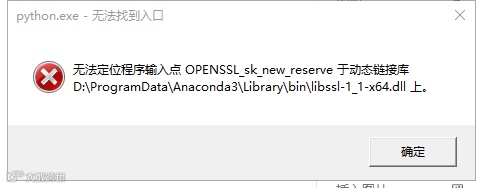
用下面命令创建虚拟环境报错
conda create -n py37_torch131 python=3.7
-
PackagesNotFoundError: The following packages are not available from current channels

-
conda下载太慢问题
-
cuda安装

-
pytorch安装

conda install pytorch torchvision cudatoolkit=10.0 -c pytorch
-
jupyter note如何进入虚拟环境

python -m ipykernel install --user --name py27-caffe-notebook
jupyter kernelspec list
jupyter kernelspec remove kernelnamepython -m ipykernel install --name kernelname
-
conda安装一半总失败
conda install --offline 包名
二、Mac深度学习环境配置
2.1 安装Anaconda

2.2 确认下载情况

python --version
jupyter notebook


2.2.1 常见问题
cd ~
cat .bash_profile
export PATH= ...
2.3 虚拟环境和包的下载


conda create --name env_name
conda env list
conda activate env_name
conda deactivate

conda install pytorch torchvision -c pytorch
python3
import torchimport torchvisionprint(torch.__version__)print(torchvision.__version__)

quit()
三、Ubuntu深度学习环境配置


# 区分anaconda python与系统内置pythonalias python3="/usr/bin/python3.5"alias python2="/usr/bin/python2.7". /home/cxd/anaconda3/etc/profile.d/conda.sh


3.2 pytorch cpu版本安装

conda config --add channels https://mirrors.tuna.tsinghua.edu.cn/anaconda/cloud/pytorch
conda install pytorch torchvision cpuonly -c pytorch

import torchprint(torch.__version__)

3.3 pytorch-gpu安装
3.3.1 GPU驱动安装
检测显卡类型
== /sys/devices/pci0000:00/0000:00:01.0/0000:01:00.0 ==modalias : pci:v000010DEd00001C8Dsv00001028sd0000086Fbc03sc02i00vendor : NVIDIA Corporationmodel : GP107M [GeForce GTX 1050 Mobile]driver : nvidia-driver-390 - distro non-freedriver : nvidia-driver-435 - distro non-freedriver : nvidia-driver-440 - distro non-free recommendeddriver : xserver-xorg-video-nouveau - distro free builtin== /sys/devices/pci0000:00/0000:00:14.3 ==modalias : pci:v00008086d0000A370sv00008086sd000042A4bc02sc80i00vendor : Intel Corporationmodel : Wireless-AC 9560 [Jefferson Peak]manual_install: Truedriver : backport-iwlwifi-dkms - distro free
安装驱动
sudo ubuntu-drivers autoinstall
sudo apt install nvidia-440
3.3.2 安装cuda
Table 1. CUDA Toolkit and Compatible Driver VersionsCUDA Toolkit Linux x86_64 Driver Version Windows x86_64 Driver VersionCUDA 10.2.89 >= 440.33 >= 441.22CUDA 10.1 (10.1.105 general release, and updates) >= 418.39 >= 418.96CUDA 10.0.130 >= 410.48 >= 411.31CUDA 9.2 (9.2.148 Update 1) >= 396.37 >= 398.26CUDA 9.2 (9.2.88) >= 396.26 >= 397.44CUDA 9.1 (9.1.85) >= 390.46 >= 391.29CUDA 9.0 (9.0.76) >= 384.81 >= 385.54CUDA 8.0 (8.0.61 GA2) >= 375.26 >= 376.51CUDA 8.0 (8.0.44) >= 367.48 >= 369.30CUDA 7.5 (7.5.16) >= 352.31 >= 353.66CUDA 7.0 (7.0.28) >= 346.46 >= 347.62
安装gcc
gcc --version


sudo apt-get install gcc-7.0sudo apt-get install g++-7.0
sudo update-alternatives --install /usr/bin/gcc gcc /usr/bin/gcc-7 50sudo update-alternatives --install /usr/bin/g++ g++ /usr/bin/g++-7 50
sudo update-alternatives --config gcc选择 路径 优先级 状态------------------------------------------------------------* 0 /usr/bin/gcc-9 50 自动模式1 /usr/bin/g++-9 50 手动模式2 /usr/bin/gcc-7 50 手动模式
安装cuda
sudo sh cuda_你的版本_linux.run
配置环境变量
sudo vim ~/.bashrc
export PATH=/usr/local/cuda-10.2/bin${PATH:+:$PATH}}export LD_LIBRARY_PATH=/usr/local/cuda-10.2/lib64${LD_LIBRARY_PATH:+:${LD_LIBRARY_PATH}}
nvcc -V
3.3.3 安装cudnn

sudo cp cuda/include/cudnn.h /usr/local/cuda-10.2/include #解压后的文件夹名字为cuda-10.2sudo cp cuda/lib64/libcudnn* /usr/local/cuda-10.2/lib64sudo chmod a+r /usr/local/cuda-10.2/include/cudnn.h /usr/local/cuda-10.2/lib64/libcudnn*
3.3.4 安装pytorch-gpu

# 选择自己对应的cuda版本conda install pytorch torchvision cudatoolkit=10.2
pip install torch torchvision -i https://pypi.mirrors.ustc.edu.cn/simple
四、写在最后
如果觉得有用,就请分享到朋友圈吧!
公众号后台回复“transformer”获取最新Transformer综述论文下载~

# CV技术社群邀请函 #

备注:姓名-学校/公司-研究方向-城市(如:小极-北大-目标检测-深圳)
即可申请加入极市目标检测/图像分割/工业检测/人脸/医学影像/3D/SLAM/自动驾驶/超分辨率/姿态估计/ReID/GAN/图像增强/OCR/视频理解等技术交流群
每月大咖直播分享、真实项目需求对接、求职内推、算法竞赛、干货资讯汇总、与 10000+来自港科大、北大、清华、中科院、CMU、腾讯、百度等名校名企视觉开发者互动交流~
