


【Qwen3-VL】:多模态AI新玩法! 基于Qwen3-VL的长文档智能解析
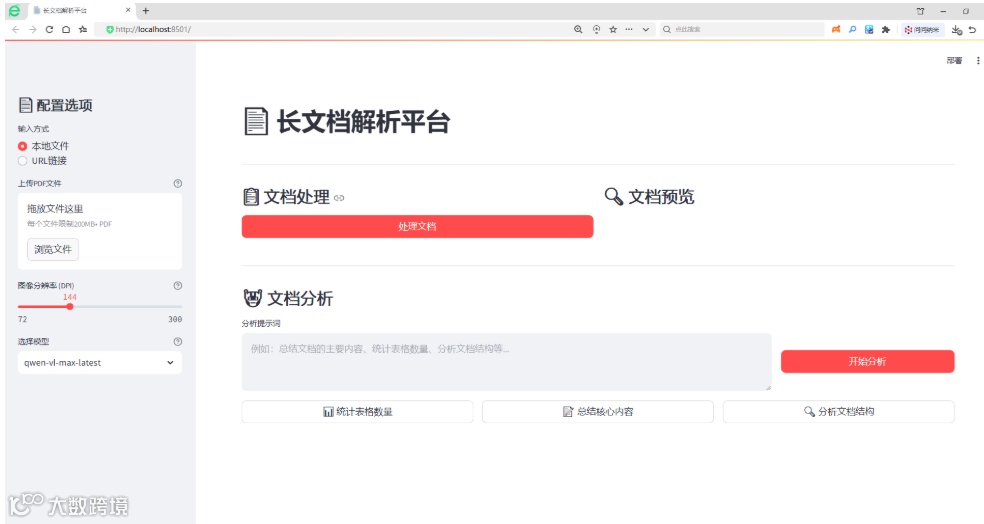
下面是一个基于Python和Streamlit构建的长文档分析平台。以下是该平台的功能和用途:
平台主要功能
1. 核心特性
-
PDF文档处理:将PDF文档转换为图像序列以便分析 -
多模态AI推理:利用视觉语言模型分析文档内容 -
交互式界面:基于Web的图形界面,方便用户上传、处理和分析文档 -
文档可视化:提供缩略图预览和网格视图展示文档页面
2. 主要组件
app.py 主应用程序
-
实现了Streamlit网页界面 -
管理用户交互和会话状态 -
协调不同模块间的工作 -
通过侧边栏提供配置选项
pdf_processor.py- PDF处理模块
-
处理本地和远程PDF文件 -
将PDF页面转换为图像,支持可配置的DPI -
调整图像尺寸以优化处理效率 -
实现缓存机制避免重复处理
ai_inference.py- AI集成模块
-
通过OpenAI兼容API与视觉语言模型交互 -
将图像编码为base64格式供模型使用 -
向AI模型发送多模态提示(图像+文本)
config.py - 配置管理
-
加载环境变量中的API密钥和端点 -
定义应用常量如缓存目录和默认设置 -
设置模型参数如像素限制
utils.py - 工具函数
-
创建图像网格用于文档预览 -
显示PDF信息 -
验证文件输入
使用场景和目的
该平台适用于以下场景:
-
学术研究:分析研究论文、论文和技术文档 -
商业智能:从报告、合同和演示文稿中提取洞察 -
内容摘要:生成长文档的摘要 -
文档结构分析:理解复杂文档的组织结构和布局 -
数据提取:识别表格、图表和关键信息
该系统特别擅长处理传统基于文本的分析可能会遗漏视觉元素(如图表、图示和复杂布局)的长文档。用户可以利用预定义的分析提示或创建自定义查询来从文档中提取特定信息。
config.py文件
config.py 是整个长文档解析平台的核心配置文件,负责集中管理所有环境变量和应用常量。它通过 dotenv 加载 .env 文件中的敏感信息(如API密钥和基础URL),同时定义了应用程序的基本配置参数,包括缓存目录、默认图像分辨率(DPI)、最大图像尺寸、默认模型ID以及图像像素范围等。这种设计实现了配置与代码的分离,提高了应用的安全性、可维护性和灵活性,使得各个模块(如PDF处理器、AI推理器等)都能统一获取和使用这些配置参数。
import os
from dotenv import load_dotenv

# 加载环境变量
load_dotenv()

class Config:
    """配置类,管理所有环境变量和常量"""

    # API配置
    MS_API_KEY = os.getenv("ms_api_key")
    MS_BASE_URL = os.getenv("ms_base_url")
    DASH_API_KEY = os.getenv("dash_api_key")
    DASH_BASE_URL = os.getenv("dash_base_url")

    # 应用配置
    CACHE_DIR = "cache"
    DEFAULT_DPI = 144
    MAX_IMAGE_SIDE = 1500

    # 模型配置
    DEFAULT_MODEL = "qwen-vl-max-latest"
    MIN_PIXELS = 590 * 32 * 32
    MAX_PIXELS = 730 * 32 * 32
ai_inference.py
ai_inference.py 是长文档解析平台的AI推理模块,主要负责与视觉语言模型进行交互。该模块通过OpenAI兼容的API接口,将处理好的PDF文档图像和用户提示词发送给AI模型进行分析。核心功能包括:将PIL图像转换为base64编码格式、构建包含多页图像和文本提示的多模态输入消息、调用模型API执行推理,并返回分析结果。它支持配置不同的模型ID和图像像素范围参数,实现了对长文档的智能分析和内容理解,是连接图像处理和AI分析的关键桥梁。
import base64
from io import BytesIO
from openai import OpenAI
from config import Config

class AIInference:
    """AI推理类,负责与模型API交互"""

    def __init__(self):
        self.client = OpenAI(
            api_key=Config.DASH_API_KEY,
            base_url=Config.DASH_BASE_URL,
        )

    def _image_to_base64(self, image):
        """将PIL图像转换为base64字符串"""
        buffered = BytesIO()
        image.save(buffered, format="PNG")
        return base64.b64encode(buffered.getvalue()).decode()

    def inference(self, images, prompt, model_id=Config.DEFAULT_MODEL):
        """执行多模态推理"""
        print(f"向模型发送 {len(images)} 页...等待响应...")

        content_list = []

        # 添加图像内容
        for image in images:
            base64_image = self._image_to_base64(image)
            content_list.append({
                "type": "image_url",
                "image_url": {"url": f"data:image/png;base64,{base64_image}"},
                "min_pixels": Config.MIN_PIXELS,
                "max_pixels": Config.MAX_PIXELS,
            })

        # 添加文本提示
        content_list.append({"type": "text", "text": prompt})

        # 构建消息
        messages = [{
            "role": "user",
            "content": content_list
        }]

        # 调用API
        completion = self.client.chat.completions.create(
            model=model_id,
            messages=messages,
        )

        return completion.choices[0].message.content
pdf_processor.py
pdf_processor.py 是长文档解析平台的PDF处理核心模块,主要负责将PDF文档转换为图像供后续AI分析使用。该模块支持处理本地和远程PDF文件,通过PyMuPDF库将PDF页面渲染为指定DPI的图像,并具备智能缓存机制避免重复处理。核心功能包括:下载远程PDF文件、将PDF页面转换为PIL图像、根据配置调整图像尺寸以优化处理性能,以及将处理结果缓存到本地存储中。它还实现了文件哈希校验和缓存管理,确保相同文件不会被重复处理,显著提升了系统效率,是连接原始PDF文档和AI分析之间的关键桥梁。
import fitz
import io
import os
import hashlib
import numpy as np
import requests
from PIL import Image
from config import Config

class PDFProcessor:
    """PDF处理类,负责PDF到图像的转换和缓存管理"""

    def __init__(self, cache_dir=Config.CACHE_DIR):
        self.cache_dir = cache_dir
        os.makedirs(cache_dir, exist_ok=True)

    def _download_file(self, url, dest_path):
        """下载远程文件"""
        response = requests.get(url, stream=True)
        response.raise_for_status()

        with open(dest_path, 'wb') as f:
            for chunk in response.iter_content(chunk_size=8096):
                if chunk:
                    f.write(chunk)
        return dest_path

    def _pdf_to_images(self, pdf_path, dpi=Config.DEFAULT_DPI):
        """将PDF转换为PIL图像列表"""
        doc = fitz.open(pdf_path)
        pil_images = []

        for page_num in range(len(doc)):
            page = doc.load_page(page_num)
            mat = fitz.Matrix(dpi / 72, dpi / 72)
            pix = page.get_pixmap(matrix=mat)

            img_data = pix.tobytes("ppm")
            pil_image = Image.open(io.BytesIO(img_data))
            pil_images.append(pil_image)

        doc.close()
        return pil_images

    def _resize_images(self, images, max_side=Config.MAX_IMAGE_SIDE):
        """调整图像尺寸"""
        resized_images = []
        for img in images:
            width, height = img.size
            max_current_side = max(width, height)

            if max_current_side > max_side:
                scale_factor = max_side / max_current_side
                new_width = int(width * scale_factor)
                new_height = int(height * scale_factor)
                img = img.resize((new_width, new_height))

            resized_images.append(img)

        return resized_images

    def process_pdf(self, pdf_path, dpi=Config.DEFAULT_DPI):
        """处理PDF文件,返回图像列表"""
        # 生成文件哈希
        pdf_hash = hashlib.md5(pdf_path.encode('utf-8')).hexdigest()

        # 处理远程文件
        if pdf_path.startswith(('http://', 'https://')):
            pdf_file_path = os.path.join(self.cache_dir, f'{pdf_hash}.pdf')
            if not os.path.exists(pdf_file_path):
                self._download_file(pdf_path, pdf_file_path)
            else:
                print(f"使用缓存的PDF文件: {pdf_file_path}")
        else:
            pdf_file_path = pdf_path

        # 检查图像缓存
        images_cache_file = os.path.join(self.cache_dir, f'{pdf_hash}_{dpi}_images.npy')
        if os.path.exists(images_cache_file):
            images = np.load(images_cache_file, allow_pickle=True)
            pil_images = [Image.fromarray(image) for image in images]
            print(f"从缓存加载 {len(images)} 页: {images_cache_file}")
            return pdf_file_path, pil_images

        # 转换PDF为图像
        print(f"使用PyMuPDF将PDF转换为图像,DPI: {dpi}")
        pil_images = self._pdf_to_images(pdf_file_path, dpi)

        # 调整图像尺寸
        pil_images = self._resize_images(pil_images)

        # 缓存结果
        images = [np.array(img) for img in pil_images]
        np.save(images_cache_file, images)
        print(f"转换并缓存 {len(images)} 页到: {images_cache_file}")

        return pdf_file_path, pil_images
utils.py文件
utils.py 是长文档解析平台的工具函数模块,提供了多个辅助功能来支持主应用程序的运行。该模块主要包含三个静态方法:create_image_grid 用于将多页文档图像拼接成网格状的缩略图预览,方便用户快速浏览整个文档的内容布局;display_pdf_info 用于在界面上显示PDF文件的基本信息,如文件路径、总页数和图像尺寸等;validate_file用于验证用户输入的文件路径或URL的有效性,确保文件存在且格式正确。这些工具函数在整个应用中被广泛调用,为用户提供更好的交互体验和信息反馈,是平台不可或缺的辅助功能组件。
from PIL import Image
import streamlit as st

class Utils:
    """工具函数类"""

    @staticmethod
    def create_image_grid(images, num_columns=8):
        """创建图像网格"""
        if not images:
            return None

        num_images = len(images)
        num_rows = (num_images + num_columns - 1) // num_columns

        # 获取单个图像尺寸
        sample_width, sample_height = images[0].size
        grid_width = sample_width * num_columns
        grid_height = sample_height * num_rows

        # 创建网格图像
        grid_image = Image.new('RGB', (grid_width, grid_height), 'white')

        for i, image in enumerate(images):
            row = i // num_columns
            col = i % num_columns
            x = col * sample_width
            y = row * sample_height
            grid_image.paste(image, (x, y))

        return grid_image

    @staticmethod
    def display_pdf_info(pdf_path, images):
        """显示PDF信息"""
        st.info(f"**PDF文件:** {pdf_path}")
        st.info(f"**总页数:** {len(images)} 页")

        if images:
            st.info(f"**图像尺寸:** {images[0].size}")

    @staticmethod
    def validate_file(file_path_or_url):
        """验证文件路径或URL"""
        if not file_path_or_url:
            return False, "请输入文件路径或URL"

        if file_path_or_url.startswith(('http://', 'https://')):
            return True, "URL格式正确"
        else:
            if os.path.exists(file_path_or_url):
                return True, "文件存在"
            else:
                return False, "本地文件不存在"
app.py文件
app.py是长文档解析平台的主应用程序文件,基于Streamlit框架构建了完整的Web用户界面。该文件负责整合所有功能模块,提供直观易用的图形化操作界面,让用户能够方便地上传或输入PDF文档、配置处理参数、预览文档内容并执行AI分析。它通过侧边栏提供文件输入方式选择、图像分辨率调节和模型选择等功能,主界面展示文档处理、预览和分析等核心操作区域,并集成了预设的常用分析提示词按钮。该模块协调 PDFProcessor、AIInference和Utils 等组件,实现了从用户交互到后台处理再到结果展示的完整流程,是整个平台的中枢控制系统。
import streamlit as st
import os
from config import Config
from pdf_processor import PDFProcessor
from ai_inference import AIInference
from utils import Utils

# 设置页面配置
st.set_page_config(
    page_title="长文档解析平台",
    page_icon="📄",
    layout="wide",
    initial_sidebar_state="expanded"
)

class LongDocAnalyzerApp:
    """长文档解析应用主类"""

    def __init__(self):
        self.pdf_processor = PDFProcessor()
        self.ai_inference = AIInference()
        self.utils = Utils()

        # 初始化session state
        if 'processed_images' not in st.session_state:
            st.session_state.processed_images = None
        if 'pdf_path' not in st.session_state:
            st.session_state.pdf_path = None

    def render_sidebar(self):
        """渲染侧边栏"""
        st.sidebar.title("📄 配置选项")

        # 文件输入
        input_method = st.sidebar.radio(
            "输入方式",
            ["本地文件", "URL链接"]
        )

        if input_method == "本地文件":
            uploaded_file = st.sidebar.file_uploader(
                "上传PDF文件",
                type=['pdf'],
                help="支持上传PDF格式文件"
            )
            if uploaded_file:
                # 保存上传的文件到缓存目录
                file_path = os.path.join(Config.CACHE_DIR, uploaded_file.name)
                with open(file_path, "wb") as f:
                    f.write(uploaded_file.getbuffer())
                file_input = file_path
            else:
                file_input = ""
        else:
            file_input = st.sidebar.text_input(
                "PDF文件URL",
                placeholder="https://example.com/document.pdf",
                help="输入PDF文件的HTTP/HTTPS链接"
            )

        # 处理参数
        dpi = st.sidebar.slider(
            "图像分辨率 (DPI)",
            min_value=72,
            max_value=300,
            value=Config.DEFAULT_DPI,
            help="更高的DPI意味着更好的图像质量,但处理时间更长"
        )

        # 模型选择
        model_id = st.sidebar.selectbox(
            "选择模型",
            ["qwen-vl-max-latest", "qwen-vl-plus", "qwen-vl-max"],
            index=0,
            help="选择用于分析的视觉语言模型"
        )

        return file_input, dpi, model_id

    def render_main_content(self, file_input, dpi, model_id):
        """渲染主内容区域"""
        st.title("📄 长文档解析平台")
        st.markdown("---")

        # 文件处理区域
        col1, col2 = st.columns([1, 1])

        with col1:
            st.subheader("📋 文档处理")
            if st.button("处理文档", type="primary", use_container_width=True):
                if not file_input:
                    st.error("请先选择或上传PDF文件")
                    return

                with st.spinner("正在处理PDF文档..."):
                    try:
                        pdf_path, images = self.pdf_processor.process_pdf(file_input, dpi)
                        st.session_state.pdf_path = pdf_path
                        st.session_state.processed_images = images
                        st.success(f"成功处理文档!共 {len(images)} 页")
                    except Exception as e:
                        st.error(f"处理文档时出错: {str(e)}")

        with col2:
            st.subheader("🔍 文档预览")
            if st.session_state.processed_images:
                self.utils.display_pdf_info(
                    st.session_state.pdf_path,
                    st.session_state.processed_images
                )

        # 显示文档预览
        if st.session_state.processed_images:
            st.markdown("---")
            st.subheader("📊 文档缩略图")

            num_columns = st.slider("每行显示页数", 4, 12, 8)
            grid_image = self.utils.create_image_grid(
                st.session_state.processed_images,
                num_columns
            )

            if grid_image:
                st.image(grid_image, use_column_width=True)

        # 分析区域
        st.markdown("---")
        st.subheader("🤖 文档分析")

        col1, col2 = st.columns([3, 1])

        with col1:
            prompt = st.text_area(
                "分析提示词",
                placeholder="例如:总结文档的主要内容、统计表格数量、分析文档结构等...",
                height=100
            )

        with col2:
            st.markdown("###")
            analyze_btn = st.button("开始分析", type="primary", use_container_width=True)

        # 预设提示词
        preset_col1, preset_col2, preset_col3 = st.columns(3)

        with preset_col1:
            if st.button("📊 统计表格数量", use_container_width=True):
                st.session_state.prompt = "文档中表格的数量?"

        with preset_col2:
            if st.button("📝 总结核心内容", use_container_width=True):
                st.session_state.prompt = "请根据该文档的摘要和引言,总结其核心贡献和主要内容。"

        with preset_col3:
            if st.button("🔍 分析文档结构", use_container_width=True):
                st.session_state.prompt = "请分析该文档的结构,包括章节划分和主要内容。"

        # 设置提示词
        if 'prompt' in st.session_state:
            prompt = st.session_state.prompt

        # 执行分析
        if analyze_btn and prompt and st.session_state.processed_images:
            with st.spinner("AI正在分析文档..."):
                try:
                    response = self.ai_inference.inference(
                        st.session_state.processed_images,
                        prompt,
                        model_id
                    )

                    st.markdown("### 📋 分析结果")
                    st.markdown(response)

                except Exception as e:
                    st.error(f"分析过程中出错: {str(e)}")

    def run(self):
        """运行应用"""
        file_input, dpi, model_id = self.render_sidebar()
        self.render_main_content(file_input, dpi, model_id)

# 运行应用
if __name__ == "__main__":
    app = LongDocAnalyzerApp()
    app.run()
完成以上代码编写并保存后,运行streamlit run app.py运行该应用。
(streamlit) E:app>streamlit run app.py

  You can now view your Streamlit app in your browser.

  Local URL: http://localhost:8501
  Network URL: http://192.168.0.110:8501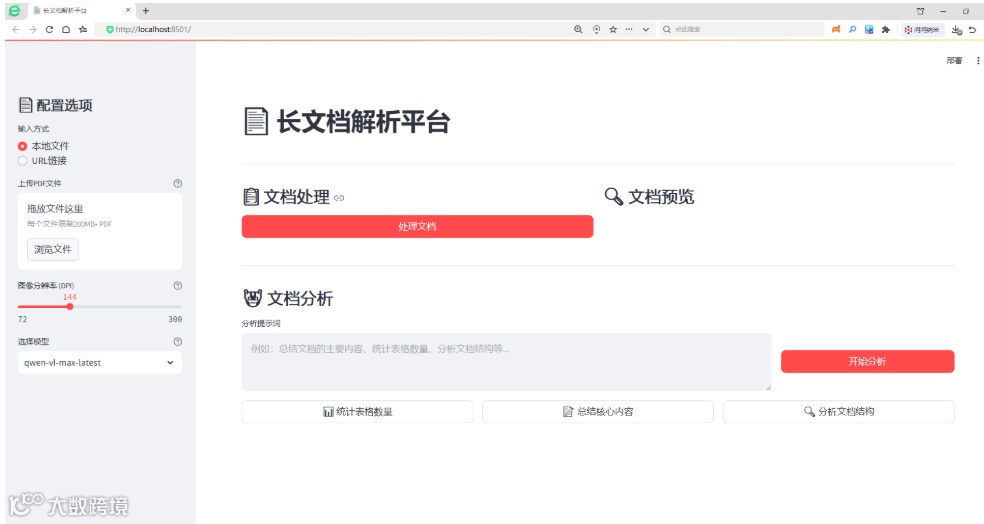
平台支持导入本地或者在线PDF文件,并可以选择多个Qwen-VL大模型。
我们选择导入本地一个PDF文件:
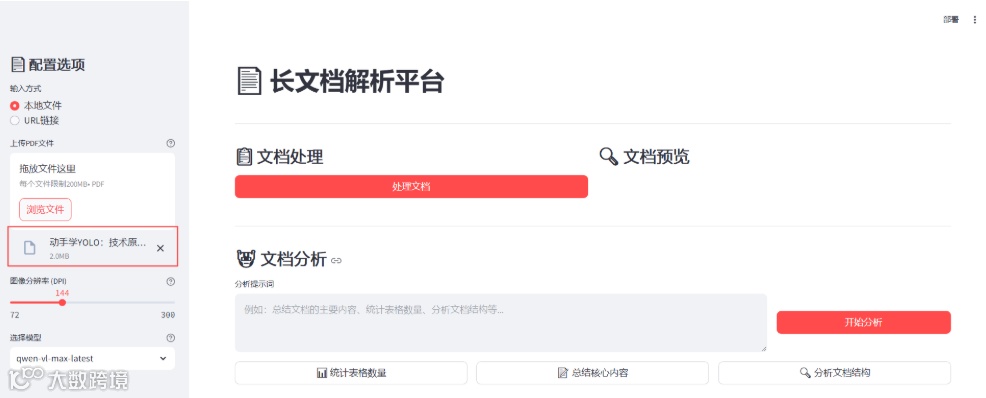
之后点击处理文档.
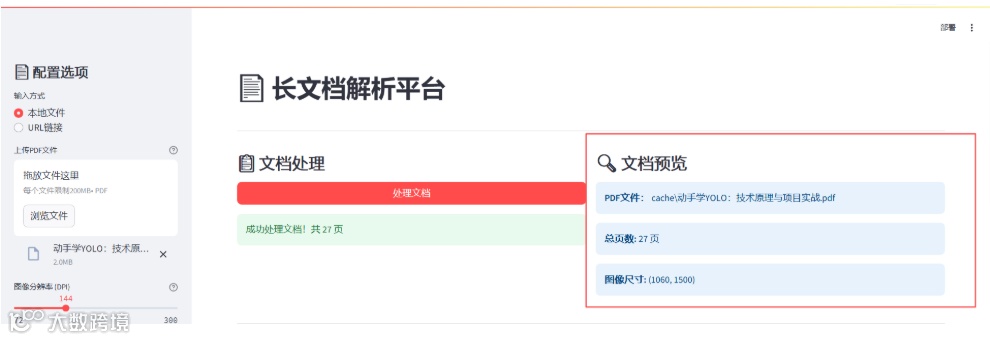
文档处理后,一共有27页。可查看文档缩略图。
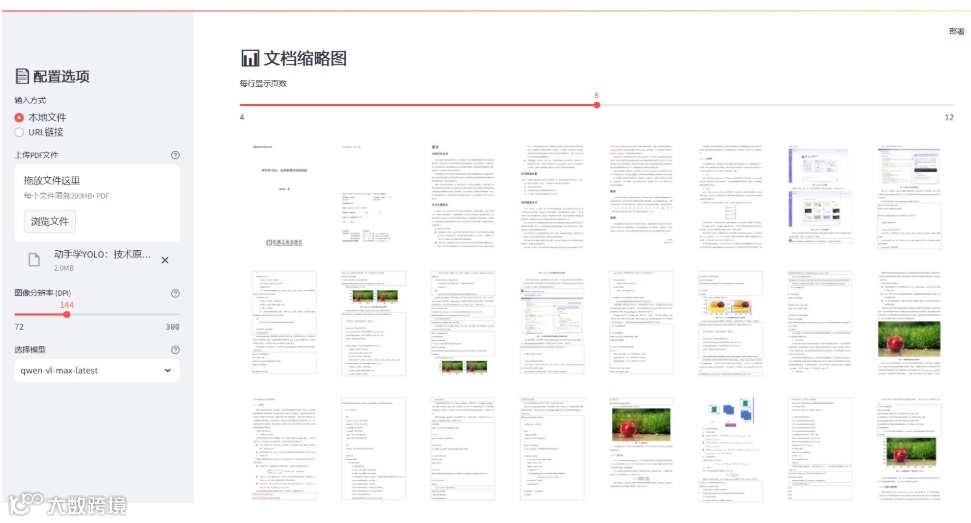
在完成文档解析后,可以进行文档智能问答。
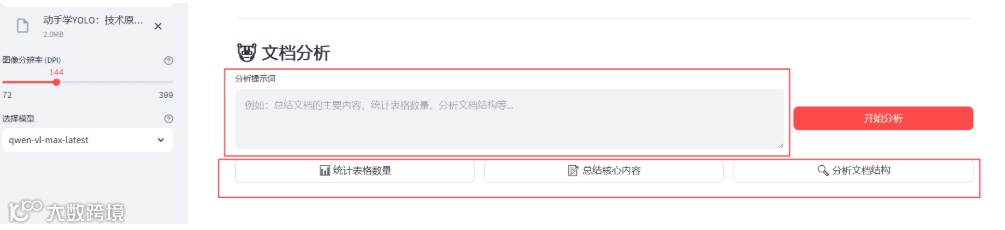
可在输入框输入想问的问题,或者点击下边预设好的问题进行提问。
比如我们选择统计表格数量后,点击开始分析。
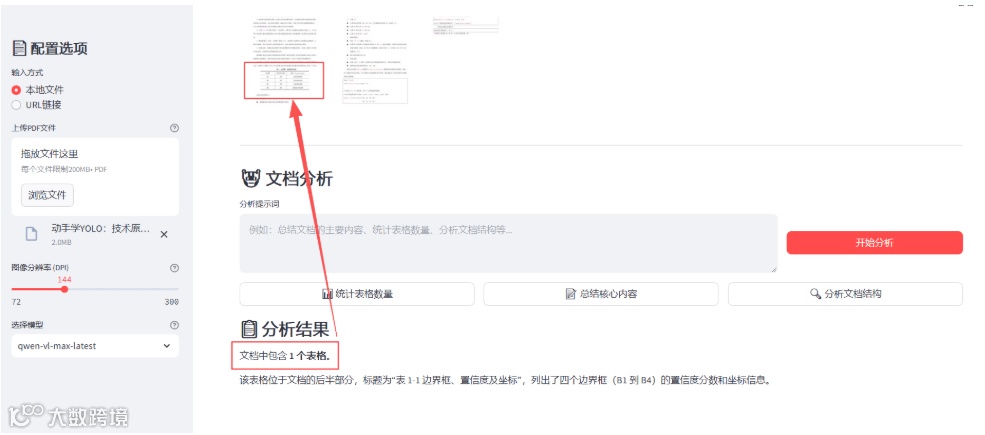
文档中包含1个表格,回答是正确的。
我们点击分析文档结构后开始分析。
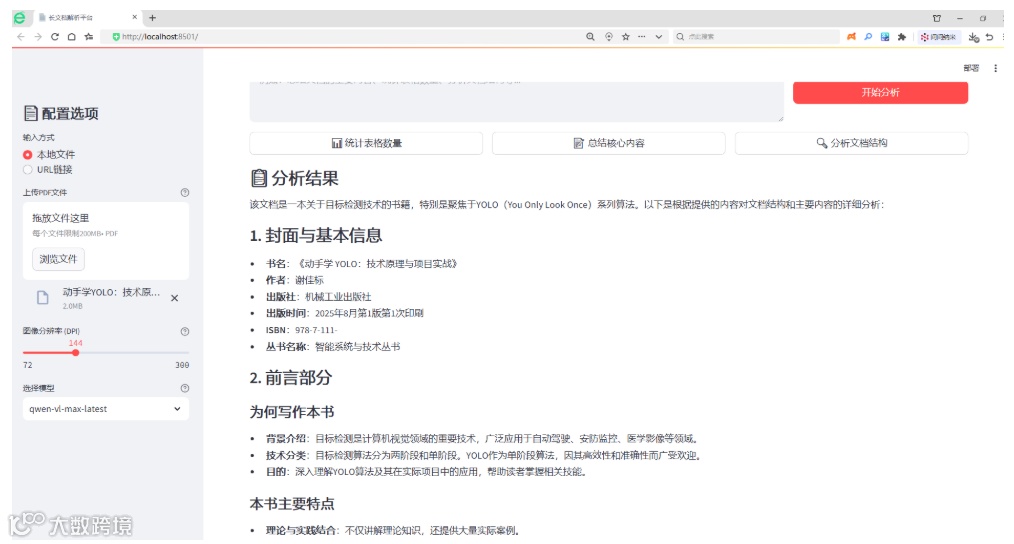
【Qwen3-VL】:多模态AI新玩法! 基于Qwen3-VL的文档智能解析(一)
【Qwen3-VL】:多模态AI新玩法! 基于Qwen3-VL的文档智能解析(二)将图片解析为Markdown
【Qwen3-VL】:多模态AI新玩法! 基于Qwen3-VL的文档智能解析(三)对图片解析Markdown结果进行智能问答
【Qwen3-VL】:多模态AI新玩法! 基于Qwen3-VL的文档智能解析(四)搭建文档解析平台
【Qwen3-VL】:多模态AI新玩法! 基于Qwen3-VL的文档智能解析(五)搭建功能完善的文档解析平台