
01
引言
万众期待的 Meta 第三代 Llama 发布了,我想确保你知道如何以最佳方式部署这个最先进的LLM。在本教程中,我们将在笔记本上部署该模型,并指导大家一步步具体操作步骤。
闲话少说,我们直接开始吧!
02
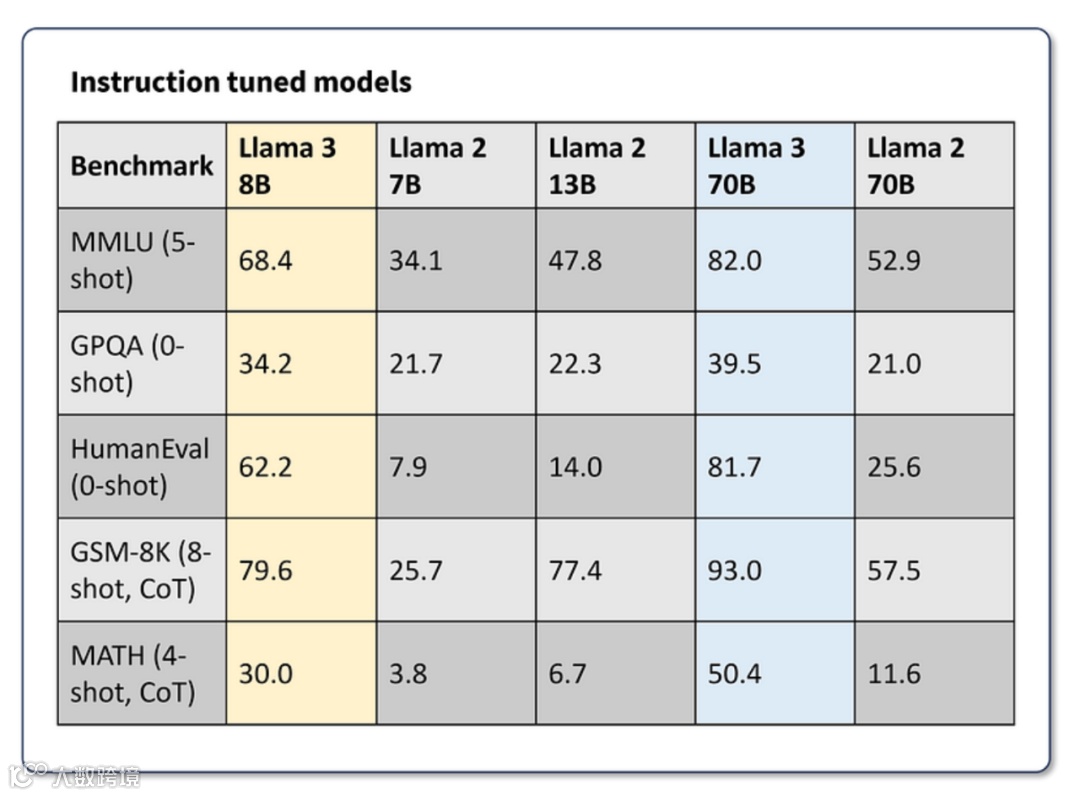
观察上图模型的性能,最引人注目的是Llama3-8B 模型在所报告的基准测试中的性能比 Llama2-70B高出 62% 到143%,而模型体积却小了 88%!关于该模型更多的细节,本文不过多阐述,接下来我们重点放在笔记本上部署该模型。
03
我们将使用 llama-cpp 库和openai库在个人笔记本上快速运行llama3模型。这将是一个初始测试,虽然只有文本界面......但可以 100% 运行。
cd ~/python -m venv venvsource ./venv/bin/activate #activate the virtual environment
现在您已经有了一个干净的 Python 虚拟环境,接着我们将安装 llama-cpp-python 和 OpenAI 库,如下:
pip install llama-cpp-pythonpip install openai
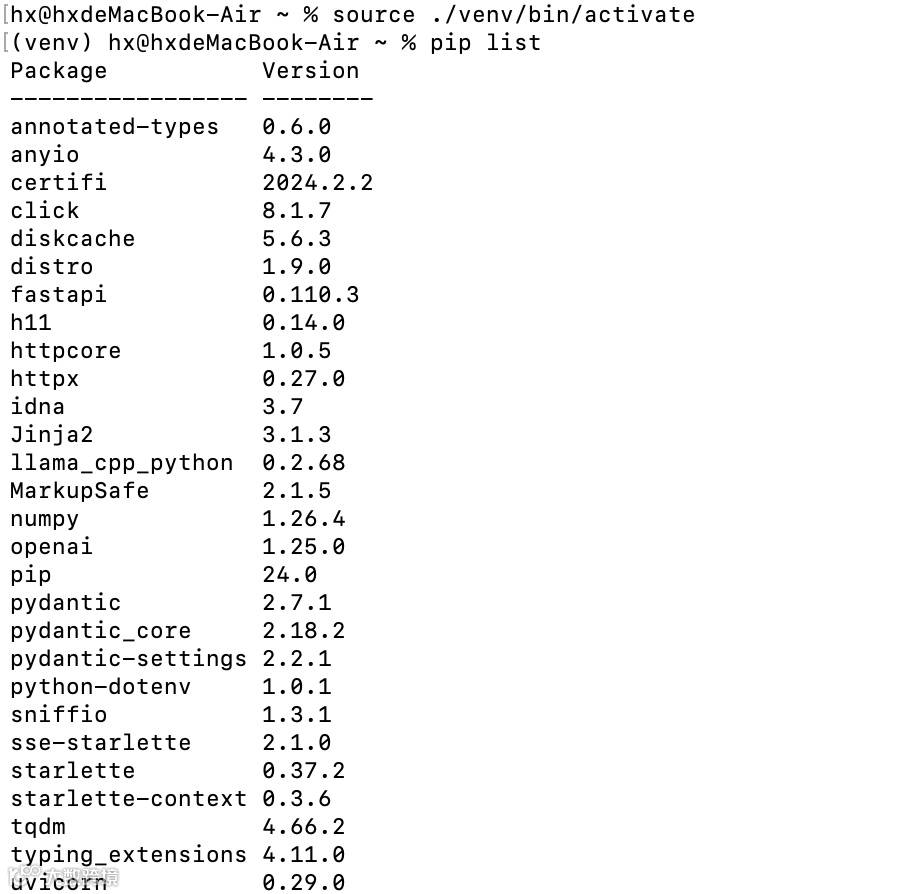
可以参考我在MacBOOK上跑通的环境中的其他依赖:
04

官网链接
https://huggingface.co/QuantFactory/Meta-Llama-3-8B-Instruct-GGUF/tree/main
点击文件和版本,选择 Q2_K(只有3Gb)或Q4_K_M(4.9Gb)。第一个版本推理精度较低,但推理速度较快,第二个版本在速度和精度之间取得了很好的平衡。

国内镜像站:
https://hf-mirror.com/QuantFactory/Meta-Llama-3-8B-Instruct-GGUF/tree/main
下载完成后,将模型文件放到自己工程目录下model文件夹内即可。
05
# Chat with an intelligent assistant in your terminalfrom openai import OpenAI# Point to the local serverclient = OpenAI(base_url="http://localhost:8000/v1",api_key="not-needed")
history = [{"role": "system", "content": "You are an intelligent assistant. You always provide well-reasoned answers that are both correct and helpful."},{"role": "user", "content": "Hello, introduce yourself to someone opening this program for the first time. Be concise."},]print("\033[92;1m")
接着,我们开始一个 while 循环:基本上,我们会一直询问用户提示,并从 Meta-Llama-3-7B-instruct 模型中生成回复,直到我们说quit或者exit。代码实现如下:
while True:completion = client.chat.completions.create(model="local-model",messages=history,temperature=0.7,stream=True,)new_message = {"role": "assistant", "content": ""}for chunk in completion:if chunk.choices[0].delta.content:print(chunk.choices[0].delta.content, end="", flush=True)new_message["content"] += chunk.choices[0].delta.contenthistory.append(new_message)print("\033[91;1m")userinput = input("> ")if userinput.lower() in ["quit", "exit"]:print("\033[0mBYE BYE!")breakhistory.append({"role": "user", "content": userinput})print("\033[92;1m")
06
万事具备!接下来,我们就来运行下我们基于LLama3的聊天机器人吧!首先,我们打开一个新的终端窗口中,激活 venv 后运行以下命令:
#with CPU onlypython -m llama_cpp.server --host 0.0.0.0 --model \./model/Meta-Llama-3-8B-Instruct.Q2_K.gguf \--n_ctx 2048
运行后,我们将启动与OpenAI 标准兼容的FastAPI 服务器。我们应该得到类似下面的信息:
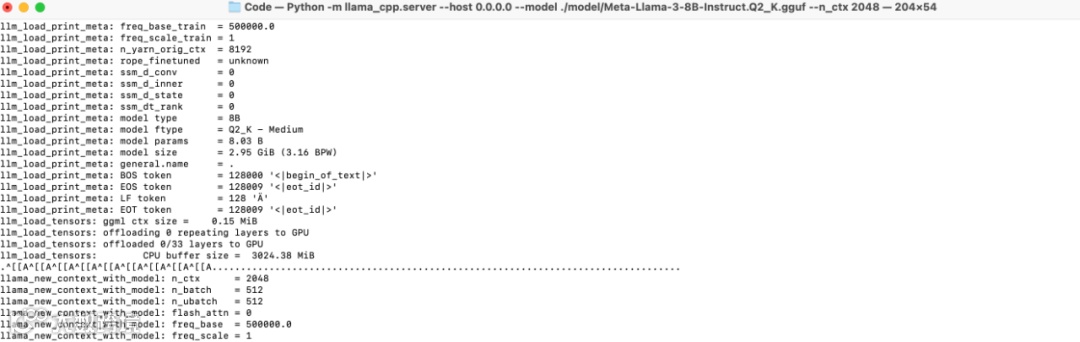
初次启动,需要一些时间。当服务器准备就绪后,Uvicorn 会以漂亮的绿色信息INFO通知显示在终端,如下:

当看到上述绿色的INFO信息后,就说明我们的服务器端已成功初始化完成,完成了相应的准备工作。
07
python ./client.py以下是我的运行界面:
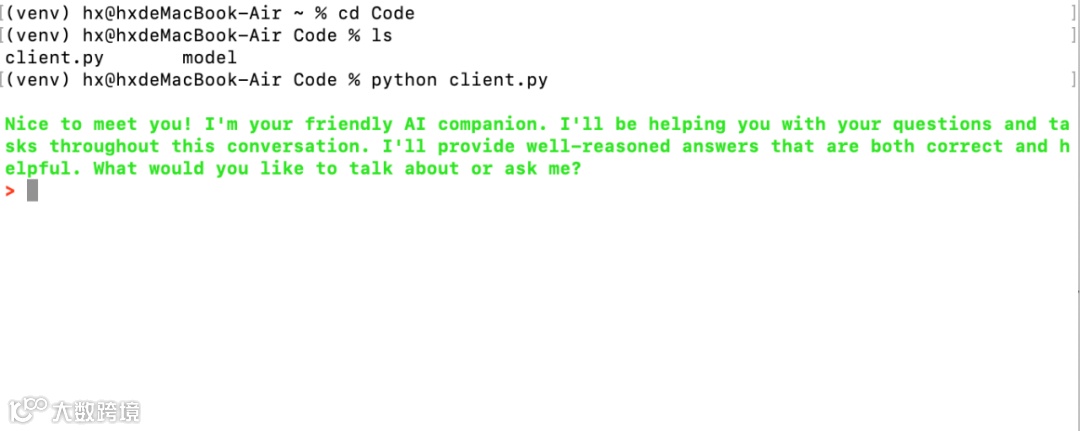
比如我问他如何减肥,他就会给我一些建议,如下:
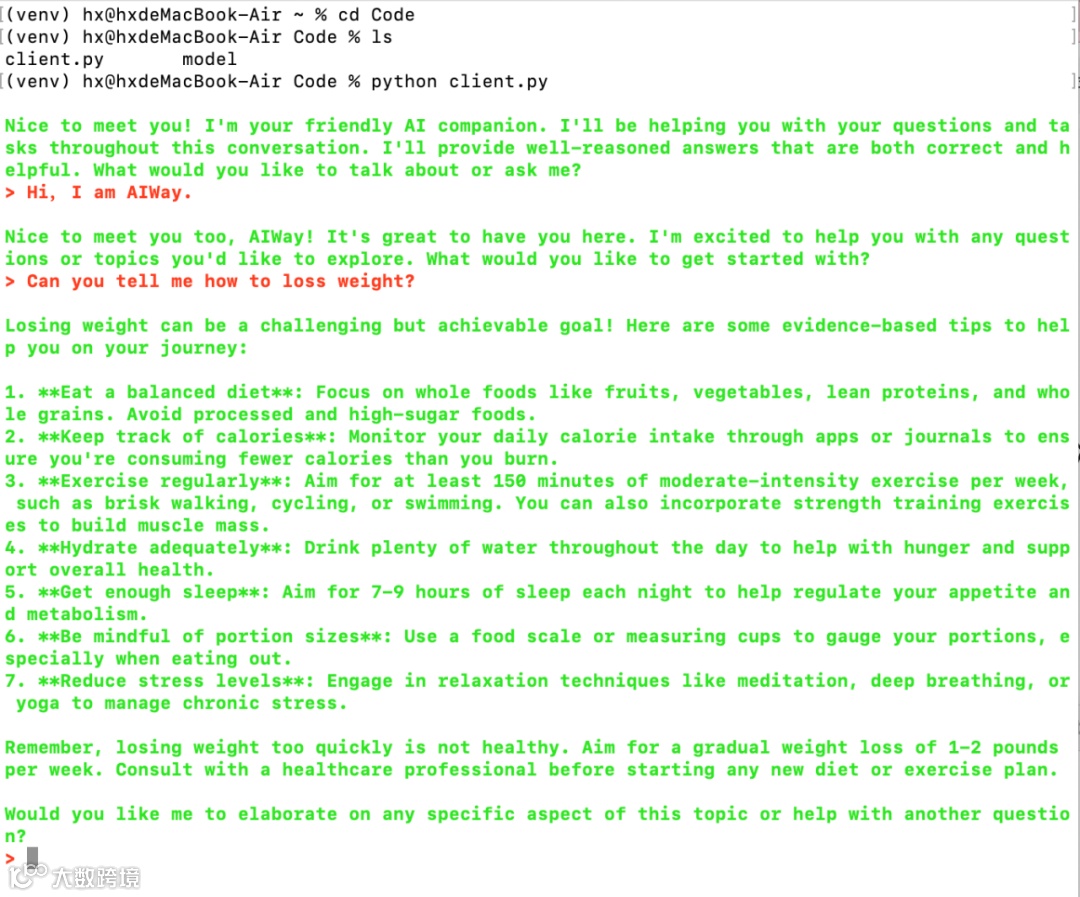
上图中,红色为我的输入,绿色为模型的答复!Awesome!!!
08
您学废了嘛?
注:关注公众号,后台回复 llama3,即可获取源码。
动动手指关注我不迷路
扫码进群,交个朋友!