


01
提交绘图需求


02
图形样式调整


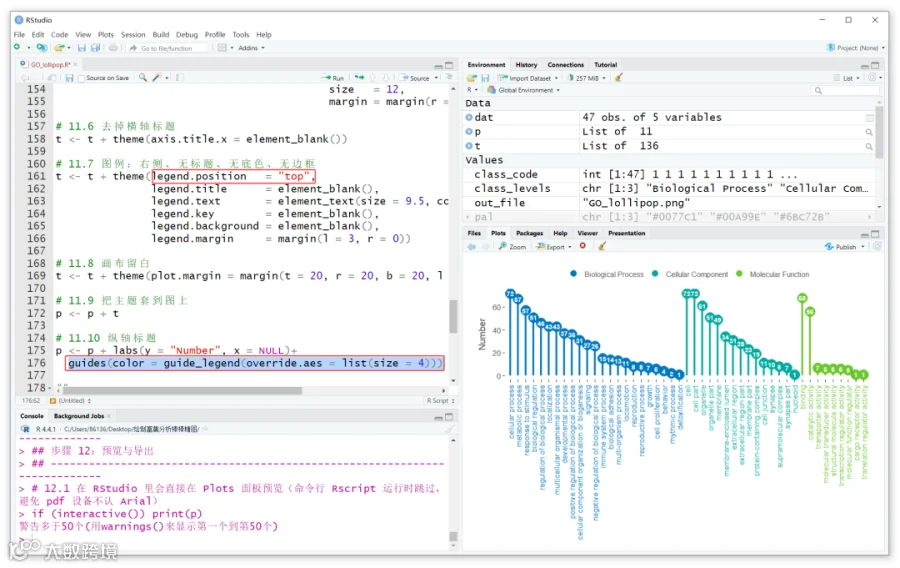
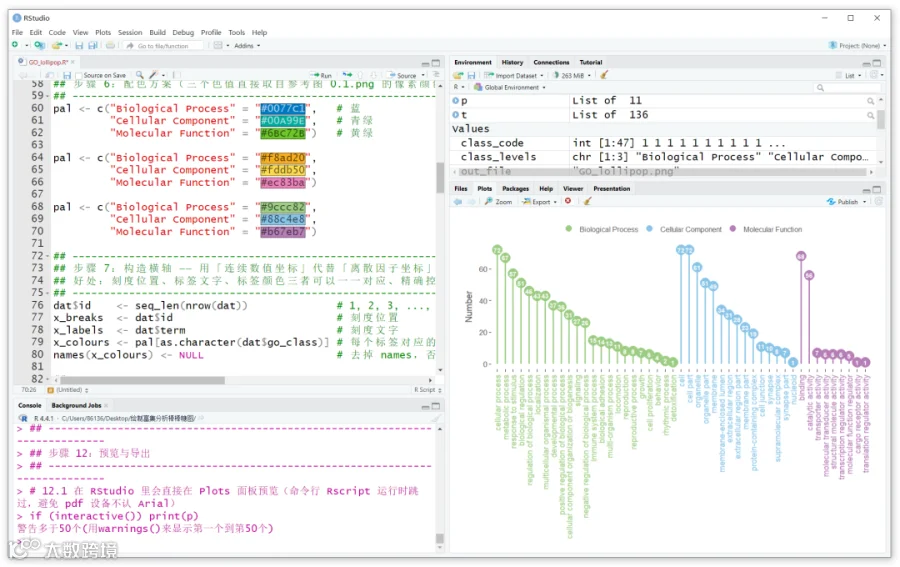
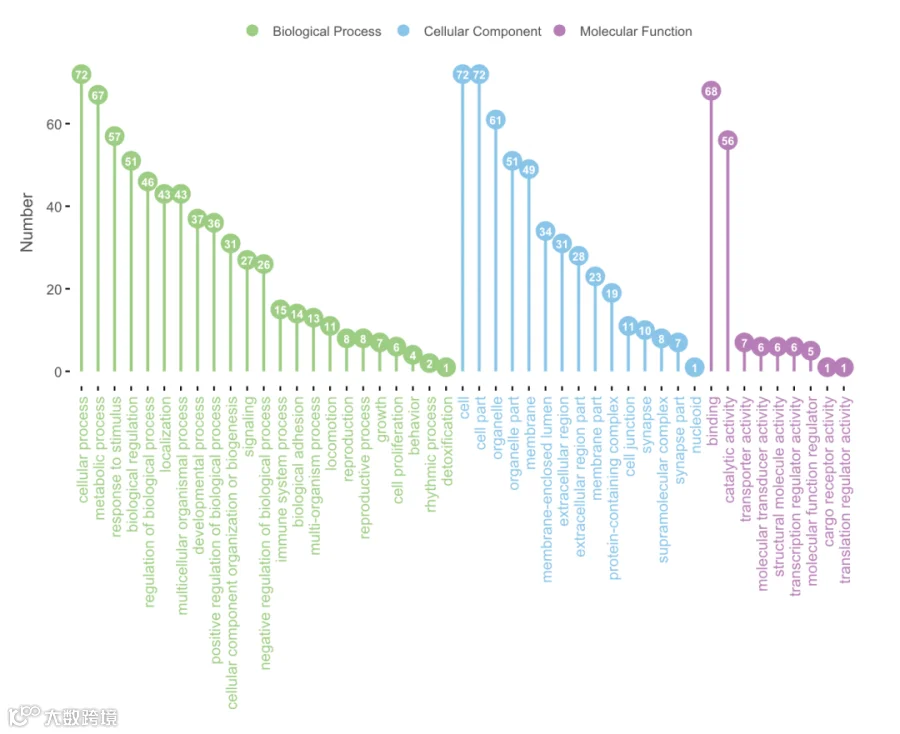
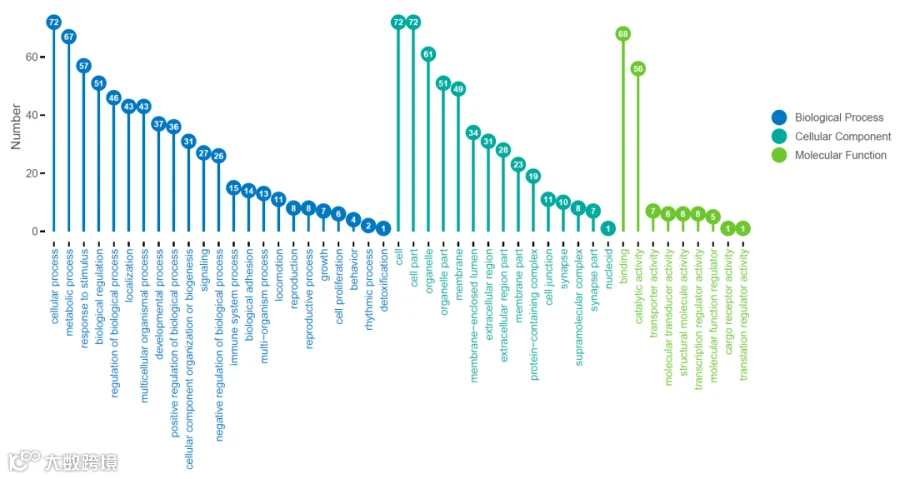
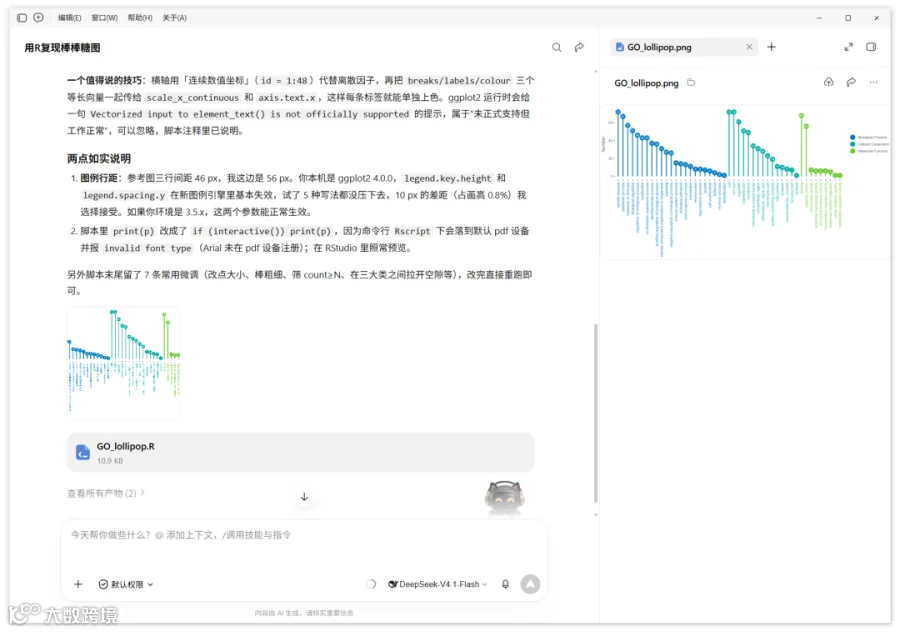
## 步骤 1:加载需要的包library(ggplot2) # 绘图核心library(ragg) # 高质量 PNG 设备:字体渲染与抗锯齿更接近参考图## 步骤 2:读取数据# 把工作目录切到脚本所在目录(RStudio 中也可手动 Session -> Set Working Directory)dat <- read.csv("GOleve2.csv",header = TRUE,stringsAsFactors = FALSE,fileEncoding = "UTF-8")head(dat)## 步骤 3:整理列名与类型(原列名较长,改成短名,后面写代码更清爽)names(dat) <- c("go_class", "go_id", "term", "count")dat$go_class <- trimws(dat$go_class) # 去掉首尾空格,避免分组识别失败dat$term <- trimws(dat$term)dat$count <- as.numeric(dat$count) # 确保是数值型## 步骤 4:固定 GO 三大类的顺序(决定图例顺序与横轴分组顺序)class_levels <- c("Biological Process","Cellular Component","Molecular Function")dat$go_class <- factor(dat$go_class, levels = class_levels)## 步骤 5:排序 —— 先按大类,再按 count 从大到小## order() 是稳定排序,并列值(如两个 43、两个 8)会保持 CSV 里的原始先后class_code <- as.integer(dat$go_class) # BP=1, CC=2, MF=3row_order <- order(class_code, -dat$count)dat <- dat[row_order, ]rownames(dat) <- NULL # 重排行号## 步骤 6:配色方案(三个色值直接取自参考图 0.1.png 的像素颜色)pal <- c("Biological Process" = "#0077C1", # 蓝"Cellular Component" = "#00A99E", # 青绿"Molecular Function" = "#6BC72B") # 黄绿pal <- c("Biological Process" = "#9ccc82","Cellular Component" = "#88c4e8","Molecular Function" = "#b67eb7")## 步骤 7:构造横轴 —— 用「连续数值坐标」代替「离散因子坐标」## 好处:刻度位置、标签文字、标签颜色三者可以一一对应、精确控制dat$id <- seq_len(nrow(dat)) # 1, 2, 3, ..., 48http://127.0.0.1:26531/graphics/ff25104f-bca5-44dc-8489-36e1e1cfae64.pngx_breaks <- dat$id # 刻度位置x_labels <- dat$term # 刻度文字x_colours <- pal[as.character(dat$go_class)] # 每个标签对应的颜色,与 x_breaks 同序names(x_colours) <- NULL # 去掉 names,否则主题参数会报错## 步骤 8:纵轴刻度(参考图只标 0 / 20 / 40 / 60 四档)y_breaks <- c(0, 20, 40, 60)y_max <- max(dat$count) # 72## 步骤 9:逐层叠加图形(核心三步:棒 -> 点 -> 字)# 9.1 建立画布:只声明数据,不写全局 aes,避免图层之间映射互相干扰p <- ggplot(data = dat)# 9.2 棒:从 y = 0 画到数值处;lineend = "butt" 让线端是平口,与圆点衔接更干净# 棒本身不单独进图例(show.legend = FALSE),图例里只保留圆点p <- p + geom_segment(mapping = aes(x = id, xend = id, y = 0, yend = count,colour = go_class),linewidth = 1,lineend = "butt",show.legend = FALSE)# 9.3 糖:圆点压在棒的顶端;stroke = 0 去掉描边,实心圆更饱满p <- p + geom_point(mapping = aes(x = id, y = count, colour = go_class),size = 6.6,stroke = 0)# 9.4 数值:白色粗体写在圆点正中间(圆点与数字同坐标,所以天然居中)p <- p + geom_text(mapping = aes(x = id, y = count, label = count),colour = "white",size = 2.9,fontface = "bold",family = "Arial",show.legend = FALSE)## 步骤 10:标度(scales)# 10.1 颜色:手动指定三组配色;name = NULL 让图例没有标题p <- p + scale_colour_manual(values = pal, name = NULL)# 10.2 横轴:连续坐标 + 自定义刻度位置与文字# add = 0.7 让左右两端各留不到一个刻度的空隙,边缘圆点不会被裁掉p <- p + scale_x_continuous(breaks = x_breaks,labels = x_labels,expand = expansion(add = 0.7))# 10.3 纵轴:范围 0-72,只显示 4 个刻度# mult = 0.05 上下各留 5% 空白,与参考图的留白比例一致(0 刻度线下方留白更明显)p <- p + scale_y_continuous(limits = c(0, y_max),breaks = y_breaks,expand = expansion(mult = c(0.05, 0.05)))## 步骤 11:主题细节(无边框、无网格、无坐标轴线,只保留刻度线)# 11.1 以 theme_classic 为底(自带白底、无网格),指定基础字号与字体t <- theme_classic(base_size = 12,base_family = "Arial")# 11.2 去掉坐标轴线(参考图没有 y 轴线,也没有 x 轴线)t <- t + theme(axis.line = element_blank(),panel.grid = element_blank())# 11.3 刻度线:黑色小竖杠t <- t + theme(axis.ticks = element_line(colour = "black", linewidth = 0.55),axis.ticks.length = unit(3.2, "pt"))# 11.4 横轴标签:旋转 90 度、右对齐到刻度、按所属大类上色# (ggplot2 允许 colour 传入与标签等长的颜色向量,会逐条对应;# 运行时提示 "Vectorized input to element_text() is not officially supported",# 属于「未正式支持但可正常工作」的提示,可忽略)t <- t + theme(axis.text.x = element_text(angle = 90,hjust = 1,vjust = 0.5,size = 11,colour = x_colours,margin = margin(t = 4)))# 11.5 纵轴刻度文字与轴标题:深灰色 (#4D4D4D),标题字号略大t <- t + theme(axis.text.y = element_text(colour = "#4D4D4D", size = 10),axis.title.y = element_text(colour = "#4D4D4D",size = 12,margin = margin(r = 8)))# 11.6 去掉横轴标题t <- t + theme(axis.title.x = element_blank())# 11.7 图例:右侧、无标题、无底色、无边框t <- t + theme(legend.position = "top",legend.title = element_blank(),legend.text = element_text(size = 9.5, colour = "#4D4D4D"),legend.key = element_blank(),legend.background = element_blank(),legend.margin = margin(l = 3, r = 0))# 11.8 画布留白t <- t + theme(plot.margin = margin(t = 20, r = 20, b = 20, l = 20, unit = "pt"))# 11.9 把主题套到图上p <- p + t# 11.10 纵轴标题p <- p + labs(y = "Number", x = NULL)+guides(color = guide_legend(override.aes = list(size = 4)))## 步骤 12:预览与导出# 12.1 在 RStudio 里会直接在 Plots 面板预览(命令行 Rscript 运行时跳过,避免 pdf 设备不认 Arial)if (interactive()) print(p)# 12.2 导出 PNG:out_file <- "GO_lollipop.png"ggsave(filename = out_file,plot = p,device = ragg::agg_png, # 换成 device = cairo_pdf 可导出矢量 PDFwidth = 11,height = 5.85,units = "in",dpi = 200,bg = "white")cat("图片已保存至:", normalizePath(out_file), "\n")
*未经许可,不得以任何方式复制或抄袭本篇文章之部分或全部内容。版权所有,侵权必究。


基迪奥旗下绘图公众号
分享科研绘图技能与工具
欢迎关注与转发~

你的好友拍了拍你
并请你帮她点一下“分享”~