
As an expat in China, there's no easier way to transfer money to friends, pay the bill at a restaurant, or shop on baopals.com than to use WeChat Wallet. If you haven't set your own WeChat Wallet up yet, here's how:
Getting Started
If you downloaded WeChat in China, or installed the Chinese version of WeChat then you’ve got access to WeChat wallet. Head over to your home screen (or “Me” on the menu at the bottom) and a tab for your Wallet awaits.

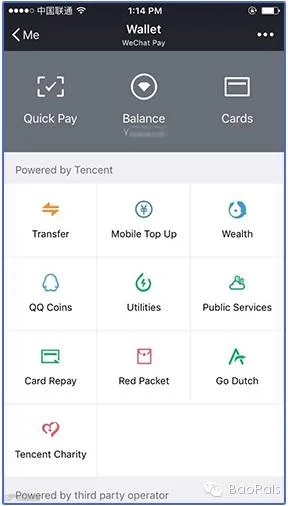
If you don’t see Wallet, then the problem can be one of two things. One is that you simply need to update to the newest version of WeChat. To check if you have the latest version go to Me > Settings > About > Check for Updates. If you get a message stating that you have the latest version of WeChat then the problem is the app version itself. Don’t fret. You don’t have to uninstall your WeChat and reinstall a Chinese version. Your wallet is there, you just have to force kick it into existence. There are two ways of doing this and I recommend you do them both to ensure it works.
The first way is to have a friend send you a Red Packet or Transfer a small amount to you. Open the Red Packet or Transfer > Click Red Packet Transferred to Wallet. Now you’ll be at your balance page, click View in Wallet. Congrats! You now have access to your wallet! Note that once you exit out of the wallet page you may not immediately see the WeChat Wallet appear under your Home/Me page. In some cases, it may take up to 24 hours for the feature to appear.
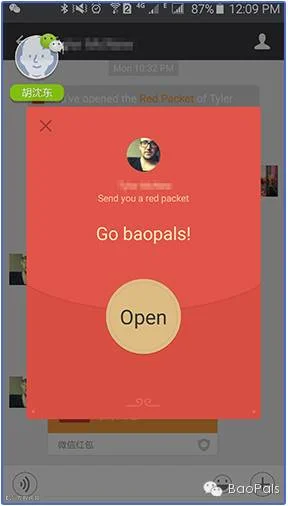
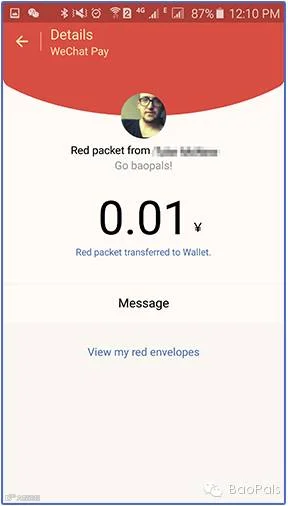
The other way is to change your language settings to Chinese. Go to Settings > General > Language > 简化中国 (Simplified Chinese). Once again the wallet function may not appear immediately. Be patient and give it up to a day for it to pop up. While it’s possible to change your settings back to English while holding onto your wallet, you may have to give it a couple of rounds of turning it off and on again before it decides to stay for good.
Cashing In
The first thing you’ll want to do is add your precious money to your account, which you can do in two ways: transfers and bank cards. To add a card, go to the Bank Card section right on the top. You’ll need to add a six-digit password; make sure this is something easy enough to remember as you’ll be using this to make all future payments and transfers. Put in the number on your bank card and WeChat automatically detects which bank and type of card you’re using. You’ll then be asked for your name and ID type.
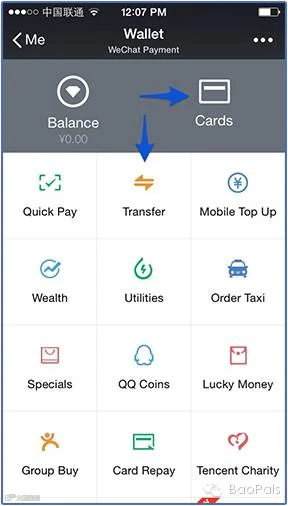
Not all banks are equal, and some require a local ID number (if you tap on “ID Card” and nothing happens, your bank is having none of it). This, of course, means that unless you’re a Chinese citizen, not all doors are open to you. Fortunately, there are now 11 banks that will accept your passport as validation, including China Merchants Bank (our recommended bank), ICBC, Bank of China, and China Construction Bank. We hear that ABC, Industrial Bank, HuaXia Bank, Bank of Communications and China Everbright Bank will also work with passports.
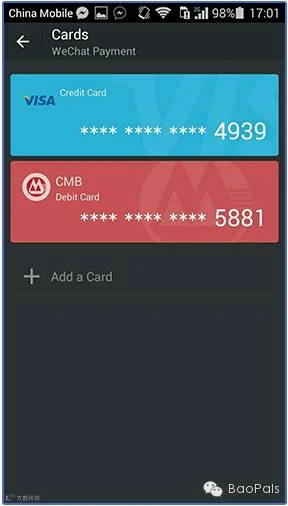
Put in your name, and ensure that you use your name in the same format featured in your bank details (if you’re sure you’ve got it right and it still doesn’t work, try capitalizing everything). Throw in your passport number and registered mobile number, get some digits by means of an SMS verification, and you’re all set. Summon some cash from your bank account to your WeChat Wallet and you’re ready to start doing everything you need to do in a fabulously easy way.
Transfers are another way to send money from one account to another; you’re only required to select a contact and declare how much money you’re sending over. Sort out dinner payments, make a bet, help a friend out, or, if you’re as lucky as we were, receive a CNY1 welcome-to-WeChat Wallet gift from a charitable pal.
Note: We’ve tested it out, and transferring money to a friend who hasn’t set a wallet up yet prompts a message along the lines of, “You’ve got money, but a wallet you have not.” This money will be ready and waiting once WeChat Wallet has been activated.
Follow baopals on WeChat for updates, promotions, and live support: