


关注【索引目录】服务号,更多精彩内容等你来探索!
在当今的商业环境中,虚拟会议占据了专业人士工作日的很大一部分。然而,一旦参与者离开虚拟会议空间,这些会议的大部分价值就消失了。关键的见解、决策和行动项目常常在日常工作中被遗漏,导致工作错位、错过截止日期,以及令人厌烦的“等等,我们到底做了什么决定?”的后续沟通。
AI 会议助理是旨在从对话中捕捉、处理和提取有意义的实时信息的系统。通过将<a href="https://getstream.io/video/"> Stream Video 强大的基础架构与大型语言模型(LLM)强大的语言理解能力相结合,组织可以部署智能会议解决方案,从而彻底改变团队协作、知识获取和决策执行的方式。
本文探讨如何构建有效的 AI 会议助手,提供实时转录、智能摘要和自动行动项目提取功能,同时又不影响用户体验或扰乱自然的对话流程。
Stream Video 提供什么功能?
Stream Video 提供了一个用于构建视频应用程序的综合平台,配备了创建引人入胜的会议体验所必需的功能:
- 低延迟视频
和音频传输。 -
在各种网络条件下实现安全可靠的连接。 -
具有云存储的录制功能。 -
可定制的布局和用户界面。 -
会议结束后可查看记录和字幕。 -
广泛的 API 可与其他服务集成。
该平台是您构建高级 AI 功能的基础,提供对 LLM 将分析的会议内容的访问。
技术前提
在开始之前,请确保您具备以下条件:
-
具有 API 密钥和秘密的 Stream 帐户。 -
访问 LLM API(例如 OpenAI、Anthropic、Gemini 等)。 -
已安装 Node.js 和 npm/yarn。 -
React 和 Node.js 的基本知识。
解决方案架构
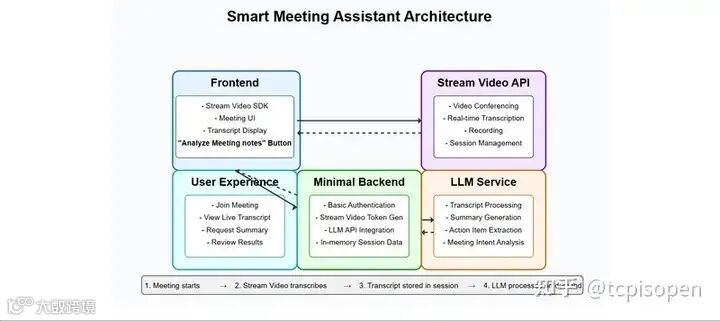
Stream Video 和 LLM 之间的集成通常遵循以下流程:
- 流视频
捕获并传输会议的音频/视频内容。 - 语音到文本处理
将口语转换为书面记录。 -
成绩单通过 API 调用发送到 LLM 进行分析 。 - LLM 输出
(摘要、行动项目)被存储并呈现给用户。
后端实现
在创建中间件并将其连接到客户端之前,您需要完成一些设置步骤。
设置您的服务器
从构建后端开始。
创建 Node.js 项目并安装依赖项:
mkdir smart-meeting-assistant cd smart-meeting-assistant cd backend npm init npm install express stream-chat nodemon dotenv cors axios @google/generative-ai创建一个.env 文件来存储您的配置凭证,包括您的 Stream 和 LLM 提供程序密钥:
STREAM_API_KEY=your_stream_api_key
STREAM_API_SECRET=your_stream_api_secret GEMINI_API_KEY=your_llm_api_key
LLM_API_URL=「HTTPS://generativelanguage.googleapis.com/v1beta」
PORT=「5000」
创建 index.js 文件并导入必要的模块:
import express from 『express』;
import cors from 『cors』;
import dotenv from 『dotenv』;
import { GoogleGenerativeAI } from 『@google/generative-ai』;
import { StreamChat } from 『stream-chat』;
import axios from 『axios』;
dotenv.config();

const app = express();

// Simple in-memory storage for transcripts { callCid: transcriptText }
let callTranscripts = {};

// Middleware
app.use(cors());
app.use(express.json());
服务初始化
我们初始化令牌生成和 LLM 处理所需的服务:
// Initialize Gemini
const genAI = new GoogleGenerativeAI(process.env.GEMINI_API_KEY);

// Initialize Stream Chat Client (for token generation)
const serverClient = StreamChat.getInstance(
  process.env.STREAM_API_KEY,
  process.env.STREAM_API_SECRET
);
服务器初始化
这将监听服务器正在运行的端口,当前设置为在端口 5000 上运行:
const port = process.env.PORT || 5000;

app.listen(port, () => {
  console.log(`Server is running on port ${port}`);
});
API 端点
您的服务器应该公开这些关键端点:
1. 视频会议创建
POST /api/create-meeting– 为用户生成流视频/聊天令牌。
// Stream Video Routes
app.post(『/api/create-meeting』, async (req, res) => {
  try {
    const { UserId } = req.body; // Only need userId to generate a token
    if (!userId) {
      return res.status(400).json({ error: 『userId is required』 });
    }

    // Create a token using the StreamChat client
    const expirationTime = Math.floor(Date.now() / 1000) + 3600; // Token valid for 1 hour
    const token = serverClient.createToken(userId, expirationTime);

    res.json({
      token,
      apiKey: process.env.STREAM_API_KEY // Send API key to frontend
    });
  } catch (error) {
    // Use a more specific error message if possible
    console.error(『Error generating Stream token:』, error);
    res.status(500).json({ error: 『Failed to generate meeting token』 });
  }
});
2. 实时转录 Webhook
POST /api/webhook– 处理来自 Stream 的传入 webhook 事件。
此路由监听转录就绪事件、下载转录本、解析转录本并将其存储在内存中。
注意:所有会议数据都存储在内存中,并与活动会话绑定。此方法侧重于展示 Stream Video 和 LLM 的实时功能。
此外,始终在生产中验证 webhook 签名以确保请求来自 Stream。
app.post(『/api/webhook』, express.raw({ type: 『application/json』 }), (req, res) => {
  const event = req.body; // Stream sends event data in the request body

  // NOTE FOR PRODUCTION: Add signature verification for security

  console.log(`Received Stream Event Type: ${event?.type}`);
  console.log(『Full Event Body:』, JSON.stringify(event, null, 2));

  // 快速响应流以确认收到
  res.status(200).send(『Event received』);

  // Event Handler for transcription.
  if (event?.type === 『call.transcription_ready』) {
    const transcriptUrl = event.call_transcription?.url;
    const callCid = event.call_cid; // e.g., 「default:test-meeting-2」
    console.log(`Full transcription is ready for call ${callCid}: ${transcriptUrl}`);

    if (transcriptUrl && callCid) {
      // --- Download and Parse Transcript ---
      (async () => {
        try {
          console.log(`Downloading transcript for ${callCid} from ${transcriptUrl}`);
          // Make sure axios is required/imported (it is, at the top)
          const response = await axios.get(transcriptUrl, { responseType: 『text』 });
          const jsonlContent = response.data;
          console.log(`Downloaded transcript content length: ${jsonlContent.length}`);

          // Parse the JSONL content
          const lines = jsonlContent.trim().split(『
』);
          let fullTranscript = 『』;
          let speakerTimestamps = {}; // Optional: Track speaker time

          console.log(`Parsing ${lines.length} lines from JSONL...`);
          for (const line of lines) {
            try {
              const speechFragment = JSON.parse(line);
              if (speechFragment.text) {
                const speaker = speechFragment.speaker_id || 『Unknown』;
                // Add speaker name if you want it inline
                fullTranscript += `[${speaker}]: ${speechFragment.text} `;
                // Uncomment the below and comment the line above if you do not want the speaker name attached.
                // fullTranscript += speechFragment.text + 『 』; // Add space between fragments

              }
            } catch (parseError) {
              console.error(`Error parsing JSONL line: ${line}`, parseError);
            }
          }
          fullTranscript = fullTranscript.trim();
          console.log(`--- Full Transcript for ${callCid} ---`);
          console.log(fullTranscript);
          console.log(`--- End Transcript ---`);


          // --- Store the fullTranscript ---
          console.log(`Storing transcript for ${callCid}`);
          callTranscripts[callCid] = fullTranscript;


        } catch (downloadError) {
          // Log axios errors more informatively
          if (axios.isAxiosError(downloadError)) {
            console.error(`Axios error downloading transcript from ${transcriptUrl}:`, {
              status: downloadError.response?.status,
              data: downloadError.response?.data,
              message: downloadError.message,
            });
          } else {
            console.error(`Error downloading transcript from ${transcriptUrl}:`, downloadError);
          }
        }
      }); // Immediately invoke the async function

    } else {
        console.warn(『Received call.transcription_ready event but no URL or callCid found.』);
    }
  }

});
公开/配置你的 Stream Webhook
要在本地测试你的 webhook:
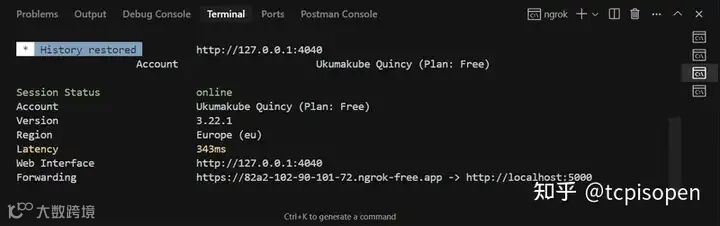
使用 ngrok 公开您的服务器:
ngrok HTTP 5000
从您的终端复制 HTTPS 转发 URL。
在 Stream 仪表板中配置 webhook:
-
登录您的<a href="https://http://getstream.io/try-for-free/"> Stream 帐户。 -
导航到您的应用程序>“视频和音频”>“Webhooks”。 -
将 URL 粘贴为: HTTPS://<your-ngrok-url>/api/webhook -
启用相关事件,例如 call.created、call.ended和call.transcription_ready
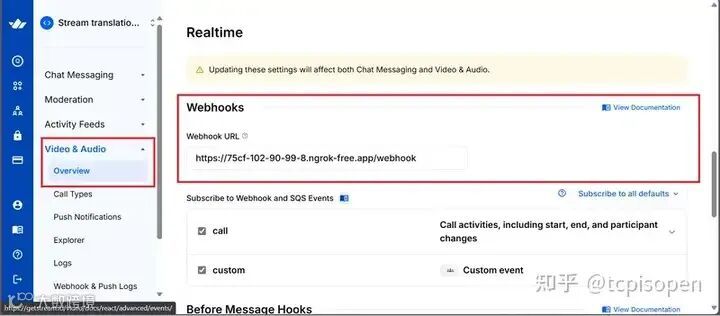
注意: ngrok URL 每次重启时都会改变。
3. 会议记录分析器
POST /api/analyze-meeting– 使用 Gemini 分析会议记录并返回摘要内容,突出显示行动项目。
// Meeting Note Analyser
app.post(『/api/analyze-meeting』, async (req, res) => {
  try {
    const { meetingNotes } = req.body;

    const model = genAI.getGenerativeModel({ model: 「gemini-2.0-flash」 });

    const prompt = `Please analyze the following meeting transcript/notes and provide:
1.  **Concise Summary:** A brief paragraph summarizing the main topic and outcome of the discussion.
2.  **Key Discussion Points:** A bulleted list of the most important topics discussed.
3.  **Action Items:** A numbered list of tasks assigned, including who is responsible if mentioned (e.g., 「Action: [Task description] - @[Username/Name]」).
4.  **Decisions Made:** A bulleted list of any clear decisions reached during the meeting.

Meeting Transcript/Notes:
---
${meetingNotes}
---

Format the output clearly under these headings.`;

    const result = await model.generateContent(prompt);
    const response = await result.response;

    res.json({ analysis: response.text() });
  } catch (error) {
    console.error(『Error analyzing meeting:』, error);
    res.status(500).json({ error: 『Failed to analyze meeting notes』 });
  }
});
4. 获取成绩单
GET /api/get-transcript/:callType/:callId– 如果可用,返回给定会议 ID 的完整记录。
此路由允许前端检索已处理好的记录。它接受两个参数:callType(通常设置为「default」)和 callId(也称为会议 ID)。当前端发出请求时,路由会在内存存储中查找记录。如果找到,它将返回一个包含记录的对象:
{ 「transcript」: 「...」 }。
如果未找到,则返回错误对象:
{ 「error」: 「Transcript not found or not ready yet.」 }
// --- Endpoint to Retrieve Transcript ---
app.get(『/api/get-transcript/:callType/:callId』, (req, res) => {
  const { callType, callId } = req.params;
  const callCid = `${callType}:${callId}`;

  console.log(`Frontend requested transcript for ${callCid}`);
  const transcript = callTranscripts[callCid];

  if (transcript !== undefined) {
    res.json({ transcript: transcript });
  } else {
    console.log(`Transcript not found for ${callCid}`);
    // Could be that the call ended before transcription was ready,
    // or it wasn『t processed yet. Return empty or 404.
    res.status(404).json({ error: 』Transcript not found or not ready yet.『 });
  }
});
前端实现
您的智能会议助手应用程序的前端使用 React、Vite 和Stream Video SDK 构建。这种组合提供了快速的开发环境和强大的实时视频通信层。
设置你的 React 应用程序
npm create vite@latest frontend --template react
cd frontend
npm install @stream-io/video-react-sdk
axios @emotion/react @emotion/styled @mui/icons-material @mui/material
npm run dev
设置环境变量
在您的.env 文件中,添加以下内容:
VITE_STREAM_API_KEY=your_stream_api_key
VITE_BACKEND_URL=your_backend_url
Vite 配置(frontend/vite.config.js)
该 vite.config.js 文件配置了 Vite 开发服务器和构建过程。
插件:
@vitejs/plugin-react:这个必备插件在 Vite 中启用了 React 支持,提供了快速刷新(React 组件的 HMR)和 JSX 转换等功能。
开发服务器(服务器选项):
port: 3000:指定 Vite 开发服务器应在端口 3000 上运行。 - 代理(代理选项)
:当前端(Vite 服务器)和后端 API 运行在不同的端口上时,代理对于开发至关重要。此配置会告诉 Vite 的开发服务器:“任何以 /api(例如/api/analyze-meeting、/api/create-meeting)开头的请求都应转发到HTTP://localhost:5000。” target: 『HTTP://localhost:5000』:您的后端服务器的 URL。 changeOrigin: true:此选项对于虚拟主机环境非常重要,它将 Origin请求的标头设置为targetURL。它有助于避免 CORS 问题或可能根据来源拒绝请求的后端配置。
这种代理设置允许前端代码对相对路径进行 API 调用,而/api/analyze-meeting 无需在开发过程中担心 CORS 问题,因为浏览器会将请求发送到 localhost:3000(Vite 服务器),然后 Vite 服务器会将其代理到 localhost:5000(后端服务器)。在生产环境中,像 NGINX 或您的托管平台这样的反向代理可以处理类似的设置。
import { defineConfig } from 『vite』
import react from 『@vitejs/plugin-react』

// HTTPS://vitejs.dev/config/
export default defineConfig({
  plugins: [react()],
  server: {
    port: 3000,
    proxy: {
      『/api』: {
        target: 『HTTP://localhost:5000』,
        changeOrigin: true,
      },
    },
  },
})
标题组件
这是应用程序标题的展示组件。
import { AppBar, Toolbar, Typography } from 『@mui/material』;
import AutoStoriesIcon from 『@mui/icons-material/AutoStories』;

function Header() {
  return (
    <AppBar position=「static」>
      <Toolbar>
        <AutoStoriesIcon sx={{ mr: 2 }} />
        <Typography variant=「h6」 component=「div」>
          Smart Meeting Assistant
        </Typography>
      </Toolbar>
    </AppBar>
  );
}

export default Header;
行动项目显示组件
这是一个专用组件,用于渲染或显示由 提供的分析文本中的操作项 MeetingAnalyzer.jsx。
它提取结构化的洞察,并以简洁易用的格式呈现——通常是任务列表或项目符号列表。这种关注点分离确保提取操作项的逻辑保留在分析器中,而该组件则专注于输出的可视化。
为了识别这些操作,我们使用了一个解析函数,该函数将文本作为参数,并使用正则表达式(Regex):
const parseActionItems = (analysisText) => {
  if (!analysisText) return [];

  const lines = analysisText.split(『\n』);
  const actionItemsSection = [];
  let inActionItemsSection = false;

  for (const line of lines) {
    const trimmedLine = line.trim();
    if (trimmedLine.includes(『**Action Items:**』)) {
      inActionItemsSection = true;
      continue; // Skip the header line
    }
    // Stop if we hit the next section or empty line after starting
    if (inActionItemsSection && (trimmedLine.startsWith(『**』) || trimmedLine === 『』)) {
         if(actionItemsSection.length > 0) break; // Stop only if we『ve found items
         else continue; // Skip empty lines before items
    }

    if (inActionItemsSection && trimmedLine) {
        // Check if the line looks like an action item (e.g., starts with number. or 』Action:『)
        if (/^\d+\.\s/.test(trimmedLine) || trimmedLine.toLowerCase().startsWith(』action:『)) {
             actionItemsSection.push(trimmedLine.replace(/^\d+\.\s*/, 』『)); // Remove leading number/dot
        }
    }
  }

  // Fallback if specific section not found, try finding lines starting with 』Action:『 anywhere
  if (actionItemsSection.length === 0) {
      for (const line of lines) {
          const trimmedLine = line.trim();
          if (trimmedLine.toLowerCase().startsWith(』action:『)) {
               actionItemsSection.push(trimmedLine);
          }
      }
  }

  return actionItemsSection;
};
然后 UI 渲染如下:
import React from 『react』;
import {
  Box,
  Card,
  CardContent,
  列表
  ListItem,
  ListViewItem,
  排版,
} from 『@mui/material』;

const ActionItemsDisplay = ({ analysisText }) => {
  const actionItems = parseActionItems(analysisText);

  if (actionItems.length === 0) {
    return null; // Don『t render anything if no action items are found
  }

  return (
    <Card sx={{ mt: 3 }}>
      <CardContent>
        <Typography variant=「h6」 gutterBottom>
          Action Items
        </Typography>
        <List dense>
          {actionItems.map((item, index) => (
            <ListItem key={index} disablePadding>
              <ListItemText primary={`- ${item}`} />
            </ListItem>
          ))}
        </List>
      </CardContent>
    </Card>
  );
};

export default ActionItemsDisplay;
会议分析器组件
该组件为用户提供了输入或查看成绩单的 UI,该成绩单作为名为的 prop 接收 initialNotes。
通过作为 prop 传递 initialNotes,组件保持解耦和可复用,从而能够在会议结束后动态渲染可用的记录数据。这种方法也使其更容易与后端服务同步。
在 内部 MeetingAnalyzer.jsx,useEffect 钩子监听 initialNotesprop 的变化。当 latestTranscript 更新时 App.jsx,此 prop 会改变并更新其内部 meetingNotes 状态,用新的脚本填充其文本字段。
useEffect(() => {
  if (initialNotes) {
    setMeetingNotes(initialNotes);
  }
}, [initialNotes]);
点击“分析会议记录”按钮后,会将记录/文字记录发送到后端 API 进行分析,然后显示分析结果。
const handleSubmit = async (e) => {
    e.preventDefault();
    setLoading(true);
    setError(『』);
    setAnalysis(『』);

    try {
      const response = await axios.post(『/api/analyze-meeting』, {
        meetingNotes,
      });
      setAnalysis(response.data.analysis);
    } catch (error) {
      setError(『Failed to analyze meeting notes. Please try again.』);
      console.error(『Error:』, error);
    } finally {
      setLoading(false);
    }
  };
行动项是使用 ActionItemsDisplay.jsx 集成到该组件的组件列出的。
{analysis && (
        你好,我是 Qwen,由阿里云开发。
          <Card sx={{ mt: 3 }}>
            <CardContent>
              <Typography variant=「h6」 gutterBottom>
                Meeting Analysis
              </Typography>
              <Typography
                variant=「body1」
                component=「pre」
                sx={{
                  whiteSpace: 『pre-wrap』,
                  fontFamily: 『inherit』,
                }}
              >
                {analysis}
              </Typography>
            </CardContent>
          </Card>

          <ActionItemsDisplay analysisText={analysis} />
        </>
      )}
视频通话组件
以下是 VideoCall.jsx 分为几个关键部分的完整逻辑:
初始设置和导入
Stream Video SDK 主要集成到 Videocall.jsx 组件中。StreamVideo、、StreamCall 和StreamVideoClient 是客户端设置所需的核心包装器。
这些核心包装器负责处理在整个应用程序中启用实时视频功能所需的初始化和上下文管理。它们 StreamVideoClient 会与 Stream 的后端建立连接,并 StreamCall 提供用于管理特定通话实例的上下文。它们 StreamVideo 会包装通话 UI,并确保所有子组件都能访问必要的通话状态和配置。通过将这些元素集中在 Videocall.jsx 组件中,应用程序可以保持清晰的结构,并在不同的视图或路由之间保持一致的视频行为。
CallControls 此 SDK 提供、CallParticipantsList、SpeakerLayout 和等 UI 组件 VideoPreview。
这些 UI 组件旨在简化视频通话界面的开发。例如,CallControls 它提供静音、取消静音和屏幕共享等内置操作,同时 SpeakerLayout 确保当前发言者清晰可见。此外,VideoPreview 它还允许用户在加入通话前查看摄像头画面,从而提升用户体验。
SDK 还附带自己的默认 CSS 样式,可以根据需要进行定制,以匹配您的应用程序的品牌或设计系统:
import { useState, useEffect } from 『react』;
import {
  StreamVideo,
  StreamCall,
  StreamVideoClient,

  CallControls,
  CallParticipantsList,
  SpeakerLayout,
  VideoPreview,
} from 『@stream-io/video-react-sdk』;
import {
  Box,
  按钮,
  TextField,
  排版,
  CircularProgress,
} from 『@mui/material』;
import axios from 『axios』;

// Import the Stream Video CSS
import 『@stream-io/video-react-sdk/dist/CSS/styles.CSS』;
状态管理
该 VideoCall.jsx 文件使用几个状态变量来有效地管理应用程序:
const VideoCall = ({ onTranscriptReady }) => {
  const [client, setClient] = useState(null);
  const [call, setCall] = useState(null);
  const [userId, setUserId] = useState(『』);
  const [meetingId, setMeetingId] = useState(『』);
  const [loading, setLoading] = useState(false);
  const [error, setError] = useState(『』);
fetchTranscriptWithRetry 函数
此函数从后端 API 获取转录本。它接受四个参数:
callType:指定呼叫类型(始终设置为 『default』)。callId:唯一的会议 ID。 retries:重试次数。 delayMs:重试之间的延迟时间(以毫秒为单位)。
重试是必要的,因为 Stream 可能在首次发出请求时尚未将脚本发送到后端。如果发生这种情况,则会记录错误,但该函数将重试(最多三次)。
const fetchTranscriptWithRetry = async (callType, callId, retries = 3, delayMs = 30000) => {
  for (let i = 0; i < retries; i++) {
    try {
      console.log(`Attempt ${i + 1} to fetch transcript for ${callType}:${callId}`);
      const response = await axios.get(`/api/get-transcript/${callType}/${callId}`);
      if (response.data?.transcript !== undefined) { // Check if transcript key exists (even if empty string)
        console.log(『Transcript fetched successfully.』);
        return response.data.transcript;
      }
      // If transcript key is missing but request succeeded, maybe backend error?
      console.warn(『Transcript endpoint returned success, but no transcript data found.』);
      // Decide if you want to retry in this case or treat as failure
      // For now, let『s break and return null if data structure is unexpected
      return null;
    } catch (fetchError) {
      if (axios.isAxiosError(fetchError) && fetchError.response?.status === 404) {
        console.warn(`Transcript not found (Attempt ${i + 1}/${retries}). Retrying in ${delayMs / 1000}s...`);
        if (i < retries - 1) { // Don』t wait after the last attempt
          await new Promise(resolve => setTimeout(resolve, delayMs));
        } else {
            console.error(`Transcript not found after ${retries} attempts for ${callType}:${callId}.`);
        }
      } else {
        console.error(`Error fetching transcript (Attempt ${i + 1}/${retries}):`, fetchError);
        // Don『t retry on other errors (like server errors, network issues)
        return null; // Indicate failure
      }
    }
  }
  return null; // Indicate failure after all retries
};
流 SDK 初始化
StreamVideoClient 使用以下方式创建实例:
apiKey:从环境变量中检索。 token:从您的 /api/create-meeting后端端点获取。user:像这样的对象 { id: userId }。
const initializeClient = async (userId, token) => {
    try {
      const user = { id: userId }; // Simplified user object

      const videoClient = new StreamVideoClient({
        apiKey: import.meta.env.VITE_STREAM_API_KEY,
        token,
        user
      });

      setClient(videoClient);
      return videoClient;
    } catch (error) {
      console.error(『Error initializing client:』, error);
      setError(『Failed to initialize video client』);
      return null;
    }
  };
加入会议功能
客户端初始化后,videoClient.call(『default』, meetingId)检索呼叫对象。该 join({ create: true })方法将加入呼叫,如果该对象尚不存在,则创建它。
加入后,startTranscription 即可启用 Stream 的服务器端转录和字幕:
const joinMeeting = async (e) => {
    e.preventDefault();
    setLoading(true);
    setError(『』);

    try {
      // 创建或加入通话并获取令牌
      const response = await axios.post(『/api/create-meeting』, {
        meetingId,
        userId
      });

      const { token } = response.data;

      // 初始化客户端并使用令牌
      const videoClient = await initializeClient(userId, token);
      if (!videoClient) {
        setLoading(false);
        return;
      }

      // Join the call
      console.log(`Attempting to join call ${meetingId} as user ${userId}`);
      const newCall = videoClient.call(『default』, meetingId);

      // 添加事件监听器以监听连接质量变化
      newCall.on(『connection.changed』, (event) => {
        console.log(『[Stream Call Event] Connection quality changed:』, event.connection_quality);
      });

      await newCall.join({ create: true });
      console.log(`Successfully joined call ${meetingId}. Call CID: ${newCall.cid}`);

      // Start transcription and closed captions after successfully joining
      try {
        console.log(『Attempting to start transcription...』);
        await newCall.startTranscription({
          language: 『en』,
          enable_closed_captions: true
        });
        console.log(『Transcription and closed captions started successfully.』);
      } catch (transcriptionError) {
        console.error(『Failed to start transcription:』, transcriptionError);
        // Optionally set an error state or notify the user
        // setError(『Failed to start meeting transcription.』);
      }

      setCall(newCall);
    } catch (error) {
      console.error(『Error joining meeting:』, error);
      // Check if the error object has more details
      if (error.message) {
        setError(`Failed to join meeting: ${error.message}`);
      } else {
        setError(『Failed to join meeting. Check console for details.』);
      }
    } finally {
      setLoading(false);
    }
  };
离开会议功能
当用户离开会议时:
call.leave()挂断通话。 -
使用 触发成绩单提取 fetchTranscriptWithRetry。 -
成绩单 App通过 传递给组件onTranscriptReady。
const leaveMeeting = async () => {
    console.log(『Leave Meeting button clicked...』);
    const currentMeetingId = meetingId;
    const callType = 『default』;

    setLoading(true);
    try {
      if (call) {
        console.log(『Attempting call.leave()...』);
        await call.leave();
        console.log(『Call left successfully via button.』);
      }
    } catch (error) {
      console.error(『Error during call.leave() via button:』, error);
    } finally {
      // Reset UI state immediately
      setCall(null);
      setLoading(false);
      setCurrentCaption(『』);

      // --- Fetch Transcript after leaving (with retry) ---
      if (currentMeetingId && callType) {
         // Call the retry helper function - runs in background, doesn『t block UI reset
        (async () => {
            const transcript = await fetchTranscriptWithRetry(callType, currentMeetingId);
            if (transcript !== null) {
                onTranscriptReady(transcript); // Pass transcript up to App
            } else {
                console.log(』Failed to fetch transcript after retries.『);
                 // Optionally inform App/user that transcript is unavailable
                 // onTranscriptReady(』[Transcript unavailable]『);
            }
        })();
      }
    }
  };
客户端断开连接
确保组件卸载时干净地断开连接:
useEffect(() => {
    // Capture the client instance at the time the component mounts
    // (or when client state is first set)
    const clientInstance = client;

    // This cleanup function now runs ONLY when the component unmounts
    return () => {
      console.log(『Component unmount cleanup effect running...』);
      if (clientInstance) {
        console.log(『Unmount Cleanup: Disconnecting user...』);
        // Disconnect the user when the component unmounts.
        // The SDK should handle leaving any active call during disconnect.
        clientInstance.disconnectUser().then(() => {
           console.log(『Unmount Cleanup: User disconnected successfully.』);
        }).catch(disconnectError => {
           console.error(『Unmount Cleanup: Error disconnecting user:』, disconnectError);
        });
      } else {
         console.log(『Unmount Cleanup: No active client instance to disconnect.』);
      }
    };

  }, [client]); // Run effect when client instance is set/changes
UI 渲染
通话前
显示姓名和会议 ID 的表单字段:
if (!call) {
    return (
      <Box component=「form」 onSubmit={joinMeeting} sx={{ mt: 3 }}>
        <Typography variant=「h6」 gutterBottom>
          Join Video Meeting
        </Typography>
        <TextField
          fullWidth
          label=「Your Name」
          value={userId}
          onChange={(e) => setUserId(e.target.value)}
          margin=「normal」
          required
          disabled={loading}
        />
        <TextField
          fullWidth
          label=「Meeting ID」
          value={meetingId}
          onChange={(e) => setMeetingId(e.target.value)}
          margin=「normal」
          required
          disabled={loading}
        />
        <Button
          type=「submit」
          fullWidth
          variant=「contained」
          disabled={loading || !userId || !meetingId}
          sx={{ mt: 2 }}
        >
          {loading ? <CircularProgress size={24} /> : 『Join Meeting』}
        </Button>
        {error && (
          <Typography color=「error」 sx={{ mt: 2 }}>
            {oop}
          </Typography>
        )}
      </Box>
    );
  }
通话期间
显示视频布局和控件:
return (
    <Box sx={{ mt: 3, height: 『60vh』, position: 『relative』 }}> {/* Added position: relative */}
      <StreamVideo client={client}>
        <StreamCall call={call}>
          <Box sx={{ height: 『100%』, position: 『relative』, display: 『flex』, flexDirection: 『column』 }}>
            <Box sx={{ flex: 1, minHeight: 0 }}>
              <SpeakerLayout />
            </Box>
            <Box sx={{ p: 2, bgcolor: 『background.paper』 }}>
              <CallControls />
            </Box>
            <Button
              variant=「contained」
              color=「error」
              onClick={leaveMeeting}
              sx={{ position: 『absolute』, top: 16, right: 16, zIndex: 1 }}
            >
              Leave Meeting
            </Button>
          </Box>
        </StreamCall>
      </StreamVideo>
    </Box>
  );
构建主应用程序组件
App.jsxVideoCall 作为和之间传递成绩单的中心枢纽 MeetingAnalyzer。
状态管理
const [latestTranscript, setLatestTranscript] = useState(『』);
回调机制/功能
handleTranscriptReady,在 中定义了一个回调函数 App.jsx。此函数以 transcript 作为参数,并 latestTranscript 使用 更新状态 setLatestTranscript(transcript)。
// 回调函数,用于将转录文本传递给 VideoCall
  const handleTranscriptReady = (transcript) => {
    console.log(『App.jsx received transcript:』, transcript.substring(0, 100) + 『...』); // Log snippet
    setLatestTranscript(transcript);
  };
数据流
handleTranscriptReady 被传递 onTranscriptReady 给VideoCall。latestTranscript 被传递 initialNotes 给MeetingAnalyzer。
<VideoCall onTranscriptReady={handleTranscriptReady} />
<MeetingAnalyzer initialNotes={latestTranscript} />
用户界面
return (
    <ThemeProvider theme={theme}>
      <CssBaseline />
      <Header />
      <Container maxWidth=「lg」 sx={{ mt: 4, mb: 4 }}>
        <Grid container spacing={3}>
          <Grid item xs={12} md={6}>
            {/* Pass the callback down to VideoCall */}
            <VideoCall onTranscriptReady={handleTranscriptReady} />
          </Grid>
          <Grid item xs={12} md={6}>
            {/* Pass the transcript state down to MeetingAnalyzer */}
            <MeetingAnalyzer initialNotes={latestTranscript} />
          </Grid>
        </Grid>

      </Container>
    </ThemeProvider>

  );
使用 MUI 进行样式设置
该应用程序使用 Material-UI (MUI)进行样式设置,这是一组帮助您在 React 应用程序中构建美观且响应迅速的用户界面的组件。
MUI 支持开箱即用的主题设置,让开发者在加快 UI 开发速度的同时保持视觉一致性。MUI 还能与响应式布局和无障碍标准完美集成,确保界面能够跨设备和用户需求无缝衔接。
在 App.jsx 中,使用 createTheme 创建自定义 Material-UI 主题,这使得应用程序中使用的所有 MUI 组件可以使用一致的调色板和排版。
const theme = createTheme({
  palette: {
    mode: 『light』,
    primary: {
      main: 『#1976d2』,
    },
    secondary: {
      main: 『#dc004e』,
    },
  },
});
常用的 MUI 组件包括:Button、、、、、、和 TextField。ContainerGridTypographyCircularProgressBox
这些组件有助于创建简洁、响应式的布局,同时减少从头编写自定义样式的需要。例如,Grid 它们 Box 使用 Flexbox 和间距工具简化布局管理,同时 Typography 确保文本样式的一致性。
该 sx 道具广泛用于内联样式和布局控制。
例题:
<Container maxWidth=「lg」 sx={{ mt: 4, mb: 4 }}>

      </Container>
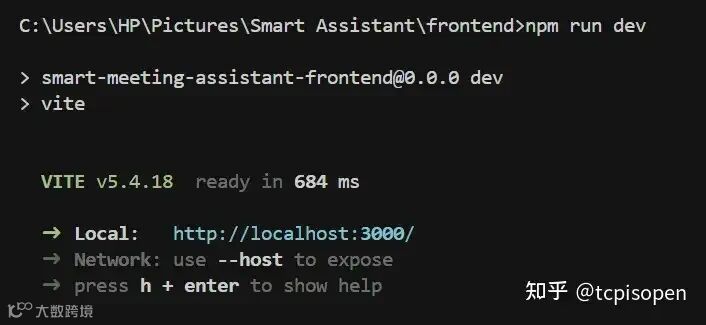
测试应用程序
您必须运行后端和前端代码来测试您的实现。
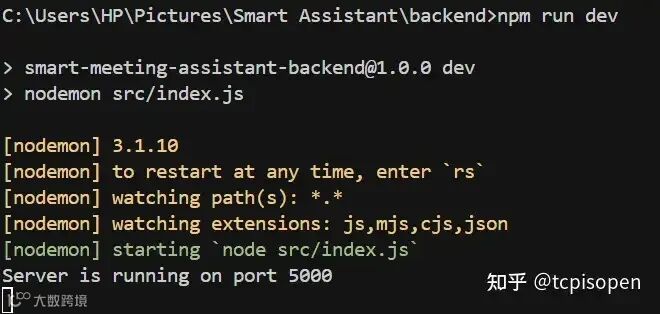
运行后端
要使用运行后端代码 nodemon,请导航到后端文件夹并执行以下命令:
npm run dev
您应该在终端中看到类似于以下屏幕截图的输出:
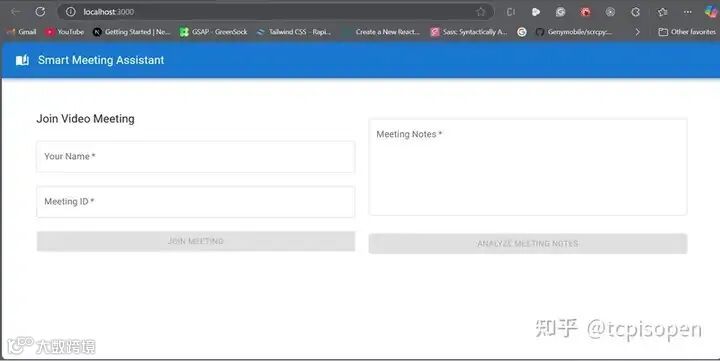
运行前端
要启动前端,请导航到前端文件夹并使用类似于上面的命令。您应该看到以下界面:
运行应用程序后,第一个视图让用户输入他们的姓名和会议 ID。
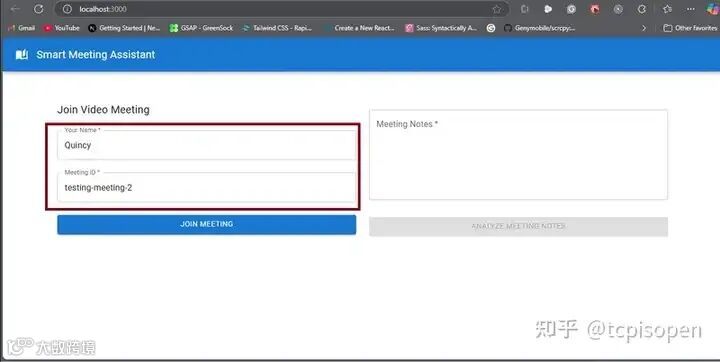
加入两个用户的会议
您可以让两个用户在同一会议期间加入并互动来测试您的项目。
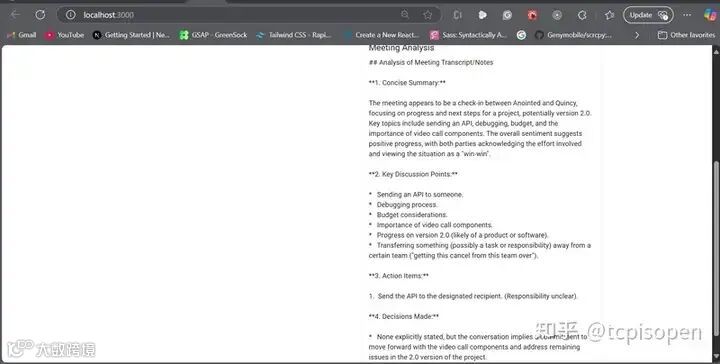
这使您可以验证视频和音频功能,检查实时更新(如参与者列表),测试活动通话期间的 UI 响应能力,验证 Stream 的成绩单是否已返回,并确保 LLM 发回分析结果,这些结果正确显示在 UI 中。
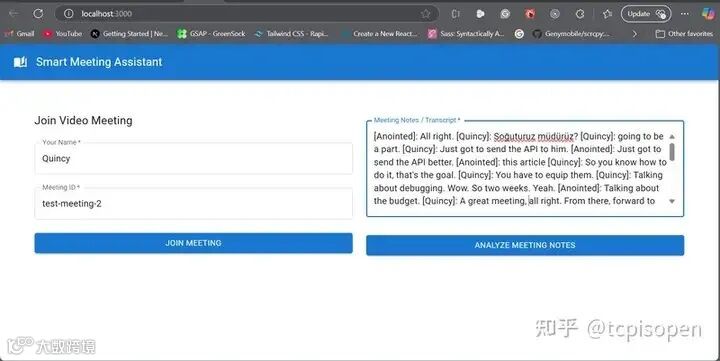
我们将第一个用户 Quincy 和会议 ID 命名为 test-meeting-2,如下图所示。
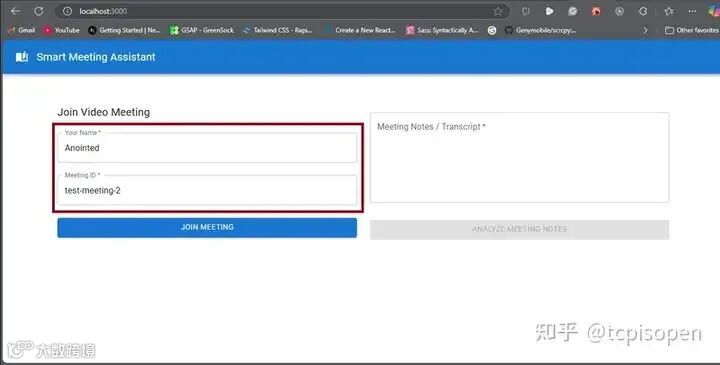
第二个用户名为 Anointed,具有相同的会议 ID。
会议结束后:
-
Stream 生成一份成绩单。 -
后端存储它。 -
前端获取它。 -
用户可以点击“分析会议记录”来获取见解。
结根据上述分析,我们可以得出以下论
使用 Stream Video 和LLM 构建高效的 AI 会议助理,可大幅提升工作效率。通过将对话转化为结构化的摘要和行动要点,团队可以更高效地开展工作。
关注【索引目录】服务号,更多精彩内容等你来探索!