


关注「索引目录」公众号,获取更多干货。
有没有过这样的经历:忘了关水泵,回来后发现露台上竟然有个迷你游泳池?我有过。所以,我用 ESP32、Firebase 和一个简单的 Web 仪表盘构建了这个智能水泵控制器。现在,只需一个浏览器,我就可以打开或关闭水泵、检测漏水,甚至计算用水量。没错,它听起来就很酷。
无论你是想深入研究物联网,还是只是厌倦了忘记关掉水泵,这都是一个有趣且实用的项目,值得一试。它还能让你轻松体验云连接硬件,避免不知所措。
🔍 为什么要做这个项目?
在每家每户,总有人喊着“嘿,关掉马达!”,而另一个人则回答说“哦不,我忘了!”🤦🏼♂️
这种日常的混乱启发了我,让我构建了一个更智能的解决方案——一个可以让我通过手机或笔记本电脑远程控制电机的系统。它简单实用,而且实时运行的效果也让我惊喜不已。
所以我想,为什么不创建一个控制器呢:
-
可在任何网络浏览器上运行 -
使用 Firebase 进行实时数据同步 -
不需要昂贵的组件 -
让我免于每天在家打水仗 -
甚至计算用水费用
这是一个了解物联网 + 云 + Web UI 的绝佳入门项目。
此外,由于 ESP32 自带 Wi-Fi,非常适合这类项目。搭配 Firebase 实时数据库,即可实现即时更新,无需自定义后端。双赢!
🛠️ 你需要什么
在开始构建之前,请确保您已收集所有必要的硬件和软件工具。
硬件
以下是我使用的方法:
-
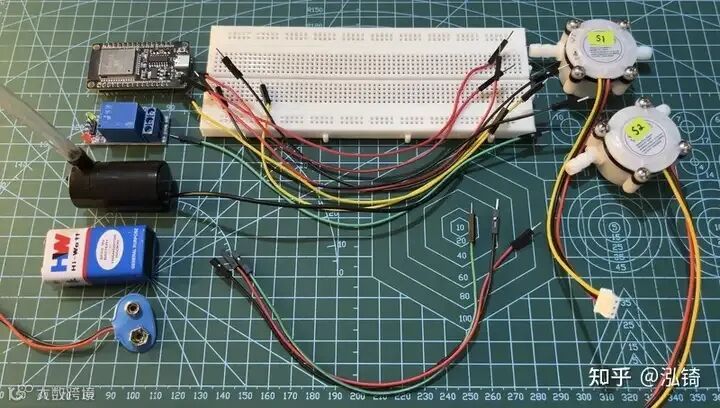
ESP32 开发板 – 您的项目的大脑,内置 Wi-Fi。 -
5V 继电器模块——充当控制泵的电子开关。 -
两个 YF-S201 水流量传感器 - 测量水箱输入和房屋使用的水流量。 -
直流潜水泵(3V–5V)——用于测试的基本微型泵。 -
面包板和跳线——方便接线和原型制作。 -
5V 电源或电池——独立于 ESP32 为泵供电。 -
透明 PVC 软水管 – 用于连接传感器和泵。
软件
你不需要复杂的开发设置。只需要以下基本配置:
-
Arduino IDE – 用于编写 ESP32 -
Firebase 控制台 – 您的云端数据库 -
Web 浏览器 – 在本地运行 UI 或在线托管 -
(可选)VS Code – 如果您喜欢使用高级编辑器来调整 HTML/JS
如果这是你的第一个 Firebase 项目,不用担心。它实际上非常适合初学者,我会一步一步指导你。
🛠️ 分步教程
让我们分解一下。你可以一次看一个部分。
✅ 1.硬件连接
让我们连接所有组件并使系统运行起来。
-
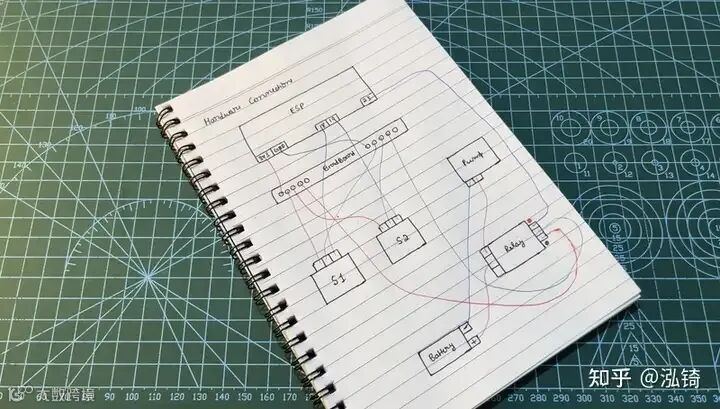
查看下面的电路图以了解连接概况。
-
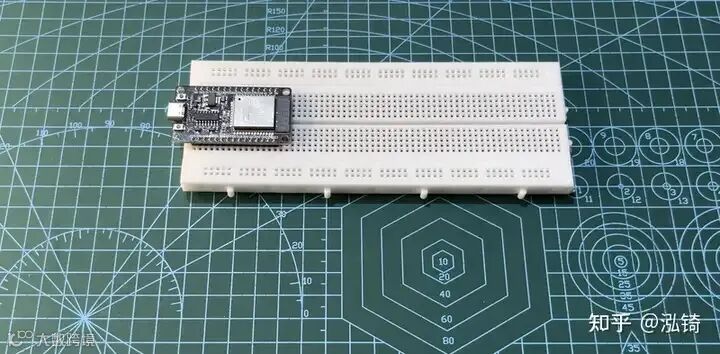
将 ESP32 牢固地安装在面包板上。
-
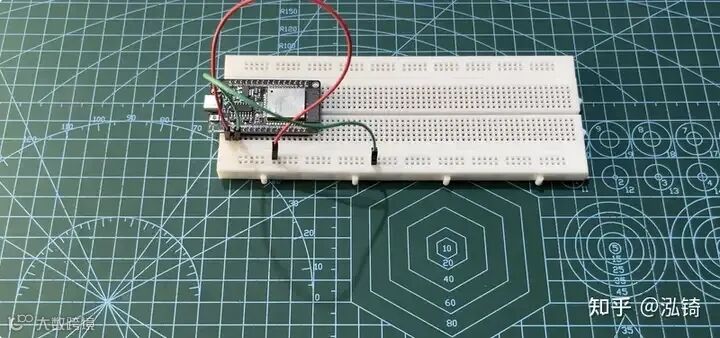
连接电源: -
使用红线将 ESP32 的 3V3 引脚连接到面包板上的正极(电源)轨。 -
使用绿线将 ESP32 的 GND 引脚连接到负极(接地)轨。
-
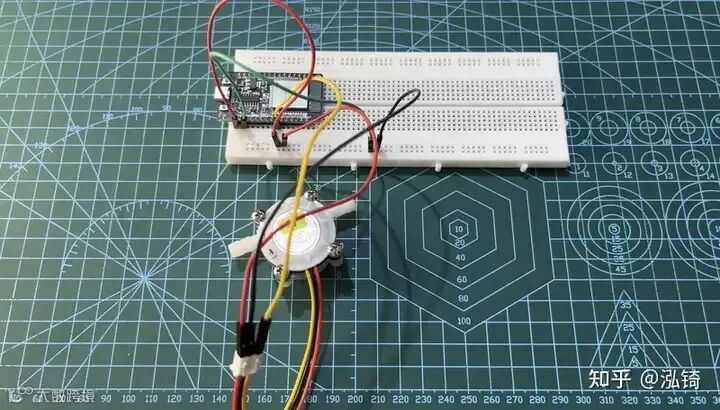
连接水流传感器 1: -
红线→电源轨(+3.3V) -
黑线→地线(GND) -
黄线→ESP32上的GPIO D18(信号引脚)
-
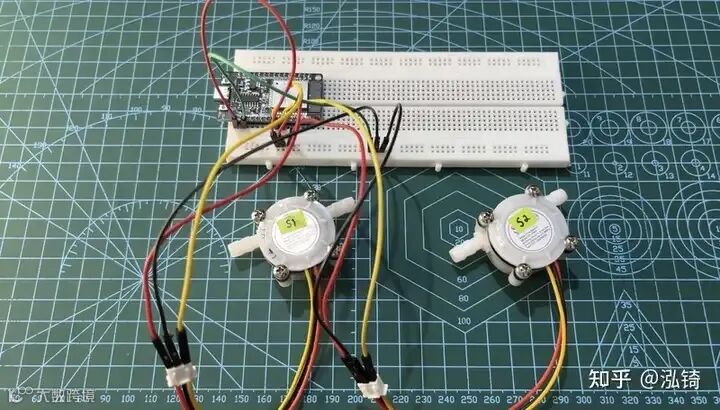
连接水流传感器 2: -
红线→电源轨(+3.3V) -
黑线→地线(GND) -
黄线→ESP32上的GPIO D19
-
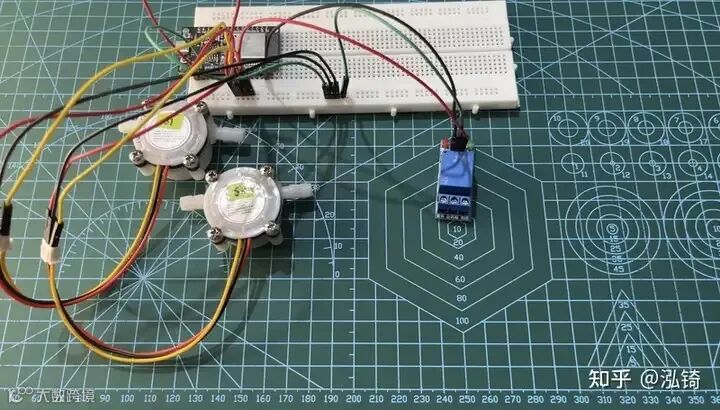
连接继电器模块: -
红线(VCC)→电源轨(+3.3V 或 +5V,取决于您的继电器模块) -
绿线(GND)→接地轨 -
黑线(IN)→ESP32上的GPIO D23
-
连接泵和电源: -
将电池的正极连接到继电器上的 COM(公共)针脚。 -
将电池的负极端子连接到水泵的负极端子。 -
最后,将泵的正极连接到继电器的 NC(常闭)引脚。
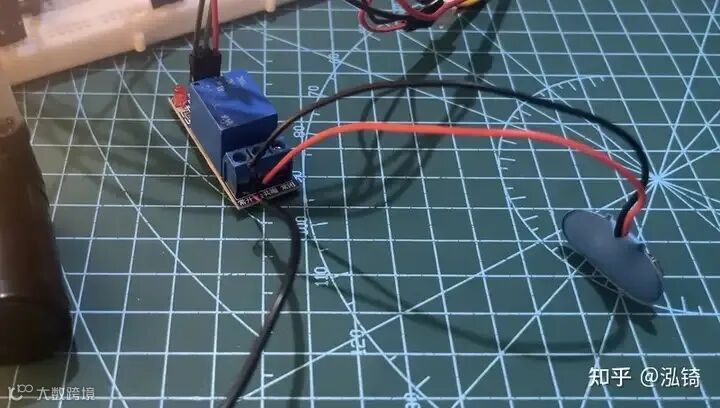
就这样,你的硬件连接就完成了!
在接通电路电源之前,请仔细检查线路,确保所有连接牢固正确。
✅ 2. 设置 Firebase
-
前往 Firebase 控制台并点击“开始”。 -
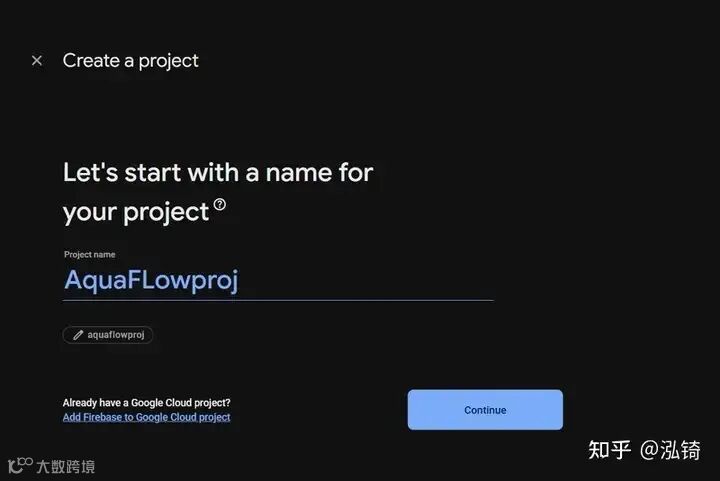
创建一个新项目 - 将其命名为“AquaFlowproj”。
-
关闭 Gemini 和 Google Analytics,然后单击创建项目。 -
准备就绪后,转到左侧边栏的“构建”部分并选择“实时数据库”。 -
单击创建数据库,选择您最近的地区(我使用了亚洲新加坡),然后选择“以测试模式启动”并单击启用。 -
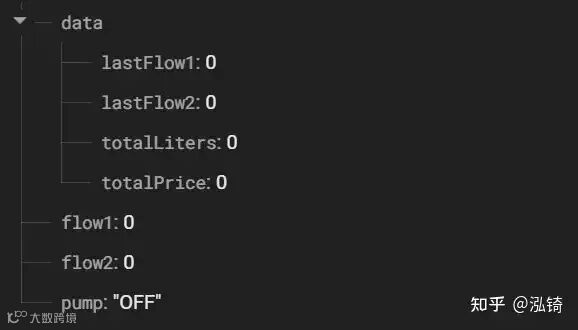
在数据库的根路径下,添加以下键:data flow1 flow2 pump
-
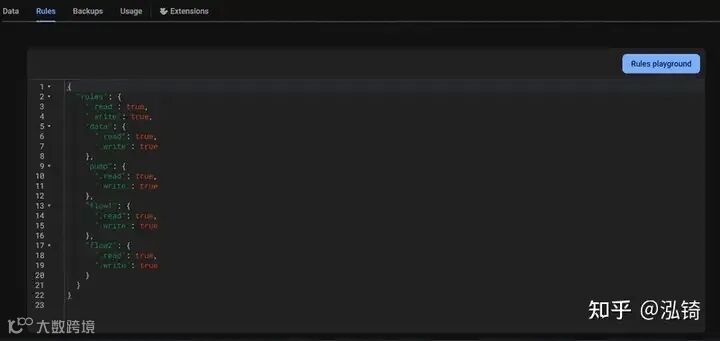
接下来,打开“规则”选项卡,用下面给出的自定义规则替换现有规则,然后单击“发布”。
{
  "rules": {
    ".read": true,
    ".write": true,
    "data": {
      ".read": true,
      ".write": true
    },
    "pump": {
      ".read": true,
      ".write": true
    },
    "flow1": {
      ".read": true,
      ".write": true
    },
    "flow2": {
      ".read": true,
      ".write": true
    }
  }
}
-
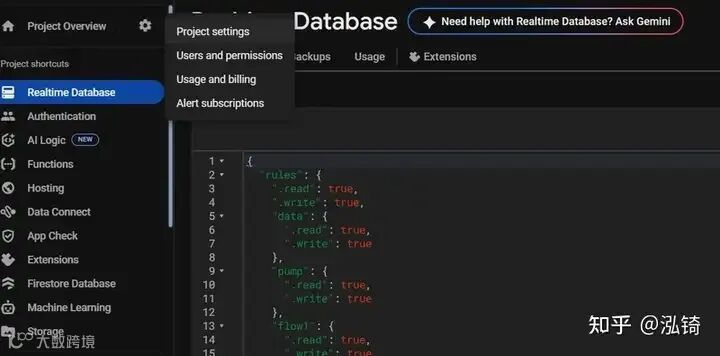
现在单击齿轮图标⚙️→项目设置。
-
在“常规”选项卡下,滚动到“您的应用程序”部分并选择“Web”。 -
添加应用程序昵称,单击注册应用程序,然后单击继续到控制台。 -
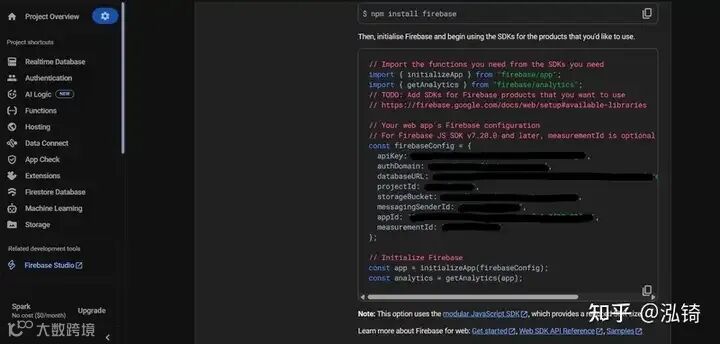
现在您将看到所有 Firebase 配置详细信息,例如 apiKey、authDomain、databaseURL 等。将它们复制到记事本中以供日后使用。
-
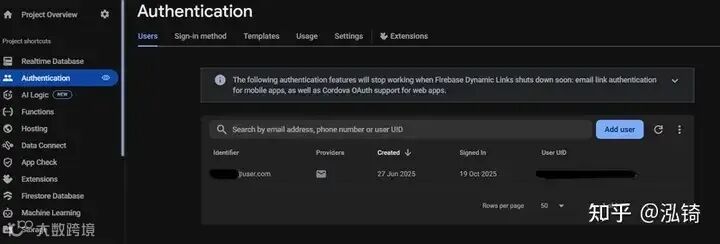
接下来,转到构建→身份验证。 -
单击“开始”,然后选择“电子邮件/密码”作为登录方式,然后单击“启用”→“保存”。 -
在“用户”选项卡下,点击“添加用户”。例如: -
电子邮件:project@user.com -
密码:project123
-
将这些登录凭据与您的 Firebase 详细信息一起保存,我们很快就会在网站代码中需要它们。
✅ 3. 设置 Arduino IDE
-
打开 Arduino IDE 并粘贴此 ESP32 代码。
/*
AquaFlow - By Yugesh

This code connects an ESP32 to Firebase and monitors
two water flow sensors (YF-S401) along with a relay
for pump control. Data (flow1 & flow2) is sent to Firebase
every second, and pump commands (ON/OFF/AUTO) are received
from the database in real time.

Before running this code:

1. Replace Wi-Fi and Firebase credentials with your own.
2. Ensure your Firebase Realtime Database structure (contains nodes: /pump, /flow1, /flow2)
3. Connect components according to the pin config below.
*/

#include <WiFi.h>
#include <Firebase_ESP_Client.h>
#include "addons/TokenHelper.h"

// Wi-Fi Configuration – CHANGE THESE VALUES

#define WIFI_SSID "Your_WiFi_Name"         // Replace with your Wi-Fi name
#define WIFI_PASSWORD "Your_WiFi_Password" // Replace with your Wi-Fi password

// Firebase Configuration – CHANGE THESE VALUES

#define API_KEY "Your_Firebase_API_Key"                          // Get from Firebase project settings
#define DATABASE_URL "https://your-database-url.firebaseio.com/" // Your Firebase RTDB URL
#define USER_EMAIL "your_email@example.com"                      // Must be a registered Firebase user
#define USER_PASSWORD "your_password"                            // Corresponding password


// Firebase Objects
FirebaseData fbdo;
FirebaseAuth auth;
FirebaseConfig config;

// Pin Configuration (ESP32 GPIO pins)
// You can change these if your wiring differs.
const int relayPin = 23;      // Relay control pin (Active LOW)
const int flowSensor1 = 18;   // Flow sensor 1 input pin (YF-S401)
const int flowSensor2 = 19;   // Flow sensor 2 input pin (YF-S401)

// Flow Measurement Variables
volatile int pulseCount1 = 0;
volatile int pulseCount2 = 0;
unsigned long lastSendTime = 0;

// Interrupt Service Routines for Flow Sensors
void IRAM_ATTR pulseCounter1()
{
pulseCount1++;
}
void IRAM_ATTR pulseCounter2()
{
pulseCount2++;
}

// Setup Function
void setup()
{
Serial.begin(115200);

// Relay setup
pinMode(relayPin, OUTPUT);
digitalWrite(relayPin, HIGH); // Relay OFF initially (active LOW)

// Flow sensor setup
pinMode(flowSensor1, INPUT_PULLUP);
pinMode(flowSensor2, INPUT_PULLUP);
attachInterrupt(digitalPinToInterrupt(flowSensor1), pulseCounter1, FALLING);
attachInterrupt(digitalPinToInterrupt(flowSensor2), pulseCounter2, FALLING);

// Wi-Fi connection
WiFi.begin(WIFI_SSID, WIFI_PASSWORD);
Serial.print("Connecting to Wi-Fi");
while (WiFi.status() != WL_CONNECTED) {
Serial.print(".");
delay(300);
}
Serial.println("\nWi-Fi Connected");

// Firebase setup
config.api_key = API_KEY;
config.database_url = DATABASE_URL;
auth.user.email = USER_EMAIL;
auth.user.password = USER_PASSWORD;
config.token_status_callback = tokenStatusCallback;

Firebase.begin(&config, &auth);
Firebase.reconnectWiFi(true);
Serial.println("Firebase Initialized");
}

// Loop Function
void loop()
{
if (Firebase.ready()) {

// Read pump status from Firebase
if (Firebase.RTDB.getString(&fbdo, "/pump")) {  // Path: /pump (do not change unless needed)
String command = fbdo.to<String>();
Serial.print("Firebase command: ");
Serial.println(command);

if (command == "ON")
{
digitalWrite(relayPin, LOW);   // Turn ON pump
}
else if (command == "OFF")
{
digitalWrite(relayPin, HIGH);  // Turn OFF pump
}
else if (command == "AUTO") {
// Optional: Add automation logic based on sensor data
}
} else
{
Serial.print("Failed to read pump: ");
Serial.println(fbdo.errorReason());
}

// Send flow data every 1 second
if (millis() - lastSendTime > 1000) {
detachInterrupt(digitalPinToInterrupt(flowSensor1));
detachInterrupt(digitalPinToInterrupt(flowSensor2));

// Convert pulse counts to flow rate (L/min)
float flowRate1 = (pulseCount1 / 7.5);
float flowRate2 = (pulseCount2 / 7.5);

pulseCount1 = 0;
pulseCount2 = 0;
lastSendTime = millis();

attachInterrupt(digitalPinToInterrupt(flowSensor1), pulseCounter1, FALLING);
attachInterrupt(digitalPinToInterrupt(flowSensor2), pulseCounter2, FALLING);
Serial.printf("Flow1: %.2f L/min | Flow2: %.2f L/min\n", flowRate1, flowRate2);

// Send data to Firebase
bool success1 = Firebase.RTDB.setFloat(&fbdo, "/flow1", flowRate1); // Path: /flow1
if (success1)
{
Serial.println("flow1 sent to Firebase");
}
else
{
Serial.print("flow1 failed: ");
Serial.println(fbdo.errorReason());
}
bool success2 = Firebase.RTDB.setFloat(&fbdo, "/flow2", flowRate2); // Path: /flow2
if (success2)
{
Serial.println("flow2 sent to Firebase");
}
else
{
Serial.print("flow2 failed: ");
Serial.println(fbdo.errorReason());
}
}
}
delay(100); // Keep loop responsive for accurate flow measurement
}

/*
Notes:
- Wi-Fi and Firebase credentials must be updated before upload.
- Ensure you’ve installed the “Firebase ESP Client” library by Mobizt.
- Flow sensor calibration constant (7.5) is for YF-S401; adjust if using a different model.
- Database paths (/pump, /flow1, /flow2) should exist in your Firebase RTDB.
*/
-
使用您之前保存的 Firebase 详细信息更新占位符(API 密钥、Auth 域等)。 -
通过 USB 将您的 ESP32 开发板连接到您的计算机。 -
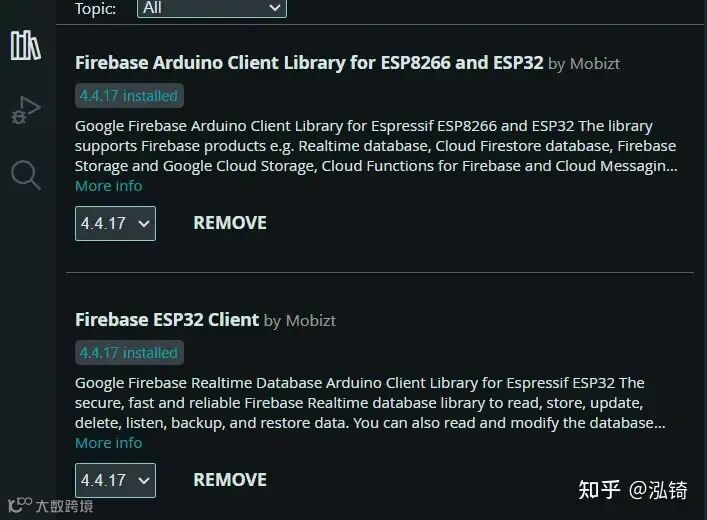
打开库管理器(Sketch → Include Library → Manage Libraries)并安装这两个库: -
Mobizt 为 ESP8266 和 ESP32 开发的 Firebase Arduino 客户端库 -
Mobizt 的 Firebase ESP32 客户端
-
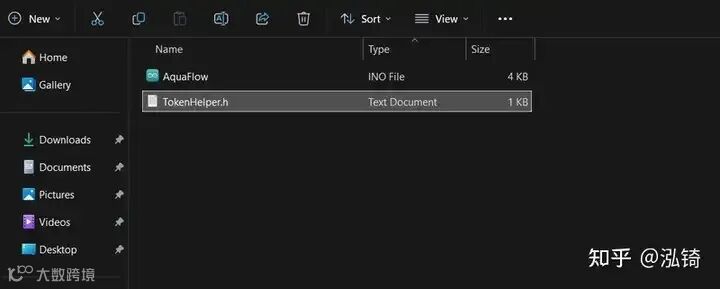
将您的草图(文件 → 另存为)保存在新文件夹中,例如命名为 AquaFlow。 -
在同一文件夹中,创建一个名为 TokenHelper.h 的新文件并粘贴下面给出的代码。
#ifndef TOKEN_HELPER_H
#define TOKEN_HELPER_H

// Provide the token generation process info
void tokenStatusCallback(TokenInfo info){
  Serial.printf("Token info: type = %s, status = %s\n",
                getTokenType(info).c_str(),
                getTokenStatus(info).c_str());
}

#endif
-
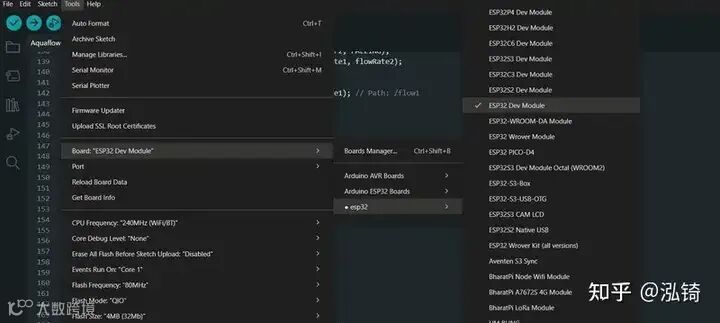
转到工具 → 开发板 → ESP32 → ESP32 开发模块。
-
然后转到工具→端口并选择正确的 COM 端口(例如,COM3)。 -
单击上传(→)图标将代码刷入您的 ESP32。 -
上传完成后,打开串行监视器确认 ESP32 已成功连接到 Wi-Fi。 -
如果您看到您的设备已连接,那么恭喜您,您的 ESP 现在正在与 Firebase 通信!
✅ 4. 设置 Web 仪表板
-
打开 Visual Studio Code(或任何代码编辑器)。 -
在文件夹中创建三个文件:
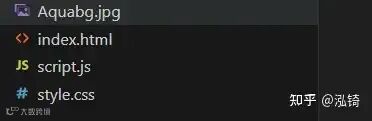
创建 index.html 文件并粘贴以下代码
<!DOCTYPE html>
<html lang="en">
<head>
<link rel="stylesheet" href="https://cdnjs.cloudflare.com/ajax/libs/font-awesome/6.5.0/css/all.min.css">
<meta charset="UTF-8" />
<meta name="viewport" content="width=device-width, initial-scale=1.0" />
<title>AquaFlow Dashboard</title>
<link href="https://fonts.googleapis.com/css2?family=Poppins:wght@400;600;700&display=swap" rel="stylesheet">
<link rel="stylesheet" href="style.css">
</head>
<body>
<h1>AquaFlow</h1>
<div class="dashboard">

  <!-- MOTOR CONTROL -->
  <div class="section">
    <h2>Motor Control</h2>
    <div class="switches">
      <button id="onBtn" onclick="setPump('ON')">ON</button>
      <button id="offBtn" onclick="setPump('OFF')">OFF</button>
    </div>
  </div>

  <!-- SENSOR STATUS -->
  <div class="section">
    <h2>Sensor Status</h2>
    <div class="sensor-status">
      <div><p>S1</p><div id="s1Status" class="status-dot"></div></div>
      <div><p>S2</p><div id="s2Status" class="status-dot"></div></div>
    </div>
  </div>

  <!-- WATER USAGE -->
  <div class="section">
    <h2>Water Usage</h2>
    <div class="usage">
      <div class="card"><p><b>Live</b></p><div class="value">₹<span id="livePrice">0</span></div><p><span id="liveLiters">0</span>L</p></div>
      <div class="card"><p><b>Weekly</b></p><div class="value">₹<span id="weekPrice">0</span></div><p><span id="weekLiters">0</span>L</p></div>
      <div class="card"><p><b>Monthly</b></p><div class="value">₹<span id="monthPrice">0</span></div><p><span id="monthLiters">0</span>L</p></div>
    </div>
    <button id="resetBtn">Reset</button>
  </div>

  <!-- LIVE FLOW -->
  <div class="section">
    <h2>Sensor Flow</h2>
    <div class="flow">
      <div class="card"><p><b>S1</b></p><div class="value"><span id="flow1">0</span> ml/sec</div></div>
      <div class="card"><p><b>S2</b></p><div class="value"><span id="flow2">0</span> ml/sec</div></div>
    </div>
  </div>

 <!-- LEAKAGE DETECTION -->
<div class="section">
  <h2>Leakage Detection</h2>
  <div class="sensor-status">
    <div>
      <div id="leakStatus" class="status-dot"></div>
    </div>
  </div>
</div>

<!-- ABOUT SECTION -->
<div class="section">
  <p>Project by <b>Yugesh</b></p>
  <div class="social">
  <a href="https://www.linkedin.com/in/yugeshweb" target="_blank" title="LinkedIn">
    <i class="fa-brands fa-linkedin"></i>
  </a>
</div>
  </div>
</div>

<script type="module" src="script.js"></script>
</body>
</html>
创建 style.css 文件并粘贴以下代码
* {
  margin: 0;
  padding: 0;
  box-sizing: border-box;
  font-family: 'Poppins', sans-serif;
}

html, body {
  height: 100%;
}

body {
  background: url('Aquabg.jpg') repeat center center/cover;
  display: grid;
  grid-template-rows: 80px 1fr;
  gap: 10px;
  padding: 10px;
  color: #ffffff;
  overflow: hidden;
  position: relative;
}

@media(max-width: 768px){
  body {
    overflow: auto;
    height: auto;
  }
}

body::before {
  content: '';
  position: absolute;
  top: 0;
  left: 0;
  right: 0;
  bottom: 0;
  background: linear-gradient(135deg, rgba(102,126,234,0.1), rgba(118,75,162,0.1));
  z-index: 0;
}

h1 {
  text-align: center;
  font-size: 2.5rem;
  font-weight: 700;
  z-index: 1;
}

.dashboard {
  display: grid;
  grid-template-columns: repeat(3, 1fr);
  grid-template-rows: repeat(2, 1fr);
  gap: 10px;
  height: 100%;
  z-index: 1;
}

@media(max-width: 900px){
  .dashboard {
    grid-template-columns: repeat(2, 1fr);
    grid-template-rows: repeat(3, 1fr);
  }
}

@media(max-width: 600px){
  .dashboard {
    grid-template-columns: 1fr;
    grid-template-rows: repeat(6, 1fr);
  }
}

.section {
  background: rgba(255,255,255,0.25);
  border-radius: 20px;
  backdrop-filter: blur(15px);
  padding: 15px;
  display: flex;
  flex-direction: column;
  align-items: center;
  justify-content: center;
  border: 1px solid rgba(255,255,255,0.4);
}

.section h2 {
  margin-bottom: 10px;
  font-size: 1.2rem;
  font-weight: 600;
  text-align: center;
}

.switches {
  display: flex;
  gap: 10px;
}

button {
  background: rgba(255,255,255,0.4);
  border: 2px solid #000;
  color: #000;
  font-weight: 600;
  padding: 8px 20px;
  border-radius: 25px;
  cursor: pointer;
  transition: 0.3s;
}

button.active {
  background: #000;
  color: #fff;
}

.sensor-status {
  display: flex;
  gap: 15px;
  justify-content: center;
}

.sensor-status > div {
  display: flex;
  flex-direction: column;
  align-items: center;
  gap: 5px;
  padding: 10px;
  background: rgba(255,255,255,0.2);
  border-radius: 15px;
  min-width: 60px;
  border: 1px solid rgba(255,255,255,0.3);
}

.status-dot {
  width: 20px;
  height: 20px;
  border-radius: 50%;
  background: #ff6b6b;
  border: 2px solid rgba(0,0,0,0.2);
  transition: 0.3s;
}

.status-dot.active {
  background: #51cf66;
  animation: pulse 2s infinite;
}

@keyframes pulse {
  0%, 100% { transform: scale(1); }
  50% { transform: scale(1.1); }
}

.card {
  background: rgba(255,255,255,0.3);
  border-radius: 15px;
  padding: 10px;
  text-align: center;
  width: 90px;
  margin: 5px;
}

.value {
  font-size: 1.2rem;
  font-weight: 700;
}

.usage, .flow, .leakage {
  display: flex;
  justify-content: center;
  gap: 10px;
  flex-wrap: wrap;
}

#resetBtn {
  background: rgb(35, 6, 6);
  color: #fff;
  border: none;
  padding: 6px 15px;
  border-radius: 25px;
  cursor: pointer;
  margin-top: 5px;
}

.social-links {
  display: flex;
  flex-direction: column;
  gap: 5px;
  align-items: center;
  margin-top: 10px;
}

.social-links a {
  text-decoration: none;
  color: #000;
  font-weight: 600;
  transition: 0.3s;
}

.social-links a:hover {
  color: #51cf66;
  transform: scale(1.05);
}

.social a {
  color: #c2c2c2;
  font-size: 30px;
  text-decoration: none;
}

.social a:hover {
  color: #000000;
}
创建 script.js 文件并粘贴以下代码
import { initializeApp } from "https://www.gstatic.com/firebasejs/11.0.1/firebase-app.js";
import { getDatabase, ref, onValue, set, get } from "https://www.gstatic.com/firebasejs/11.0.1/firebase-database.js";

// Replace these values with your own Firebase credentials
const firebaseConfig = {
  apiKey: "YOUR_API_KEY_HERE",
  authDomain: "YOUR_PROJECT_ID.firebaseapp.com",
  databaseURL: "https://YOUR_PROJECT_ID-default-rtdb.YOUR_REGION.firebasedatabase.app",
  projectId: "YOUR_PROJECT_ID",
  storageBucket: "YOUR_PROJECT_ID.appspot.com",
  messagingSenderId: "XXXXXX",
  appId: "1:XXXX:web:XXXX"
};

const app = initializeApp(firebaseConfig);
const db = getDatabase(app);

const flow1Ref = ref(db, "flow1");
const flow2Ref = ref(db, "flow2");
const pumpRef = ref(db, "pump");
const dataRef = ref(db, "data");

let totalLiters = 0, totalPrice = 0, lastF1 = 0, lastF2 = 0, lastFlow1 = 0, lastFlow2 = 0;

// Load permanent data once
async function loadData() {
  const snap = await get(dataRef);
  if (snap.exists()) {
    const d = snap.val();
    totalLiters = d.totalLiters || 0;
    totalPrice = d.totalPrice || 0;
    lastFlow1 = d.lastFlow1 || 0;
    lastFlow2 = d.lastFlow2 || 0;
    updateUsageDisplay();
  }
}
loadData();

// Save permanent data
function saveData() {
  set(dataRef, { totalLiters, totalPrice, lastFlow1, lastFlow2 });
}

const onBtn = document.getElementById("onBtn");
const offBtn = document.getElementById("offBtn");

window.setPump = (state) => {
  set(pumpRef, state);
  onBtn.classList.toggle('active', state === 'ON');
  offBtn.classList.toggle('active', state === 'OFF');
};

function updateUsageDisplay() {
  document.getElementById("liveLiters").innerText = totalLiters.toFixed(2);
  document.getElementById("livePrice").innerText = totalPrice.toFixed(2);
}

// Listen for flow updates
onValue(flow1Ref, snap => {
  const f1 = snap.val() || 0;
  document.getElementById("flow1").innerText = (f1 * 1000 / 60).toFixed(1);
  document.getElementById("s1Status").classList.toggle('active', f1 > 0);
  lastF1 = f1;
  checkLeak();
  if (f1 > lastFlow1) {
    lastFlow1 = f1;
    saveData();
  }
});

onValue(flow2Ref, snap => {
  const f2 = snap.val() || 0;
  document.getElementById("flow2").innerText = (f2 * 1000 / 60).toFixed(1);
  document.getElementById("s2Status").classList.toggle('active', f2 > 0);
  lastF2 = f2;
  checkLeak();

  if (f2 > lastFlow2) {
    const diff = f2 - lastFlow2;
    totalLiters += diff;
    totalPrice = totalLiters * 0.3; // Adjust pricing logic as needed
    lastFlow2 = f2;
    saveData();
    updateUsageDisplay();
  }
});

document.getElementById("resetBtn").addEventListener('click', () => {
  totalLiters = 0;
  totalPrice = 0;
  lastFlow1 = 0;
  lastFlow2 = 0;
  saveData();
  updateUsageDisplay();
});

function checkLeak() {
  const leakDot = document.getElementById("leakStatus");
  const isNormal = Math.abs(lastF1 - lastF2) < 0.05;
  leakDot.classList.toggle('active', isNormal);
  leakDot.style.background = isNormal ? '#51cf66' : '#ff6b6b';
}
-
在您的 script.js 中,更新 Firebase 配置值: -
api密钥 -
授权域 -
数据库URL -
项目编号 -
存储桶
(使用您之前从 Firebase 保存的相同详细信息。)
-
一切设置完成后,启动网站(您可以直接在浏览器中打开index.html)。
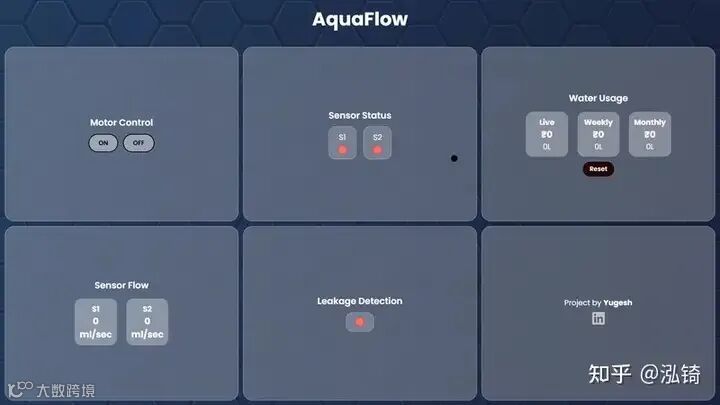
-
您现在可以从网络仪表板控制泵,实时打开或关闭它,并通过 Firebase 立即同步数据。
轰!您已经成功构建了自己的智能水泵控制器。
✅工作模型
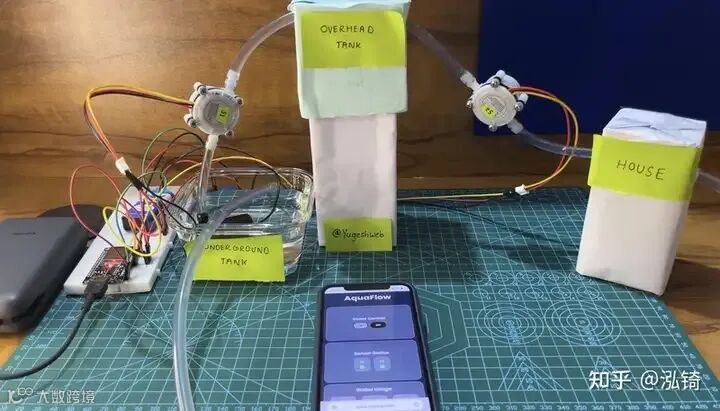
-
从网站控制
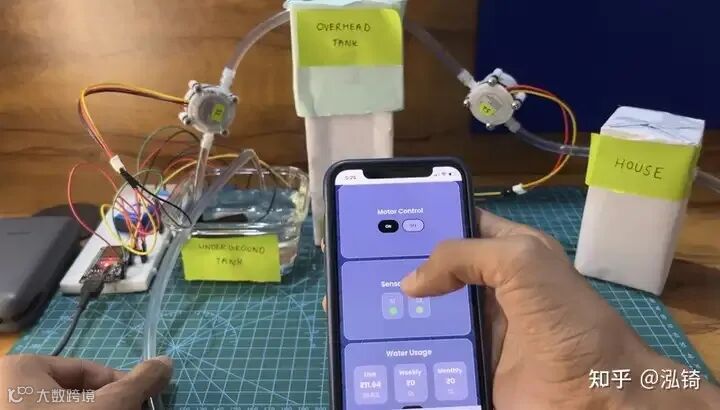
🧩 最后说明
由于这个项目还只是个原型模型,所以水量的测量精度并不完美。我还没有校准流量传感器以获得精确的读数。
您还会注意到,即使刷新页面,计算出的价格和升数也不会重置。这是因为数据是持久存储的,只能使用“重置”按钮进行重置。
您可能还会注意到泄漏检测指示灯变红。这是因为两个传感器之间的流速不匹配。在实际系统中,这表示可能存在泄漏,但在这个小规模模型中,泄漏主要是由于水流的压力和高度差异造成的,而不是实际的泄漏。
GitHub链接:https://github.com/yugeshweb/AquaFlow
关注「索引目录」公众号,获取更多干货。