


关注【索引目录】服务号,更多精彩内容等你来探索!
在本指南中,您将学习如何将 Mastra AI 代理与 AG-UI 协议集成。此外,我们还将介绍如何将 AG-UI + Mastra AI 代理与 CopilotKit 集成,以便与代理聊天并在前端流式传输其响应。
在我们开始之前,我们将介绍以下内容:
-
什么是AG-UI协议? -
将 Mastra AI 代理与 AG-UI 协议集成 -
使用 CopilotKit 将前端集成到 AG-UI + Mastra AI 代理
以下是我们将要构建的内容的预览:
什么是AG-UI协议?
CopilotKit 开发的代理用户交互协议 (AG-UI) 是一种开源、轻量级、基于事件的协议,可促进前端和 AI 代理之间的丰富实时交互。
AG-UI 协议支持事件驱动的通信、状态管理、工具使用和流式 AI 代理响应。
星级 AG-UI ⭐️
为了在前端和 AI 代理之间发送信息,AG-UI 使用以下事件:
- 生命周期事件
:这些事件标记代理任务执行的开始或结束。生命周期事件包括 RUN_STARTED和RUN_FINISHED事件。 - 短信事件
:这些事件处理流式代理对前端的响应。短信事件包括 TEXT_MESSAGE_START、TEXT_MESSAGE_CONTENT和TEXT_MESSAGE_END事件。 - 工具调用事件
:这些事件管理代理的工具执行。工具调用事件包括 TOOL_CALL_START、TOOL_CALL_ARGS和TOOL_CALL_END事件。 - 状态管理事件
:这些事件使前端和 AI 代理状态保持同步。状态管理事件包括 STATE_SNAPSHOT、 和STATE_DELTA事件。
您可以在 AG-UI文档上了解有关 AG-UI 协议及其架构的更多信息。
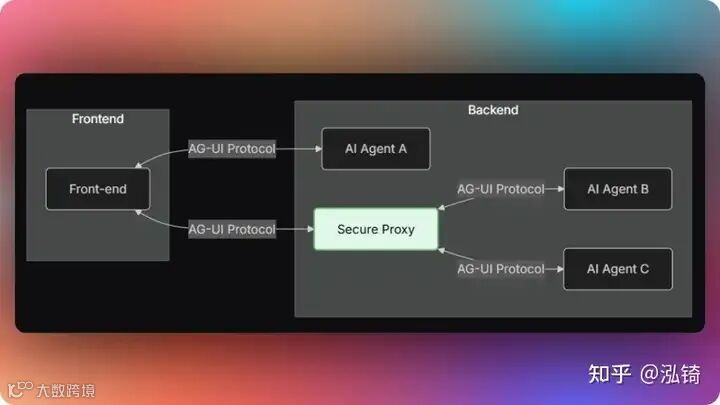
现在我们已经了解了 AG-UI 协议是什么,让我们看看如何将它与 Mastra AI 代理框架集成。
让我们开始吧!
先决条件
要完全理解本教程,您需要对 React 或 Next.js 有基本的了解。
我们还将利用以下内容:
- TypeScript
- 一种基于 JavaScript 的强类型编程语言,可为您提供任何规模的更好工具。 - Mastra
- 一个开源 TypeScript 代理框架,旨在为您提供构建 AI 应用程序和功能所需的原语。 - OpenAI API 密钥
- 一个 API 密钥,使我们能够使用 GPT 模型执行各种任务;对于本教程,请确保您可以访问 GPT-4 模型。 - CopilotKit
- 一个开源副驾驶框架,用于构建自定义 AI 聊天机器人、应用内 AI 代理和文本区域。
将 Mastra AI 代理与 AG-UI 协议集成
首先,克隆由基于 Node 的后端(代理)和 Next.js 前端(前端)组成的Open AG UI Mastra Demo 存储库。
接下来,导航到后端目录:
cd agent然后使用 Pnpm 安装依赖项:
pnpm install之后,创建一个 包含OpenAI API Key.env API 密钥 的文件:
OPENAI_API_KEY=<<your-OpenAI-key-here>>然后使用以下命令运行代理:
pnpx ts-node src/ag-ui-mastra.ts要测试 AG-UI + Mastra AI 集成,请在https://reqbin.com/curl上运行下面的 curl 命令。
curl -X POST "http://localhost:8000/mastra-agent" \
  -H "Content-Type: application/json" \
  -d '{
    "thread_id": "test_thread_123",
    "run_id": "test_run_456",
    "messages": [
      {
        "id": "msg_1",
        "role": "user",
        "content": "Analyze AAPL stock with a $10000 investment from 2023-01-01"
      }
    ],
    "tools": [],
    "context": [],
    "forwarded_props": {},
    "state": {}
  }'
现在让我们看看如何将 AG-UI 协议与 Mastra AI 代理框架集成。
步骤 1:定义并配置 Mastra AI 代理工作流程
src/mastra/workflows/stock-analysis-workflow.ts在将 AG-UI 协议与 Mastra AI 代理集成之前,请定义并配置 Mastra AI 代理工作流程,如文件所示
/**
 * MAIN WORKFLOW: Stock Analysis Workflow
 *
 * This is the main workflow orchestrator that ties together all the steps
 * to provide a complete stock analysis from user query to insights.
 */
const stockAnalysisWorkflow = createWorkflow({
  id: "stock-analysis-workflow",
  // Define workflow input schema - what the workflow expects to receive
  inputSchema: z.object({
    messages: z.any(), // Chat conversation messages
    availableCash: z.number().describe("The available cash of the user"),
    toolLogs: z
      .array(
        z.object({
          message: z.string().describe("The message to display to the user"),
          status: z.string().describe("The status of the message"),
        })
      )
      .describe("The tool logs of the workflow"),
    emitEvent: z.function().input(z.any()).output(z.any()), // Function to emit UI state updates
    investmentPortfolio: z
      .array(
        z.object({
          ticker: z.string(),
          amount: z.number(),
        })
      )
      .describe("The investment portfolio of the user"),
  }),
  // Define workflow output schema - what the completed workflow will return
  outputSchema: z.object({
    skip: z.boolean().describe("Whether to skip this step"),
    investmentPortfolio: z
      .array(
        z.object({
          ticker: z.string(),
          amount: z.number(),
        })
      )
      .describe("The investment portfolio of the user"),
    textMessage: z.string().describe("The text message to display to the user"),
    toolLogs: z
      .array(
        z.object({
          message: z.string().describe("The message to display to the user"),
          status: z.string().describe("The status of the message"),
        })
      )
      .describe("The tool logs of the workflow"),
    availableCash: z.number().describe("Available cash after investments"),
    // Time series performance data
    result: z.array(
      z.object({
        date: z.string().describe("The date"),
        portfolioValue: z.number().describe("Portfolio value at the time"),
        benchmarkValue: z.number().describe("Benchmark value at the time"),
      })
    ),
    // Individual ticker performance
    totalReturns: z.array(
      z.object({
        ticker: z.string().describe("The ticker value"),
        rets: z.number().describe("The total returns from the ticker"),
        retsNum: z
          .number()
          .describe("The total returns from the ticker in number"),
      })
    ),
    // Portfolio allocation breakdown
    allocations: z.array(
      z.object({
        ticker: z.string().describe("The ticker data"),
        percentOfAllocation: z
          .number()
          .describe("Percentage of allocation this ticker has"),
        value: z.number().describe("Current value of ticker in the portfolio"),
        returnPercent: z
          .number()
          .describe("Percentage of return from this ticker"),
      })
    ),
    // Generated market insights
    bullInsights: z.array(
      z.object({
        title: z.string().describe("The title of the insight"),
        description: z.string().describe("The description of the insight"),
        emoji: z.string().describe("The emoji of the insight"),
      })
    ),
    bearInsights: z.array(
      z.object({
        title: z.string().describe("The title of the insight"),
        description: z.string().describe("The description of the insight"),
        emoji: z.string().describe("The emoji of the insight"),
      })
    ),
  }),
})
  // Chain the workflow steps in sequence:
  .then(fetchInformationFromUserQuery) // Step 1: Extract investment parameters from user query
  .then(gatherStockInformation) // Step 2: Fetch historical stock data from Yahoo Finance
  .then(calculateInvestmentReturns) // Step 3: Calculate portfolio performance and returns
  .then(gatherInsights); // Step 4: Generate market insights using LLM

// Workflow setup and initialization
stockAnalysisWorkflow.commit(); // Finalize the workflow definition
stockAnalysisWorkflow.createRun(); // Create a new workflow run instance

// Export the workflow for use in other modules
export { stockAnalysisWorkflow };
第 2 步:使用 Mastra 实例注册您的 Mastra AI 代理工作流程
定义并配置 Mastra AI 代理工作流程后,请 workflows 在主 Mastra 实例中注册该工作流程,如src/mastra/index.ts文件中所示。
// Import necessary dependencies for Mastra framework configuration
import { Mastra } from "@mastra/core/mastra"; // Core Mastra framework class for orchestrating agents and workflows
import { PinoLogger } from "@mastra/loggers"; // Structured logging library for debugging and monitoring
import { LibSQLStore } from "@mastra/libsql"; // Database storage provider for telemetry, evaluations, and persistence
import { stockAnalysisAgent } from "./agents/stock-analysis-agent"; // The intelligent stock analysis agent
import { stockAnalysisWorkflow } from "./workflows/stock-analysis-workflow"; // The complete stock analysis workflow

/**
 * Mastra Framework Configuration
 *
 * This file serves as the central configuration and initialization point for the entire
 * stock analysis system. It brings together all the components:
 *
 * 1. Agents - Intelligent conversational interfaces that understand user queries
 * 2. Workflows - Multi-step business processes that execute complex analysis
 * 3. Storage - Database layer for persistence and telemetry data
 * 4. Logging - Structured logging for debugging and monitoring
 *
 * The Mastra instance acts as the main orchestrator that coordinates all these
 * components and provides a unified interface for the application.
 */
export const mastra = new Mastra({
  // Step 1: Register all available workflows
  // Workflows are multi-step processes that can be executed by agents or triggered directly
  workflows: { stockAnalysisWorkflow }, // Register the stock analysis workflow for investment calculations

  // Step 2: Register all available agents
  // Agents are intelligent interfaces that can understand natural language and execute workflows
  agents: { stockAnalysisAgent }, // Register the stock analysis agent for handling user conversations

  // Step 3: Configure data storage
  // Storage handles persistence of telemetry data, evaluation results, and system state
  storage: new LibSQLStore({
    // Use in-memory storage for development/testing (data is lost when process stops)
    // For production: change to "file:../mastra.db" to persist data to disk
    // stores telemetry, evals, ... into memory storage, if it needs to persist, change to file:../mastra.db
    url: ":memory:", // In-memory database - fast but non-persistent
  }),

  // Step 4: Configure structured logging
  // Logger captures system events, errors, and debugging information
  logger: new PinoLogger({
    name: "Mastra", // Logger name for identifying log source
    level: "info", // Log level - captures info, warn, and error messages (filters out debug/trace)
  }),
});
步骤 3:使用 Express 创建端点
将 Mastra AI 代理工作流注册到 Mastra 实例后,使用 Express 创建一个用于处理前端请求和响应的端点。然后导入 Mastra 实例,如文件所示src/ag-ui-mastra.ts。
// =============================================================================
// IMPORTS AND DEPENDENCIES SECTION
// =============================================================================

// Load environment variables from .env file
// This must be imported first to ensure environment variables are available
import "dotenv/config";

// Import Express.js framework and type definitions
// Express provides the HTTP server and middleware functionality
import express, { Request, Response } from "express";

// Import AG-UI core types and schemas for input validation and event types
// These provide the protocol definitions for Agent Gateway UI communication
import {
  RunAgentInputSchema, // Schema for validating incoming agent requests
  RunAgentInput, // TypeScript interface for agent input data
  EventType, // Enumeration of all possible event types
  Message, // Interface for chat message structure
} from "@ag-ui/core";

// Import event encoder for Server-Sent Events (SSE) formatting
// This handles the encoding of events for real-time streaming
import { EventEncoder } from "@ag-ui/encoder";

// Import UUID generator for creating unique message IDs
// Used to track individual messages and tool calls
import { v4 as uuidv4 } from "uuid";

// Import the configured Mastra instance containing our stock analysis agent
// This is the main AI workflow engine that processes user requests
import { mastra } from "./mastra";

// =============================================================================
// EXPRESS APPLICATION SETUP
// =============================================================================

// Create Express application instance
const app = express();

// Enable JSON body parsing middleware for incoming requests
// This allows the server to parse JSON payloads from HTTP requests
app.use(express.json());

// =============================================================================
// MAIN AGENT ENDPOINT IMPLEMENTATION
// =============================================================================

// Define the main mastra-agent (Agent Workflow Protocol) endpoint
// This endpoint handles streaming communication with AG-UI agents
app.post("/mastra-agent", async (req: Request, res: Response) => {

  //...

});

// =============================================================================
// SERVER INITIALIZATION SECTION
// =============================================================================

// START EXPRESS SERVER
// Configure and start the HTTP server on port 8000
app.listen(8000, () => {
  console.log("Server running on http://localhost:8000");
  console.log("AG-UI endpoint available at http://localhost:8000/mastra-agent");
});
步骤 4:配置输入验证、设置服务器发送事件并初始化 AG-UI 协议事件编码器
在您的 Express 服务器端点内,配置输入验证,设置服务器发送事件响应标头并初始化 AG-UI 协议事件编码器实例以格式化用于 SSE 传输的事件,如下所示。
app.post("/mastra-agent", async (req: Request, res: Response) => {
  try {
    // STEP 1: Parse and Validate Input
    // Parse the incoming request body using the RunAgentInputSchema to ensure
    // it contains all required fields (threadId, runId, messages, etc.)
    const input: RunAgentInput = RunAgentInputSchema.parse(req.body);

    // STEP 2: Setup Server-Sent Events (SSE) Response Headers
    // Configure HTTP headers to enable real-time streaming communication
    res.setHeader("Content-Type", "text/event-stream"); // Enable SSE format
    res.setHeader("Cache-Control", "no-cache"); // Prevent browser caching
    res.setHeader("Connection", "keep-alive"); // Keep connection open for streaming

    // STEP 3: Initialize Event Encoder
    // Create encoder instance to format events for SSE transmission
    const encoder = new EventEncoder();

    // ...

    // STEP 13: Close SSE Connection
    // End the response stream to complete the HTTP request
    res.end();
  } catch (error) {
    // =============================================================================
    // ERROR HANDLING SECTION
    // =============================================================================
   }
});
步骤 5:配置 AG-UI 协议生命周期事件
在您的 Express 服务器端点中,配置 AG-Ui 协议生命周期事件以标记代理任务执行的开始或结束,如下所示。
app.post("/mastra-agent", async (req: Request, res: Response) => {
  try {
    // ...

    // STEP 3: Initialize Event Encoder
    // Create encoder instance to format events for SSE transmission
    const encoder = new EventEncoder();

    // STEP 4: Send Run Started Event
    // Notify the client that the agent run has begun processing
    const runStarted = {
      type: EventType.RUN_STARTED,
      threadId: input.threadId,
      runId: input.runId,
    };
    res.write(encoder.encode(runStarted));

    // ...

    // STEP 12: Finalize Agent Run
    // Send final event to indicate the entire agent run is complete
    const runFinished = {
      type: EventType.RUN_FINISHED,
      threadId: input.threadId, // Reference the conversation thread
      runId: input.runId, // Reference this specific run
    };
    res.write(encoder.encode(runFinished));

    // STEP 13: Close SSE Connection
    // End the response stream to complete the HTTP request
    res.end();
  } catch (error) {
    // =============================================================================
    // ERROR HANDLING SECTION
    // =============================================================================
   }
});
步骤 6:在工作流步骤中配置 AG-UI 协议状态管理事件
在您的 Mastra AI 代理工作流文件中, STATE_DELTA在工作流步骤中配置 AG-UI 协议状态管理事件,该事件发出 UI 状态更新以显示处理状态,如下所示。
import { EventType } from "@ag-ui/core"; // Event types for UI state updates

/**
 * STEP 1: Extract Investment Parameters from User Query
 *
 * This step uses an LLM to parse the user's natural language query and extract
 * structured investment parameters like tickers, amounts, dates, etc.
 */
const fetchInformationFromUserQuery = createStep({
  id: "fetch-information-from-user-query",
  description: "Fetches information from user query",
  // Define input schema - what data this step expects to receive

  ...

  // Define output schema - what data this step will produce

  ...

  execute: async ({ inputData }) => {
    try {
      // Step 1.1: Initialize data and prepare the analysis prompt
      let data = inputData;
      await new Promise((resolve) => setTimeout(resolve, 0)); // Small delay for async processing

      // Step 1.2: Inject portfolio context into the stock analyst prompt
      data.messages[0].content = STOCK_ANALYST_PROMPT.replace(
        "{{PORTFOLIO_DATA_CONTEXT}}",
        JSON.stringify(inputData.investmentPortfolio)
      );

      // Step 1.3: Emit UI state update to show processing status
      if (inputData?.emitEvent && typeof inputData.emitEvent === "function") {
        inputData.emitEvent({
          type: EventType.STATE_DELTA,
          delta: [
            {
              op: "add",
              path: "/toolLogs/-",
              value: {
                message: "Fetching information from user query",
                status: "processing",
              },
            },
          ],
        });
        inputData.toolLogs.push({
          message: "Fetching information from user query",
          status: "processing",
        });
        await new Promise((resolve) => setTimeout(resolve, 0));
      }

      // ...

       return {
          skip: true, // Skip further analysis steps
          availableCash: inputData.availableCash,
          emitEvent: inputData.emitEvent,
          textMessage: response.choices[0].message.content,
        };
      } else {
        // Step 1.7: Parse extracted investment parameters from tool call
        let toolResult;

        // ...

        // Step 1.9: Update UI status to completed
        if (inputData?.emitEvent && typeof inputData.emitEvent === "function") {
          let index = inputData.toolLogs.length - 1;
          inputData.emitEvent({
            type: EventType.STATE_DELTA,
            delta: [
              {
                op: "replace",
                path: `/toolLogs/${index}/status`,
                value: "completed",
              },
            ],
          });
          await new Promise((resolve) => setTimeout(resolve, 0));
        }

        // Step 1.10: Return extracted parameters for next step
        return {
          ...toolResult,
          skip: false, // Continue with analysis
          availableCash: inputData.availableCash,
          investmentPortfolio: inputData.investmentPortfolio,
          emitEvent: inputData.emitEvent,
          textMessage: "",
          toolLogs: inputData.toolLogs,
        };
      }
    } catch (error) {
      console.log(error);
      throw error;
    }
  },
});
然后在 Express 端点中,使用STATE_SNAPSHOT AG-UI 协议状态管理事件初始化您的代理状态,如下所示。
app.post("/mastra-agent", async (req: Request, res: Response) => {
  try {
    // ...

    // STEP 3: Initialize Event Encoder
    // Create encoder instance to format events for SSE transmission
    const encoder = new EventEncoder();

    // ...

    // STEP 5: Initialize Agent State
    // Send initial state snapshot with default values for financial data
    // This provides the UI with the current state of the investment portfolio
    const stateSnapshot = {
      type: EventType.STATE_SNAPSHOT,
      snapshot: {
        availableCash: input.state?.availableCash || 100000, // Default $100k if not provided
        investmentSummary: input.state?.investmentSummary || {}, // Empty summary object
        investmentPortfolio: input.state?.investmentPortfolio || [], // Empty portfolio array
        toolLogs: [], // Initialize empty tool logs array
      },
    };
    res.write(encoder.encode(stateSnapshot));
    await new Promise((resolve) => setTimeout(resolve, 0)); // Allow event loop to process

    // ...

    // STEP 13: Close SSE Connection
    // End the response stream to complete the HTTP request
    res.end();
  } catch (error) {
    // =============================================================================
    // ERROR HANDLING SECTION
    // =============================================================================
   }
});
步骤 7:使用 AG-UI 协议集成并初始化 Mastra AI 代理工作流程
在您的 Express 服务器端点中,将来自 Mastra 实例的 Mastra AI 代理工作流与 AG-UI 协议集成,如下所示。
app.post("/mastra-agent", async (req: Request, res: Response) => {
  try {
    // ...

    // STEP 3: Initialize Event Encoder
    // Create encoder instance to format events for SSE transmission
    const encoder = new EventEncoder();

    // ...

    // STEP 6: Get Stock Analysis Workflow
    // Retrieve the pre-configured stock analysis workflow from Mastra
    const stockAnalysis = mastra.getWorkflow("stockAnalysisWorkflow");

    // STEP 7: Define Event Emission Helper
    // Create a helper function to emit events to the SSE stream
    function emitEvent(data: any) {
      res.write(encoder.encode(data));
    }

    // STEP 8: Create and Start Workflow Execution
    // Initialize a new workflow run instance and start processing
    const workflow = await stockAnalysis.createRunAsync();
    const result = await workflow.start({
      inputData: {
        messages: input.messages, // User messages from the conversation
        availableCash: input.state?.availableCash || 1000000, // Available investment funds
        emitEvent: emitEvent, // Event emission callback
        investmentPortfolio: input.state?.investmentPortfolio || [], // Current portfolio
        toolLogs: [], // Initialize tool logs
      },
    });

    // STEP 9: Reset Tool Logs State
    // Clear any previous tool logs to start fresh for this run
    emitEvent({
      type: EventType.STATE_DELTA,
      delta: [{ op: "replace", path: "/toolLogs", value: [] }],
    });
    await new Promise((resolve) => setTimeout(resolve, 0)); // Allow processing

    // ...

    // STEP 13: Close SSE Connection
    // End the response stream to complete the HTTP request
    res.end();
  } catch (error) {
    // =============================================================================
    // ERROR HANDLING SECTION
    // =============================================================================
   }
});
步骤 8:配置 AG-UI 协议工具事件以处理人机交互断点
在您的 Express 服务器端点中,定义 AG-UI 协议工具调用事件,代理可以使用它来触发前端操作,方法是使用工具名称调用前端操作以请求用户反馈,如下所示。
app.post("/mastra-agent", async (req: Request, res: Response) => {
  try {
    // ...

    // STEP 3: Initialize Event Encoder
    // Create encoder instance to format events for SSE transmission
    const encoder = new EventEncoder();

    // ...

    // STEP 11: Process Workflow Results
    // Check if the workflow executed successfully and produced chart data
    if (result?.status === "success" && result?.result?.result?.length > 0) {
      // STEP 11A: Handle Chart/Table Rendering Response
      // The workflow has produced data suitable for rendering charts and tables

      // STEP 11A.1: Start Tool Call for Chart Rendering
      // Notify the client that a tool call is beginning
      const toolcallStart = {
        type: EventType.TOOL_CALL_START,
        toolCallId: uuidv4(), // Unique identifier for this tool call
        toolCallName: "render_standard_charts_and_table", // Name of the tool being called
      };
      emitEvent(toolcallStart);
      await new Promise((resolve) => setTimeout(resolve, 0)); // Allow processing

      // STEP 11A.2: Send Tool Call Arguments
      // Transmit the chart/table data as arguments to the rendering tool
      const toolcallArgs = {
        type: EventType.TOOL_CALL_ARGS,
        toolCallId: toolcallStart.toolCallId, // Reference the tool call
        delta: JSON.stringify(result.result), // Serialize the result data
      };
      emitEvent(toolcallArgs);
      await new Promise((resolve) => setTimeout(resolve, 0)); // Allow processing

      // STEP 11A.3: End Tool Call
      // Signal that the tool call has completed
      const toolcallEnd = {
        type: EventType.TOOL_CALL_END,
        toolCallId: toolcallStart.toolCallId, // Reference the tool call
      };
      emitEvent(toolcallEnd);
      await new Promise((resolve) => setTimeout(resolve, 0)); // Allow processing
    } else {

      // ...

    }

    // ...

    // STEP 13: Close SSE Connection
    // End the response stream to complete the HTTP request
    res.end();
  } catch (error) {
    // =============================================================================
    // ERROR HANDLING SECTION
    // =============================================================================
   }
});
步骤9:配置AG-UI协议短信事件
配置 AG-UI 协议工具事件后,定义 AG-UI 协议文本消息事件以处理对前端的流代理响应,如下所示。
app.post("/mastra-agent", async (req: Request, res: Response) => {
  try {
    // ...

    // STEP 3: Initialize Event Encoder
    // Create encoder instance to format events for SSE transmission
    const encoder = new EventEncoder();

    // ...

    // STEP 11: Process Workflow Results
    // Check if the workflow executed successfully and produced chart data
    if (result?.status === "success" && result?.result?.result?.length > 0) {

      // ...

    } else {
      // STEP 11B: Handle Text Response
      // The workflow produced a text message instead of chart data

      // STEP 11B.1: Start Text Message Stream
      // Begin streaming a text response to the client
      const textMessageStart = {
        type: EventType.TEXT_MESSAGE_START,
        messageId, // Use the generated message ID
        role: "assistant", // Indicate this is an assistant response
      };
      res.write(encoder.encode(textMessageStart));
      await new Promise((resolve) => setTimeout(resolve, 0)); // Allow processing

      // STEP 11B.2: Extract Response Content
      // Get the text message from the workflow result, with fallback to empty string
      const response =
        result?.status === "success" ? result.result.textMessage : "";

      // STEP 11B.3: Stream Response in Chunks
      // Break the response into smaller chunks for smooth streaming experience
      const chunkSize = 100; // Number of characters per chunk
      for (let i = 0; i < response.length; i += chunkSize) {
        const chunk = response.slice(i, i + chunkSize); // Extract chunk

        // Send the chunk to the client
        const textMessageContent = {
          type: EventType.TEXT_MESSAGE_CONTENT,
          messageId, // Reference the message
          delta: chunk, // The text chunk
        };
        res.write(encoder.encode(textMessageContent));

        // Add small delay between chunks for smooth streaming effect
        await new Promise((resolve) => setTimeout(resolve, 50));
      }

      // STEP 11B.4: End Text Message Stream
      // Signal that the text message is complete
      const textMessageEnd = {
        type: EventType.TEXT_MESSAGE_END,
        messageId, // Reference the message
      };
      res.write(encoder.encode(textMessageEnd));
    }

    // ...

    // STEP 13: Close SSE Connection
    // End the response stream to complete the HTTP request
    res.end();
  } catch (error) {
    // =============================================================================
    // ERROR HANDLING SECTION
    // =============================================================================
   }
});
恭喜!您已将 Mastra AI 代理与 AG-UI 协议集成。现在让我们看看如何为 AG-UI + Mastra AI 代理添加前端。
使用 CopilotKit 将前端集成到 AG-UI + Mastra AI 代理
在本节中,您将学习如何使用 CopilotKit 在 AG-UI + Mastra AI 代理和前端之间创建连接。
让我们开始吧。
首先,导航到前端目录:
cd frontend接下来创建一个 包含OpenAI API Key.env API 密钥 的文件:
OPENAI_API_KEY=<<your-OpenAI-key-here>>然后安装依赖项:
pnpm install之后,启动开发服务器:
pnpm run dev导航到 http://localhost:3000,您应该看到 AG-UI + Mastra AI 代理前端已启动并正在运行。
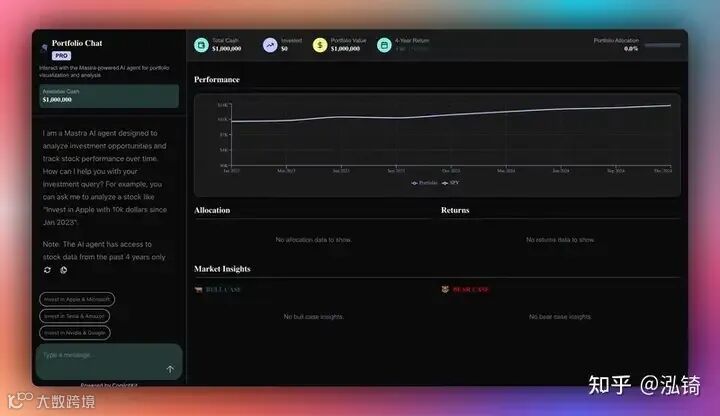
现在让我们看看如何使用 CopilotKit 为 AG-UI + Mastra AI 代理构建前端 UI。
步骤1:创建HttpAgent实例
在创建HttpAgent实例之前,首先我们来了解一下什么是HttpAgent。
HttpAgent 是 AG-UI 库的一个客户端,它可以将您的前端应用程序与任何与 AG-UI 兼容的 AI 代理的服务器连接起来。
要创建 HttpAgent 实例,请在 API 路由中定义它,如src/app/api/copilotkit/route.ts文件中所示。
// Import the HttpAgent for making HTTP requests to the backend
import { HttpAgent } from "@ag-ui/client";

// Import CopilotKit runtime components for setting up the API endpoint
import {
  CopilotRuntime,
  OpenAIAdapter,
  copilotRuntimeNextJSAppRouterEndpoint,
} from "@copilotkit/runtime";

// Import NextRequest type for handling Next.js API requests
import { NextRequest } from "next/server";

// Create a new HttpAgent instance that connects to the LangGraph research backend running locally
const mastraAgent = new HttpAgent({
  url: process.env.NEXT_PUBLIC_MASTRA_URL || "http://localhost:8000/mastra-agent",
});

// Initialize the CopilotKit runtime with our research agent
const runtime = new CopilotRuntime({
  agents: {
    mastraAgent : mastraAgent, // Register the research agent with the runtime
  },
});

/**
 * Define the POST handler for the API endpoint
 * This function handles incoming POST requests to the /api/copilotkit endpoint
 */
export const POST = async (req: NextRequest) => {
  // Configure the CopilotKit endpoint for the Next.js app router
  const { handleRequest } = copilotRuntimeNextJSAppRouterEndpoint({
    runtime, // Use the runtime with our research agent
    serviceAdapter: new OpenAIAdapter(), // Use the experimental adapter
    endpoint: "/api/copilotkit", // Define the API endpoint path
  });

  // Process the incoming request with the CopilotKit handler
  return handleRequest(req);
};
第 2 步:设置 CopilotKit 提供程序
要设置 CopilotKit 提供程序, CopilotKit 组件必须包装应用程序中支持 Copilot 的部分。
对于大多数用例来说,将 CopilotKit 提供程序包装在整个应用程序中是合适的,例如,在您的应用 程序中layout.tsx,如下面的文件所示 src/app/layout.tsx 。
// Next.js imports for metadata and font handling
import type { Metadata } from "next";
import { Geist, Geist_Mono } from "next/font/google";
// Global styles for the application
import "./globals.css";
// CopilotKit UI styles for AI components
import "@copilotkit/react-ui/styles.css";
// CopilotKit core component for AI functionality
import { CopilotKit } from "@copilotkit/react-core";

// Configure Geist Sans font with CSS variables for consistent typography
const geistSans = Geist({
  variable: "--font-geist-sans",
  subsets: ["latin"],
});

// Configure Geist Mono font for code and monospace text
const geistMono = Geist_Mono({
  variable: "--font-geist-mono",
  subsets: ["latin"],
});

// Metadata configuration for SEO and page information
export const metadata: Metadata = {
  title: "AI Stock Portfolio",
  description: "AI Stock Portfolio",
};

// Root layout component that wraps all pages in the application
export default function RootLayout({
  children,
}: Readonly<{
  children: React.ReactNode;
}>) {
  return (
    <html lang="en">
      <body
        className={`${geistSans.variable} ${geistMono.variable} antialiased`}>
        {/* CopilotKit wrapper that enables AI functionality throughout the app */}
        {/* runtimeUrl points to the API endpoint for AI backend communication */}
        {/* agent specifies which AI agent to use (stockAgent for stock analysis) */}
        <CopilotKit runtimeUrl="/api/copilotkit" agent="stockAgent">
          {children}
        </CopilotKit>
      </body>
    </html>
  );
}
步骤 3:设置 Copilot 聊天组件
CopilotKit 附带许多内置聊天组件,包括CopilotPopup、 CopilotSidebar和CopilotChat。
要设置 Copilot 聊天组件,请按照src/app/components/prompt-panel.tsx文件中所示进行定义。
// Client-side component directive for Next.js
"use client";

import type React from "react";
// CopilotKit chat component for AI interactions
import { CopilotChat } from "@copilotkit/react-ui";

// Props interface for the PromptPanel component
interface PromptPanelProps {
  // Amount of available cash for investment, displayed in the panel
  availableCash: number;
}

// Main component for the AI chat interface panel
export function PromptPanel({ availableCash }: PromptPanelProps) {
  // Utility function to format numbers as USD currency
  // Removes decimal places for cleaner display of large amounts
  const formatCurrency = (amount: number) => {
    return new Intl.NumberFormat("en-US", {
      style: "currency",
      currency: "USD",
      minimumFractionDigits: 0,
      maximumFractionDigits: 0,
    }).format(amount);
  };

  return (
    // Main container with full height and white background
    <div className="h-full flex flex-col bg-white">
      {/* Header section with title, description, and cash display */}
      <div className="p-4 border-b border-[#D8D8E5] bg-[#FAFCFA]">
        {/* Title section with icon and branding */}
        <div className="flex items-center gap-2 mb-2">
          <span className="text-xl"> </span>
          <div>
            <h1 className="text-lg font-semibold text-[#030507] font-['Roobert']">
              Portfolio Chat
            </h1>
            {/* Pro badge indicator */}
            <div className="inline-block px-2 py-0.5 bg-[#BEC9FF] text-[#030507] text-xs font-semibold uppercase rounded">
              PRO
            </div>
          </div>
        </div>
        {/* Description of the AI agent's capabilities */}
        <p className="text-xs text-[#575758]">
          Interact with the LangGraph-powered AI agent for portfolio
          visualization and analysis
        </p>

        {/* Available Cash Display section */}
        <div className="mt-3 p-2 bg-[#86ECE4]/10 rounded-lg">
          <div className="text-xs text-[#575758] font-medium">
            Available Cash
          </div>
          <div className="text-sm font-semibold text-[#030507] font-['Roobert']">
            {formatCurrency(availableCash)}
          </div>
        </div>
      </div>
      {/* CopilotKit chat interface with custom styling and initial message */}
      {/* Takes up majority of the panel height for conversation */}
      <CopilotChat
        className="h-[78vh] p-2"
        labels={{
          // Initial welcome message explaining the AI agent's capabilities and limitations
          initial: `I am a LangGraph AI agent designed to analyze investment opportunities and track stock performance over time. How can I help you with your investment query? For example, you can ask me to analyze a stock like "Invest in Apple with 10k dollars since Jan 2023". \n\nNote: The AI agent has access to stock data from the past 4 years only`,
        }}
      />
    </div>
  );
}
步骤 4:使用 CopilotKit 钩子将 AG-UI + Mastra AI 代理状态与前端同步
在 CopilotKit 中,CoAgent 维护一个共享状态,无缝连接前端 UI 与代理的执行。此共享状态系统允许您:
-
显示代理的当前进度和中间结果 -
通过 UI 交互更新代理的状态 -
对整个应用程序的状态变化做出实时反应
您可以在 CopilotKit 文档中了解有关 CoAgents 共享状态的更多信息 。
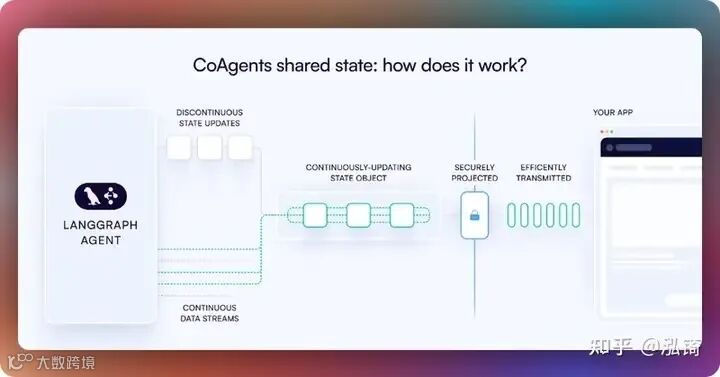
要将您的 AG-UI + Mastra AI 代理状态与前端同步,请使用 CopilotKit useCoAgent 钩子 与您的前端共享 AG-UI + Mastra AI 代理状态,如src/app/page.tsx文件中所示。
"use client";

import {
  useCoAgent,
} from "@copilotkit/react-core";

// ...

export interface SandBoxPortfolioState {
  performanceData: Array<{
    date: string;
    portfolio: number;
    spy: number;
  }>;
}
export interface InvestmentPortfolio {
  ticker: string;
  amount: number;
}

export default function OpenStocksCanvas() {

  // ...

  const [totalCash, setTotalCash] = useState(1000000);

  const { state, setState } = useCoAgent({
    name: "stockAgent",
    initialState: {
      available_cash: totalCash,
      investment_summary: {} as any,
      investment_portfolio: [] as InvestmentPortfolio[],
    },
  });

    // ...

  return (
    <div className="h-screen bg-[#FAFCFA] flex overflow-hidden">
       {/* ... */}
    </div>
  );
}
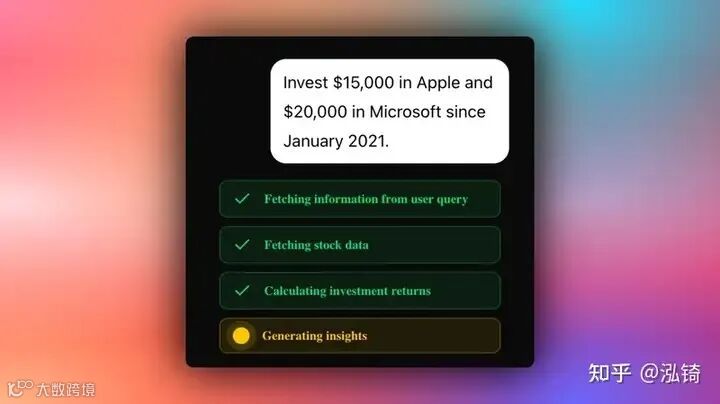
然后在聊天 UI 中呈现 AG-UI + Mastra AI 代理的状态,这有助于以更符合上下文的方式告知用户代理的状态。
要在聊天 UI 中呈现 AG-UI + Mastra AI 代理的状态,您可以使用 useCoAgentStateRender 钩子,如文件中所示src/app/page.tsx。
"use client";

import {
  useCoAgentStateRender,
} from "@copilotkit/react-core";

import { ToolLogs } from "./components/tool-logs";

// ...

export default function OpenStocksCanvas() {

  // ...

  useCoAgentStateRender({
    name: "stockAgent",
    render: ({ state }) => <ToolLogs logs={state.tool_logs} />,
  });

  // ...

  return (
    <div className="h-screen bg-[#FAFCFA] flex overflow-hidden">
      {/* ... */}
    </div>
  );
}
如果您在聊天中执行查询,您应该会看到 AG-UI + Mastra AI 代理的状态任务执行在聊天 UI 中呈现,如下所示。
步骤 5:在前端实现人机交互(HITL)
人机在环 (HITL) 允许代理在执行过程中请求人工输入或批准,从而提高 AI 系统可靠性和可信度。在构建需要处理复杂决策或需要人工判断的操作的 AI 应用程序时,这种模式至关重要。
您可以在 CopilotKit 文档中了解有关 Human in the Loop 的更多信息。
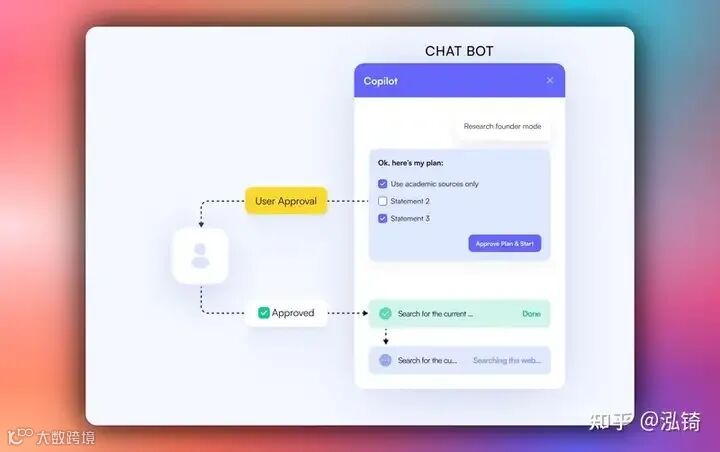
要在前端实现人机交互 (HITL),您需要使用 CopilotKit useCopilotKitAction 钩子和renderAndWaitForResponse允许从渲染函数异步返回值的方法,如src/app/page.tsx文件中所示。
"use client";

import {
  useCopilotAction,
} from "@copilotkit/react-core";

// ...

export default function OpenStocksCanvas() {

  // ...

  useCopilotAction({
    name: "render_standard_charts_and_table",
    description:
      "This is an action to render a standard chart and table. The chart can be a bar chart or a line chart. The table can be a table of data.",
    renderAndWaitForResponse: ({ args, respond, status }) => {
      useEffect(() => {
        console.log(args, "argsargsargsargsargsaaa");
      }, [args]);
      return (
        <>
          {args?.investment_summary?.percent_allocation_per_stock &&
            args?.investment_summary?.percent_return_per_stock &&
            args?.investment_summary?.performanceData && (
              <>
                <div className="flex flex-col gap-4">
                  <LineChartComponent
                    data={args?.investment_summary?.performanceData}
                    size="small"
                  />
                  <BarChartComponent
                    data={Object.entries(
                      args?.investment_summary?.percent_return_per_stock
                    ).map(([ticker, return1]) => ({
                      ticker,
                      return: return1 as number,
                    }))}
                    size="small"
                  />
                  <AllocationTableComponent
                    allocations={Object.entries(
                      args?.investment_summary?.percent_allocation_per_stock
                    ).map(([ticker, allocation]) => ({
                      ticker,
                      allocation: allocation as number,
                      currentValue:
                        args?.investment_summary.final_prices[ticker] *
                        args?.investment_summary.holdings[ticker],
                      totalReturn:
                        args?.investment_summary.percent_return_per_stock[
                          ticker
                        ],
                    }))}
                    size="small"
                  />
                </div>

                <button
                  hidden={status == "complete"}
                  className="mt-4 rounded-full px-6 py-2 bg-green-50 text-green-700 border border-green-200 shadow-sm hover:bg-green-100 transition-colors font-semibold text-sm"
                  onClick={() => {
                    debugger;
                    if (respond) {
                      setTotalCash(args?.investment_summary?.cash);
                      setCurrentState({
                        ...currentState,
                        returnsData: Object.entries(
                          args?.investment_summary?.percent_return_per_stock
                        ).map(([ticker, return1]) => ({
                          ticker,
                          return: return1 as number,
                        })),
                        allocations: Object.entries(
                          args?.investment_summary?.percent_allocation_per_stock
                        ).map(([ticker, allocation]) => ({
                          ticker,
                          allocation: allocation as number,
                          currentValue:
                            args?.investment_summary?.final_prices[ticker] *
                            args?.investment_summary?.holdings[ticker],
                          totalReturn:
                            args?.investment_summary?.percent_return_per_stock[
                              ticker
                            ],
                        })),
                        performanceData:
                          args?.investment_summary?.performanceData,
                        bullInsights: args?.insights?.bullInsights || [],
                        bearInsights: args?.insights?.bearInsights || [],
                        currentPortfolioValue:
                          args?.investment_summary?.total_value,
                        totalReturns: (
                          Object.values(
                            args?.investment_summary?.returns
                          ) as number[]
                        ).reduce((acc, val) => acc + val, 0),
                      });
                      setInvestedAmount(
                        (
                          Object.values(
                            args?.investment_summary?.total_invested_per_stock
                          ) as number[]
                        ).reduce((acc, val) => acc + val, 0)
                      );
                      setState({
                        ...state,
                        available_cash: totalCash,
                      });
                      respond(
                        "Data rendered successfully. Provide summary of the investments by not making any tool calls"
                      );
                    }
                  }}>
                  Accept
                </button>
                <button
                  hidden={status == "complete"}
                  className="rounded-full px-6 py-2 bg-red-50 text-red-700 border border-red-200 shadow-sm hover:bg-red-100 transition-colors font-semibold text-sm ml-2"
                  onClick={() => {
                    debugger;
                    if (respond) {
                      respond(
                        "Data rendering rejected. Just give a summary of the rejected investments by not making any tool calls"
                      );
                    }
                  }}>
                  Reject
                </button>
              </>
            )}
        </>
      );
    },
  });

  // ...

  return (
    <div className="h-screen bg-[#FAFCFA] flex overflow-hidden">
      {/* ... */}
    </div>
  );
}
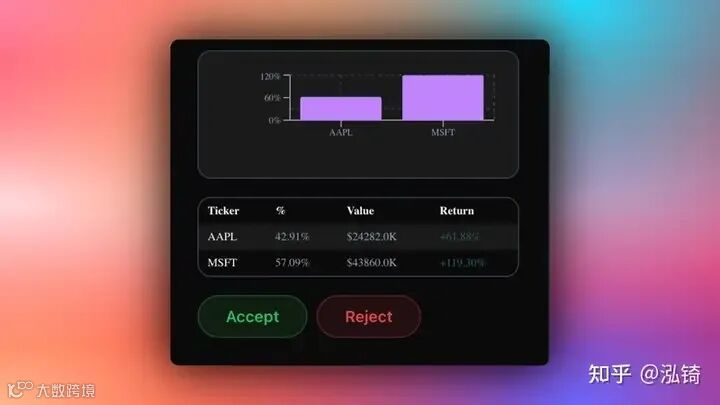
当代理通过工具/操作名称触发前端操作,以在执行过程中请求人工输入或反馈时,系统会提示最终用户进行选择(该选项会呈现在聊天界面中)。然后,用户可以通过按下聊天界面中的按钮进行选择,如下所示。
步骤 6:在前端流式传输 AG-UI + Mastra AI 代理响应
要在前端流式传输 AG-UI + Mastra AI 代理响应或结果,请将代理的状态字段值传递给前端组件,如src/app/page.tsx文件中所示。
"use client";

import { useEffect, useState } from "react";
import { PromptPanel } from "./components/prompt-panel";
import { GenerativeCanvas } from "./components/generative-canvas";
import { ComponentTree } from "./components/component-tree";
import { CashPanel } from "./components/cash-panel";

// ...

export default function OpenStocksCanvas() {
  const [currentState, setCurrentState] = useState<PortfolioState>({
    id: "",
    trigger: "",
    performanceData: [],
    allocations: [],
    returnsData: [],
    bullInsights: [],
    bearInsights: [],
    currentPortfolioValue: 0,
    totalReturns: 0,
  });
  const [sandBoxPortfolio, setSandBoxPortfolio] = useState<
    SandBoxPortfolioState[]
  >([]);
  const [selectedStock, setSelectedStock] = useState<string | null>(null);


  return (
    <div className="h-screen bg-[#FAFCFA] flex overflow-hidden">
      {/* Left Panel - Prompt Input */}
      <div className="w-85 border-r border-[#D8D8E5] bg-white flex-shrink-0">
        <PromptPanel availableCash={totalCash} />
      </div>

      {/* Center Panel - Generative Canvas */}
      <div className="flex-1 relative min-w-0">
        {/* Top Bar with Cash Info */}
        <div className="absolute top-0 left-0 right-0 bg-white border-b border-[#D8D8E5] p-4 z-10">
          <CashPanel
            totalCash={totalCash}
            investedAmount={investedAmount}
            currentPortfolioValue={
              totalCash + investedAmount + currentState.totalReturns || 0
            }
            onTotalCashChange={setTotalCash}
            onStateCashChange={setState}
          />
        </div>

        <div className="pt-20 h-full">
          <GenerativeCanvas
            setSelectedStock={setSelectedStock}
            portfolioState={currentState}
            sandBoxPortfolio={sandBoxPortfolio}
            setSandBoxPortfolio={setSandBoxPortfolio}
          />
        </div>
      </div>

      {/* Right Panel - Component Tree (Optional) */}
      {showComponentTree && (
        <div className="w-64 border-l border-[#D8D8E5] bg-white flex-shrink-0">
          <ComponentTree portfolioState={currentState} />
        </div>
      )}
    </div>
  );
}
如果您查询您的代理并批准其反馈请求,您应该在 UI 中看到代理的响应或结果流,如下所示。
结论
在本指南中,我们介绍了将 Mastra AI 代理与 AG-UI 协议集成,然后使用 CopilotKit 向代理添加前端的步骤。
虽然我们已经探索了一些功能,但我们仅仅触及了 CopilotKit 无数用例的表面,从构建交互式 AI 聊天机器人到构建代理解决方案——本质上,CopilotKit 可让您在几分钟内为您的产品添加大量有用的 AI 功能。
希望本指南能帮助您更轻松地将 AI 驱动的 Copilot 集成到您现有的应用程序中。
关注【索引目录】服务号,更多精彩内容等你来探索!