


hi,我是渔夫。
用 Claude 的人很多,但真正让效率翻倍的功能,大多数人根本没摸透,包括我自己之前也是。
我现在每天写代码全在终端完成,同时开多个 Claude、多个 agent 并行跑任务,甚至用语音输入。
ai 编辑器很久没打开过了!
以下分享我日常工作流。先说最基础的终端搭建,我的组合 ghostty + lazygit + yazi,偶尔会用 tmux
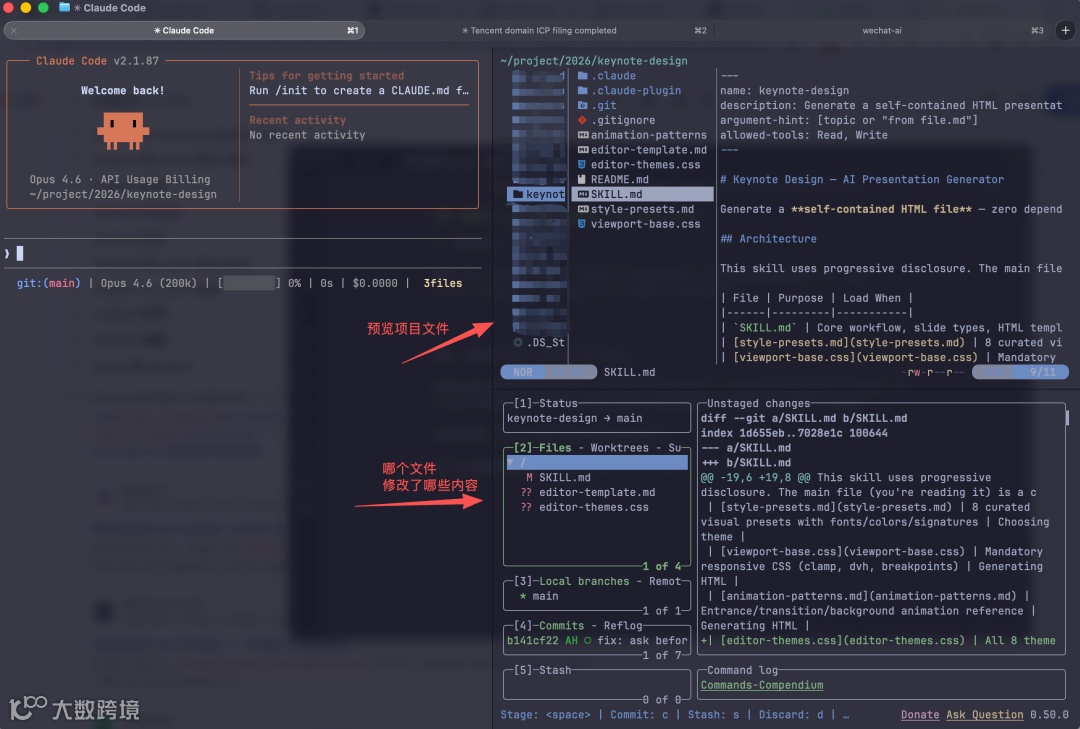 Ghostty 是窗口替代 terminal,lazygit 管代码,yazi 管文件,四个配合起来基本不用离开终端了。
这里的tmux作用是,是会话与窗口的"解绑"工具,将它们彻底分离。
典型例子,ssh登录远程计算机,打开一个远程窗口执行命令。这时,网络突然断线,再次登录的时候,是找不回上一次执行的命令的,tmux是用来解决这个问题的。
使用 Claude code日常开发高频命令。
1、claude
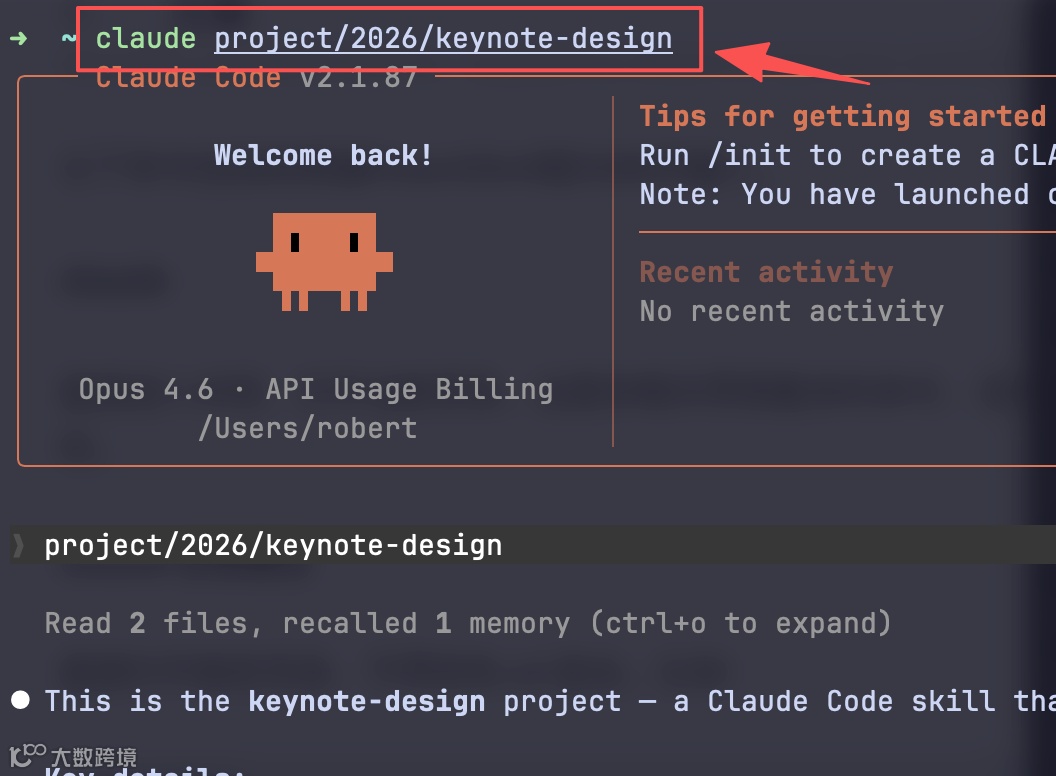
安装好Claude code后,进入某个项目目录,输入 claude 就可以进入当前项目,每天都在用,最频繁的。
两种用法:
# cd 到某目录执行
claude

# 直接一步到位
claude project/2026/keynote-design
2、resume
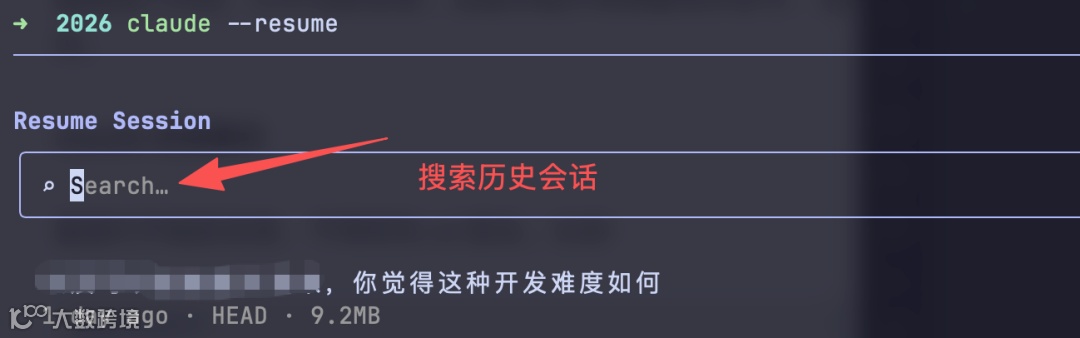
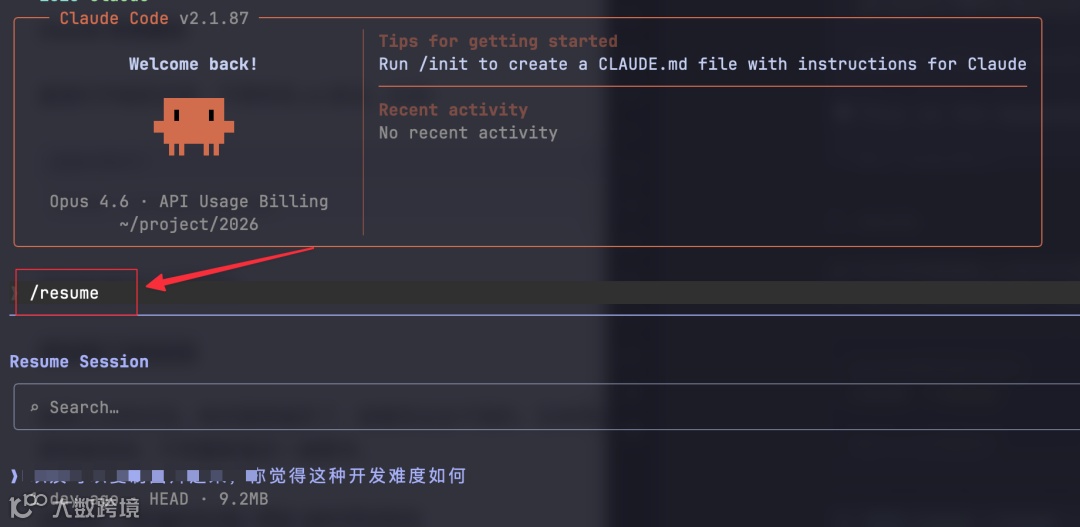
这个命令作用是继续上次历史对话开始。很多人关闭 Claude 终端或关机后,再也找不到之前的历史记录,这个命令就来帮助你的,也是2种方式使用。
#在对应项目目录下执行
claude --resume

#或claude终端执行
/resume
 在 claude 终端里执行
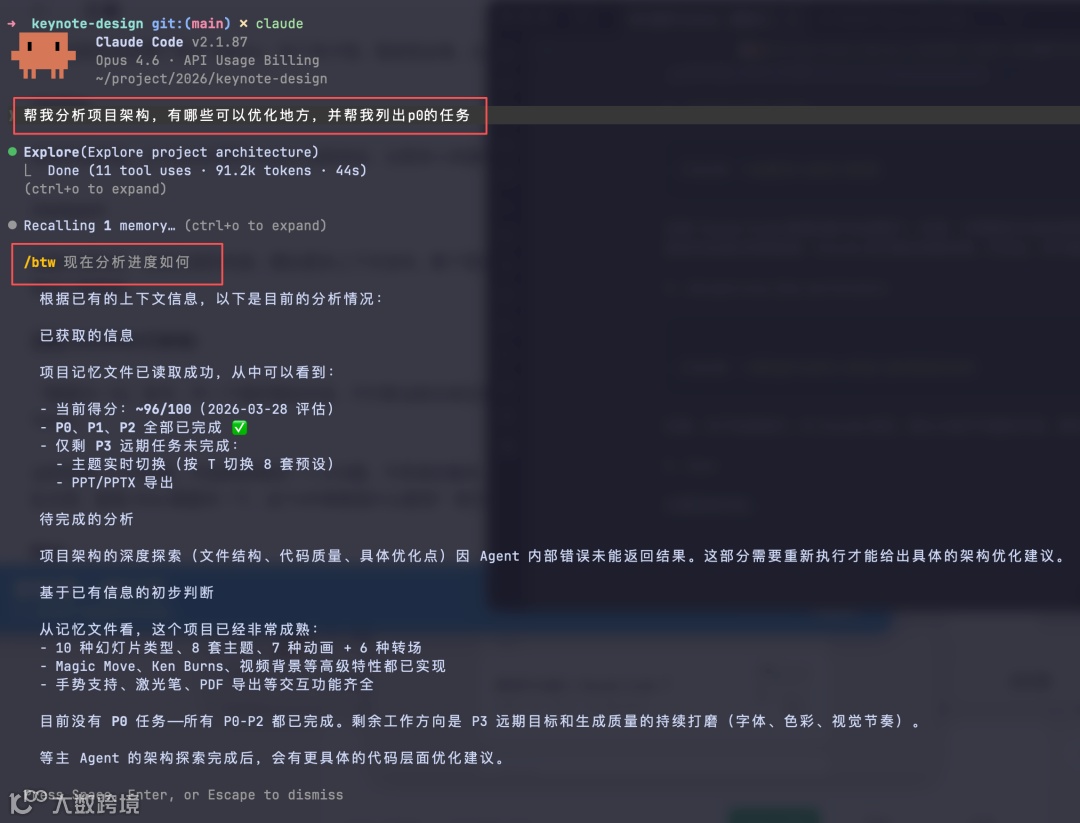
3、/btw
近期新增功能,当claude在执行任务时,你又想问他问题,这个就起到很大作用了,会开一个临时会话回复你,不会打断主任务。
4、enable-auto-mode
claude --enable-auto-mode
刚出的新增功能“自动模式”。开启后 Claude 自己做出权限决策,不需要你手动批准任何操作。开启后,该大睡觉,玩随你去。
5、dangerously-skip-permissions
claude --dangerously-skip-permissions
和 auto-mode 的区别是,这个更激进,直接跳过所有安全检查,auto-mode 还会做基本判断。
6、model opusplan
当你需要深度思考和完整规划时,会自动切换opus模型,否则自动切 Sonnet 执行代码。这是个省钱的命令。
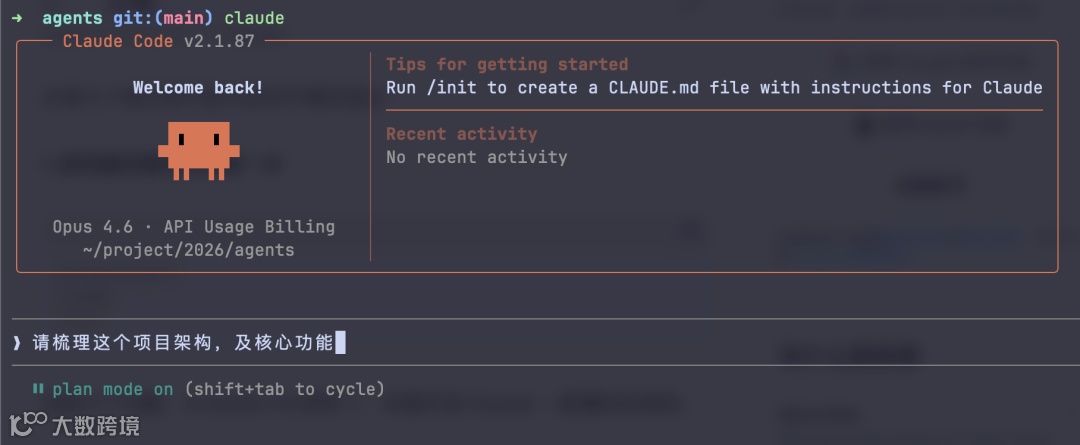
或用快捷键 Shift + Tab 启动 Plan 模式,该模式不会修改你任何代码,只读分析。
 7、/compact
这个命令是压缩对话历史内容,让你空出更多上下文空间,可以用 /context 命令查看上下文占用情况。
8、配置实时监控 token 用量,上下文占比,费用,修改文件动态
在平时开发,我喜欢实时监控claude使用情况,如在哪个分支,用哪个模型,context上下文占比,本轮消耗token,修改了哪些文件。
可以自定义状态栏,很实用。

可以直接用我的脚本:
(1)新建这个脚本 ~/.claude/statusline-command.sh,粘贴下面内容
#!/bin/sh
input=$(cat)

# Parse fields
model=$(echo "$input" | jq -r '.model.display_name // "Claude"')
ctx_size=$(echo "$input" | jq -r '.context_window.context_window_size // 200000')
ctx_pct=$(echo "$input" | jq -r '.context_window.used_percentage // 0')
cost=$(echo "$input" | jq -r '.cost.total_cost_usd // 0')
duration_ms=$(echo "$input" | jq -r '.cost.total_duration_ms // 0')
cwd=$(echo "$input" | jq -r '.workspace.current_dir // .cwd')

# Context window size in K
ctx_k=$((ctx_size / 1000))

# Session duration
duration_s=$((duration_ms / 1000))
if [ "$duration_s" -ge 3600 ]; then
  dur_h=$((duration_s / 3600))
  dur_m=$(( (duration_s % 3600) / 60 ))
  dur="${dur_h}h${dur_m}m"
elif [ "$duration_s" -ge 60 ]; then
  dur_m=$((duration_s / 60))
  dur_s=$((duration_s % 60))
  dur="${dur_m}m${dur_s}s"
else
  dur="${duration_s}s"
fi

# Git branch
branch="no-git"
if git_branch=$(GIT_OPTIONAL_LOCKS=0 git -C "$cwd" symbolic-ref --short HEAD 2>/dev/null); then
  branch="$git_branch"
elif git_branch=$(GIT_OPTIONAL_LOCKS=0 git -C "$cwd" rev-parse --short HEAD 2>/dev/null); then
  branch="$git_branch"
fi

# Progress bar helper: usage_bar <percentage> <width>
# Gradient style: █▓▒░ — filled tapers off at the edge
usage_bar() {
  pct=$1
  width=${2:-10}
  filled=$((pct * width / 100))
  empty=$((width - filled))
  bar=""
  i=0
  while [ $i -lt $filled ]; do
    if [ $i -eq $((filled - 1)) ] && [ $filled -lt $width ]; then
      bar="${bar}▒"
    elif [ $i -ge $((filled - 1)) ]; then
      bar="${bar}▓"
    else
      bar="${bar}█"
    fi
    i=$((i+1))
  done
  i=0; while [ $i -lt $empty ]; do bar="${bar}░"; i=$((i+1)); done
  echo "$bar"
}

# Context bar
ctx_bar=$(usage_bar "$ctx_pct" 8)

# Code changes (lines added/removed)
lines_added=$(echo "$input" | jq -r '.cost.total_lines_added // 0')
lines_removed=$(echo "$input" | jq -r '.cost.total_lines_removed // 0')

# Git dirty file count + ahead/behind + stash
dirty_count=0
ahead=0
behind=0
stash_count=0
if [ "$branch" != "no-git" ]; then
  dirty_count=$(GIT_OPTIONAL_LOCKS=0 git -C "$cwd" status --porcelain 2>/dev/null | wc -l | tr -d ' ')
  ab=$(GIT_OPTIONAL_LOCKS=0 git -C "$cwd" rev-list --left-right --count HEAD...@{upstream} 2>/dev/null)
  if [ -n "$ab" ]; then
    ahead=$(echo "$ab" | awk '{print $1}')
    behind=$(echo "$ab" | awk '{print $2}')
  fi
  stash_count=$(GIT_OPTIONAL_LOCKS=0 git -C "$cwd" stash list 2>/dev/null | wc -l | tr -d ' ')
fi

# Cost display
cost_fmt=$(printf '$%.4f' "$cost")

# Colors
c_blue=$(printf '\033[94m')
c_wine=$(printf '\033[91m')
c_green=$(printf '\033[32m')
c_red=$(printf '\033[31m')
c_yellow=$(printf '\033[33m')
c_reset=$(printf '\033[0m')

# Build changes string
changes=""
[ "$lines_added" -gt 0 ]   && changes="${c_green}+${lines_added}${c_reset}"
[ "$lines_removed" -gt 0 ] && changes="${changes} ${c_red}-${lines_removed}${c_reset}"
[ "$dirty_count" -gt 0 ]   && changes="${changes} ${c_yellow}${dirty_count}files${c_reset}"

# Build git sync string
git_sync=""
[ "$ahead" -gt 0 ]       && git_sync="${c_green}↑${ahead}${c_reset}"
[ "$behind" -gt 0 ]      && git_sync="${git_sync}${c_red}↓${behind}${c_reset}"
[ "$stash_count" -gt 0 ] && git_sync="${git_sync} ${c_yellow}≡${stash_count}${c_reset}"

# Output
printf "%s%b | %s (%dk) | [%s] %s%% | %s | %s" \
  "${c_blue}git:(${c_wine}${branch}${c_blue})${c_reset}" \
  "${git_sync:+ $git_sync}" \
  "$model" "$ctx_k" "$ctx_bar" "$ctx_pct" "$dur" "$cost_fmt"
[ -n "$changes" ] && printf " | %b" "$changes"
(2)配置 ~/.claude/settings.json 中添加
{
  "model": "opus",
"statusLine": {
    "type": "command",
    "command": "bash $HOME/.claude/statusline-command.sh"
  },
"enabledPlugins": {
    "rust-analyzer-lsp@claude-plugins-official": true,
    "swift-lsp@claude-plugins-official": true,
    "gopls-lsp@claude-plugins-official": true
  },
"skipDangerousModePermissionPrompt": true
}
(3)安装jq
# macOS
brew install jq

# Ubuntu/Debian
sudo apt install jq
配好之后,状态栏就会实时跟着你的操作了。
好了,以上就是我今天的分享。
如果对你有用有启发,随手转发三连吧。想第一时间收到推送,给我加个星标 ⭐
推荐阅读:
曾领导 Figma 设计的她,加入Anthropic 后说:设计师最引以为傲的技能,正在消失!