

Odoo
神州数码云基地
在 Odoo 上的尝试、调研与分享
本期作者
丁涛
前端开发工程师
做最好的自己
你我就是奇迹

X-SpreadSheet是一个类似于google sheet的在线表格组件,很多场景都能借助它来搭建在线表格。
由于最近在用odoo做项目时,我们发现企业版中自带的documents的excel相关模块,放到社区版中后,它的功能依旧生效!但因为社区版和企业版主题样式差异,会导致此时的documents样式适配出现问题。
因此来看看在Odoo社区版如何使用X-SpreadSheet完成这一功能吧!
#X-SpreadSheet
集成过程
1、下载X-SpreadSheet源码到本地
下载地址
x-spreadsheet.css:
https://unpkg.com/x-data-spreadsheet@1.0.13/dist/xspreadsheet.css
x-spreadsheet.js:
https://unpkg.com/x-data-spreadsheet@1.0.13/dist/xspreadsheet.js
注:
若将源码下载到本地,其对应的svg文件也需要下载。不然在本地的
x-spreadsheet.css中会找不到图片资源。
(下载地址:https://github.com/odoo/x-spreadsheet/tree/master/dist)

2、将X-SpreadSheet集成到Odoo中
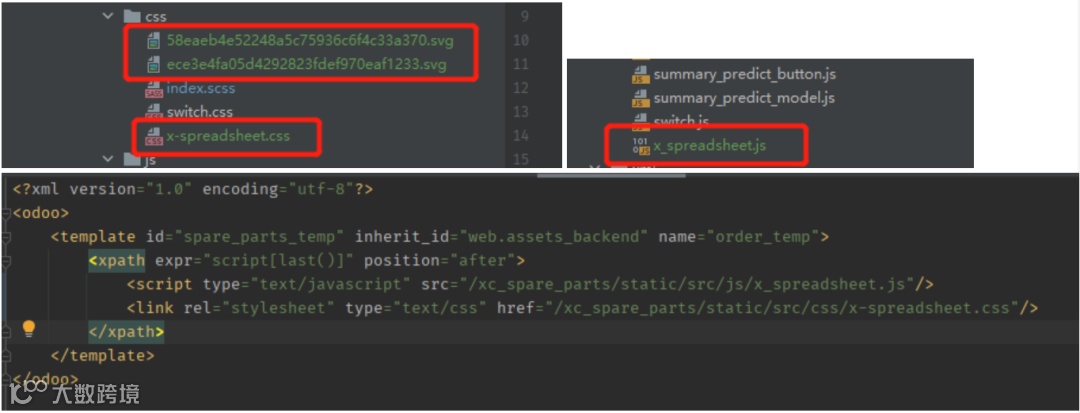
将上面的css和js文件放到对应模块的static下,并在template.xml中引入
3、创建QWeb页面
<?xml version="1.0" encoding="utf-8" ?><template><t t-name="x_spreadsheet"><div><div id="x-spreadsheet-demo"></div></div></t></template>
4、创建对应的js文件
odoo.define('x_spreadsheet', function (require) {var AbstractAction = require('web.AbstractAction')var core = require('web.core')var spreadsheet = AbstractAction.extend({template: 'x_spreadsheet',start: function () {var self = this$(document).ready(function () {// new Spreadsheet(document.getElementById('x-spreadsheet-demo'))window&&window.x_spreadsheet&&(window.x_spreadsheet.$messages=window.x_spreadsheet.$messages||{},window.x_spreadsheet.$messages["zh-cn"]={toolbar:{undo:"撤销",redo:"恢复",print:"打印",paintformat:"格式刷",clearformat:"清除格式",format:"数据格式",fontName:"字体",fontSize:"字号",fontBold:"加粗",fontItalic:"倾斜",underline:"下划线",strike:"删除线",color:"字体颜色",bgcolor:"填充颜色",border:"边框",merge:"合并单元格",align:"水平对齐",valign:"垂直对齐",textwrap:"自动换行",freeze:"冻结",autofilter:"自动筛选",formula:"函数",more:"更多"},contextmenu:{copy:"复制",cut:"剪切",paste:"粘贴",pasteValue:"粘贴数据",pasteFormat:"粘贴格式",hide:"隐藏",insertRow:"插入行",insertColumn:"插入列",deleteSheet:"删除",deleteRow:"删除行",deleteColumn:"删除列",deleteCell:"删除",deleteCellText:"删除数据",validation:"数据验证",cellprintable:"可打印",cellnonprintable:"不可打印",celleditable:"可编辑",cellnoneditable:"不可编辑"},print:{size:"纸张大小",orientation:"方向",orientations:["横向","纵向"]},format:{normal:"正常",text:"文本",number:"数值",percent:"百分比",rmb:"人民币",usd:"美元",eur:"欧元",date:"短日期",time:"时间",datetime:"长日期",duration:"持续时间"},formula:{sum:"求和",average:"求平均值",max:"求最大值",min:"求最小值",concat:"字符拼接",_if:"条件判断",and:"和",or:"或"},validation:{required:"此值必填",notMatch:"此值不匹配验证规则",between:"此值应在 {} 和 {} 之间",notBetween:"此值不应在 {} 和 {} 之间",notIn:"此值不在列表中",equal:"此值应该等于 {}",notEqual:"此值不应该等于 {}",lessThan:"此值应该小于 {}",lessThanEqual:"此值应该小于等于 {}",greaterThan:"此值应该大于 {}",greaterThanEqual:"此值应该大于等于 {}"},error:{pasteForMergedCell:"无法对合并的单元格执行此操作"},calendar:{weeks:["日","一","二","三","四","五","六"],months:["一月","二月","三月","四月","五月","六月","七月","八月","九月","十月","十一月","十二月"]},button:{next:"下一步",cancel:"取消",remove:"删除",save:"保存",ok:"确认"},sort:{desc:"降序",asc:"升序"},filter:{empty:"空白"},dataValidation:{mode:"模式",range:"单元区间",criteria:"条件",modeType:{cell:"单元格",column:"列模式",row:"行模式"},type:{list:"列表",number:"数字",date:"日期",phone:"手机号",email:"电子邮件"},operator:{be:"在区间",nbe:"不在区间",lt:"小于",lte:"小于等于",gt:"大于",gte:"大于等于",eq:"等于",neq:"不等于"}}});x_spreadsheet.locale('zh-cn');var xs = x_spreadsheet('#x-spreadsheet-demo');});}})core.action_registry.add('x_spreadsheet', spreadsheet);return spreadsheet;})
5、在views的action文件中定义 action
<?xml version="1.0" encoding="utf-8"?><odoo><record model="ir.actions.client" id="x_spreadsheet_action"><field name="name">spreadSheet</field><field name="tag">x_spreadsheet</field></record></odoo>
6、在menu文件中注册该menu
<?xml version="1.0" encoding="utf-8"?><odoo><menuitemname="spreadSheet"id="spreadSheet_menu"action="x_spreadsheet_action"sequence="1"/></odoo>
集成完成后,我们会发现还无法正常使用,这时需要通过升级或重启来“激活”它。
#Odoo中的使用过程
1、引入xml和js文件
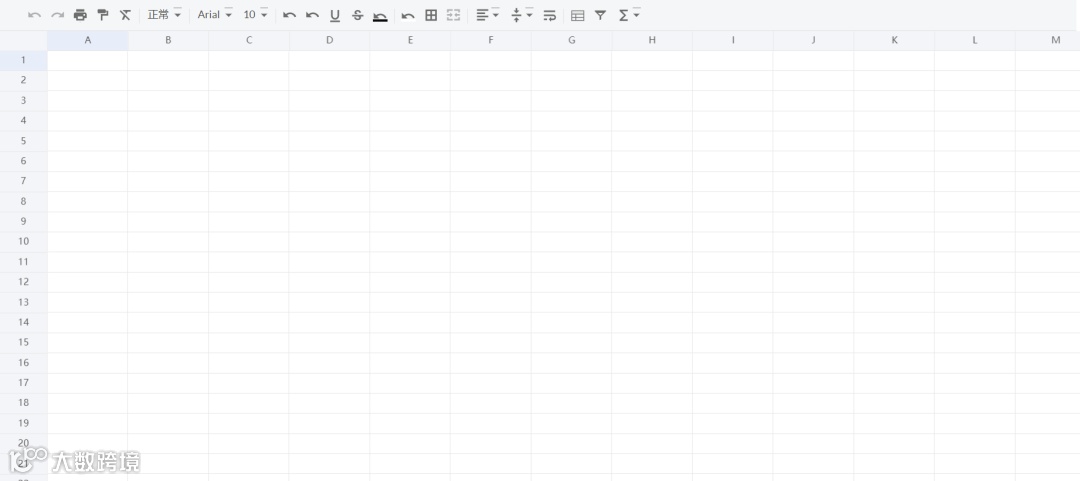
将上面的xml文件和js文件分别在__manifest__.py和template.xml中引入,重启并升级后浏览页面。
2、在spreadsheet.js中初始化json数 据
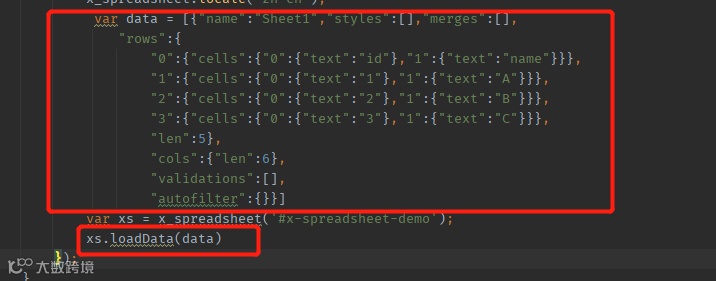
这个时候,页面已经出来了, 我们该如何初始化数据和获取excel数据呢?
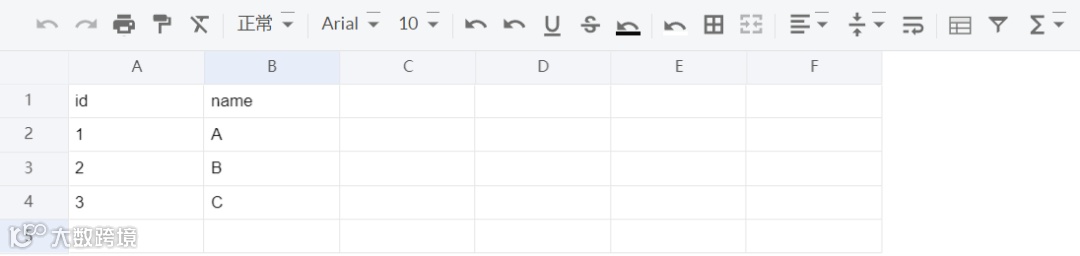
我们可以在spreadsheet.js中初始化json数据,加载并刷新页面,就会发现初始化渲染的数据已经生效了!
3、获取excel数据
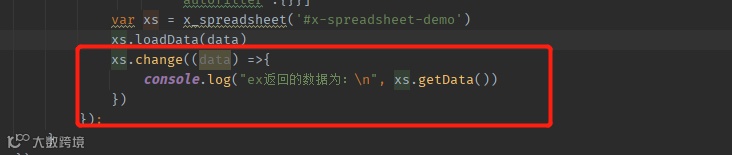
这一步,我们可以获取excel的数据了。并在修改excel数据时,观察控制台打印的数据。
到这里就可以正常使用啦~
并且如丝般流畅!
不得不说
我好像又打开了新大陆!😍😍😍

扫描右下方二维码,
加入群聊,关于 Odoo 你想了解的全都有!

#更多热门文章