欢迎关注R语言数据分析指南
❝本节来解释如何使用ggbeeswarm与packcircles来绘制蜂窝图,小编将通过一个精选案例进行详细演示,这里展示的图形仅用于示范目的,整个过程仅参考。希望对各位观众老爷能有所帮助。数据代码已经整合上传到2023VIP交流群,加群的观众老爷可自行下载,有需要的朋友可关注文末介绍加入VIP交流群。
❞
关注下方公众号下回更新不迷路
加载R包
library(tidyverse)
library(ggbeeswarm)
library(packcircles)
library(ggtext)
library(ggrepel)
library(camcorder)
导入数据
df <- read_csv('data.csv')
数据清洗
cent_bee <- df %>% group_by(gender) %>% arrange(-age) %>%
  mutate(g_rank = row_number(), name = fct_reorder(name, age)) %>% ungroup()
绘制一个基础图
p <- ggplot(cent_bee) +
  geom_beeswarm(aes(age, "group"), groupOnX = FALSE) +
  theme_minimal() +
  theme(plot.background = element_rect(fill = "grey99", color = NA))

# 构建ggplot图形,将结果存储在pp变量中
pp <- ggplot_build(p)

# 从pp对象中提取数据,并创建一个新的数据框pp_df
# 包含x, y坐标,半径r,以及cent_bee数据框中的其他相关列
pp_df <- data.frame(
  x = pp$data[[1]]$x,
  y = pp$data[[1]]$y,
  r = 0.03,
  place = cent_bee$place_of_death_or_residence,
  gender = cent_bee$gender,
  name = cent_bee$name,
  age = cent_bee$age,
  still_alive = cent_bee$still_alive,
  g_rank = cent_bee$g_rank
) %>%
  arrange(x) %>%  # 根据x坐标排序
  mutate(id = row_number())  # 为每行添加一个唯一的id
调整点的位置
# 使用circleRepelLayout函数调整点的位置,以避免重叠
pp_repel <- circleRepelLayout(pp_df, wrap = FALSE, sizetype = "area")
# 使用circleLayoutVertices函数获取调整后的点的坐标
pp_repel_out <- circleLayoutVertices(pp_repel$layout)
数据整合
pp_plot <- pp_repel_out %>%
  left_join(pp_df, by = "id") %>%
  mutate(x = x.x,y = y.x,color = case_when(place == "United States" ~ "#3B9AB2",
                                           place == "Japan" ~ "#78B7C5",TRUE ~ "grey20"),
    color2 = if_else(still_alive == "alive", color, colorspace::lighten(color, 0.8))) %>%
  select(-x.x,-y.x,-x.y,-y.y) %>% select(x,y,color,color2,id,gender)
数据可视化
ggplot(pp_plot) +
  annotate("text", x = c(110.3, 113.3), y = c(8, 4.5), label = c("Men", "Women"),hjust = 1, size = 6,color="black") +
  geom_polygon(aes(x, y + 3.5 * as.numeric(factor(gender)), group = id, fill = color2)) +
  geom_polygon(aes(x, y + 3.5 * as.numeric(factor(gender)), group = id, color = alpha(color, 0.6)), fill = NA, linewidth = 0.5) +
  scale_x_continuous(breaks = seq(110, 124, 2), limits = c(110, 124)) +
  scale_color_identity() +
  scale_fill_identity() +
  coord_fixed() +
  theme_minimal() +
  theme(legend.position = "none",plot.background = element_blank(),
    axis.title = element_blank(),
    axis.text.y = element_blank(),
    axis.text.x = element_text(color="black",size=8),
    panel.grid.major.y = element_blank(),
    panel.grid.minor.y = element_blank(),
    plot.margin = margin(10, 0, 10, 0))

❝本节内容介绍到此结束,过程仅供参考;有需要学习个性化数据可视化的朋友,欢迎到小编的「淘宝店铺」 「R语言数据分析指南」购买「2023年度会员文档」同步更新中「售价149元」,内容主要包括各种「高分论文的图表分析复现以及一些个性化图表的绘制」均包含数据+代码;按照往年数据小编年产出约在150+以上
❞
购买后微信发小编订单截图即邀请进新的会员交流群,小编的文档为按年售卖,只包含当年度的「除系列课程外」的文档,有需要往年文档的朋友也可下单购买,需要了解更多信息的朋友欢迎淘宝店铺交流咨询。
2023VIP会员文档(淘宝扫一扫)
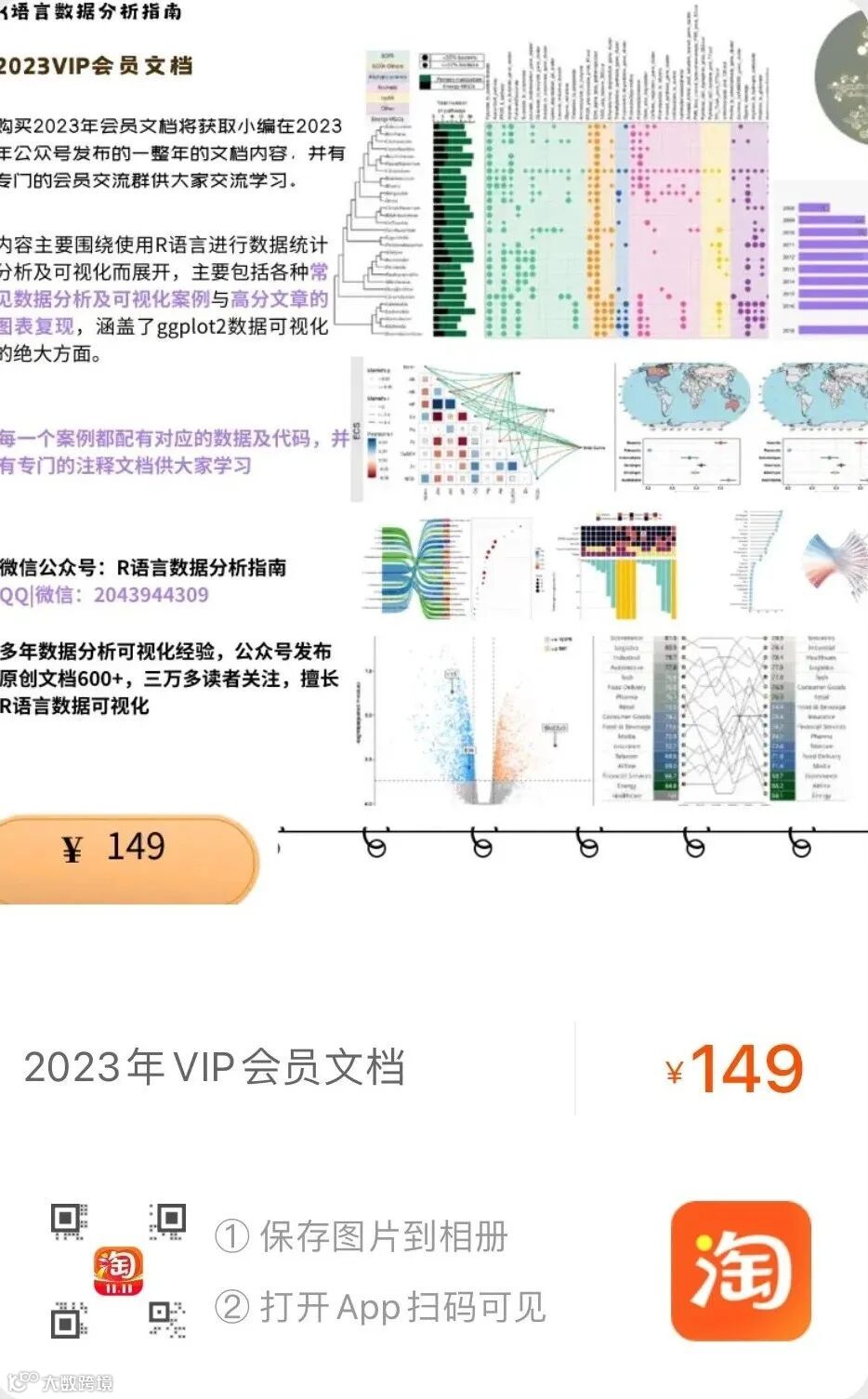
2023会员群案例展示