


Welcome to the world of R!
This tutorial provides the basics of R (R Core Team, 2020) for beginners. Our detailed instruction starts from the foundations including the installation of R and RStudio, the structure of R screen, and loading the data.
We introduce basic functions for data exploration and data visualization. We also illustrate how to perform statistical analyses such as correlation analysis, multiple linear regression, t-test, and other analyses with easy and intuitive explanations.
Since we continuously improve the tutorials, let us know if you discover mistakes, or if you have additional resources we can refer to. Just feel free to leave your comments any time. Are you ready to enjoy it?
R
Free programming software for statistical computation and graphics
Open source: everyone (even you!) can improve, develop, and contribute to R
The official manual: An introduction to R (Venables, Smith, & R Core Team, 2020)

R itself may look boring and tedious. However, we have a great helper called RStudio!
RStudio
RStudio helps users to use and learn R easier.
If you are using RStudio, this means you are using R.
From now on, all tutorials will go with RStudio.
Are you curious how it looks like on the screen? You’ll meet soon!
2. Time to become a friend: Installation
To work with R, you need to download both R and RStudio.
Please note that R should be downloaded first. Next, download RStudio.
R Installation
Let’s go to this website.
Go to a country close to you.
Choose and click any one of the website links listed.
Based on your operating system (Linux, Mac, Windows), click Download.
If you use Linux, click Download R for Linux: Choose your Linux distribution (debian/, redhad/, suse/, ubuntu/) -> Open the terminal -> Run the installation command
If you use Mac, click Download R for (Mac) OS X: Find the header ‘Latest release’ -> Click R-latest.version.pkg (or another version)
If you use Windows, click Download R for Windows: Find ‘base’ under subdirectories -> Click ‘install R for the first time’ -> Click Download R latest.version (or another version) for Windows
RStudio installation
This time, let’s go to this website.
In this tutorial, we will download the most basic one. Thus, click DOWNLOAD under RStudio Desktop.
If you encounter an error message during installation, try to install the public code-signing key before installation. To do that, under the ‘All Installers’ header, click ‘import RStudio’s public code-signing key’ -> Open the terminal -> Run the command under the headers ‘Obtaining the Public Key’ and ‘Validating Build Signature’
If you use Linux: Find the header ‘All installers’ -> Under OS column, find your Linux distribution -> Look right: Click the corresponding download file
If you use Mac: Find the header ‘All Installers’ -> Under OS column, find mac 10.13+ -> Look right: Click Rstudio-latest.version.dmg
If you use Windows: Click DOWNLOAD RSTUDIO FOR WINDOWS
3. Eyes on the R: Screen structure
No ‘pane’, no gain!
Note that the quote uses not ‘pain’ but ‘pane’. This implies that you will work with what is called ‘pane’ in RStudio without pain! When you finish the download and open the RStudio, the screen may look like this. What is your first impression of R?
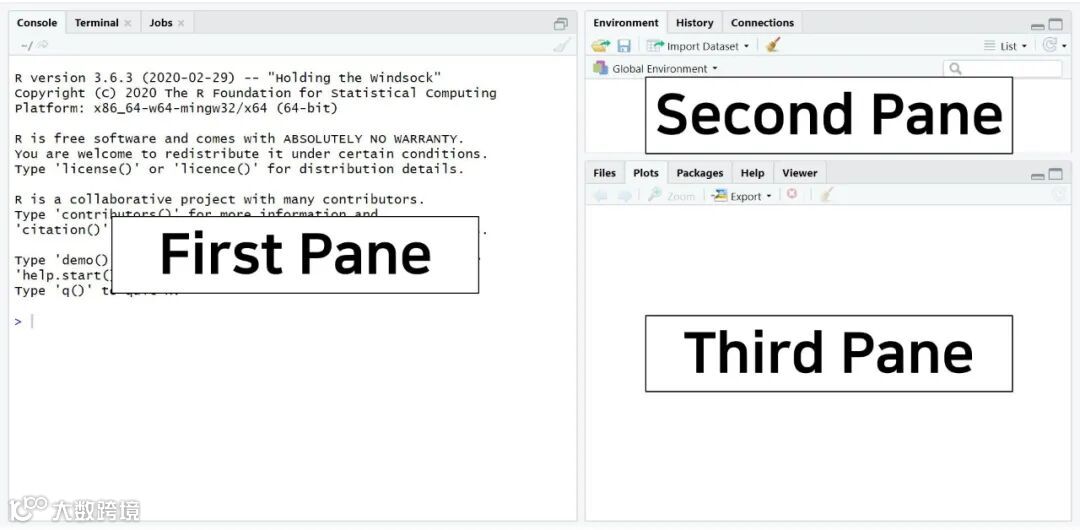
There are three panes where each pane has a role. However, don’t be surprised because there is another pane that you will see if you open an R script. An R script is like a new document of Microsoft Word. When you open an R script, the hidden pane appears.
Shall we open an R script? Click the icon with a plus sign on the paper. For you, I created a black square that indicates the icon: See the below!

When you click the icon, the hidden pane appears.
Can you see a new pane was added on the upper left side of the screen? It says hello to you!
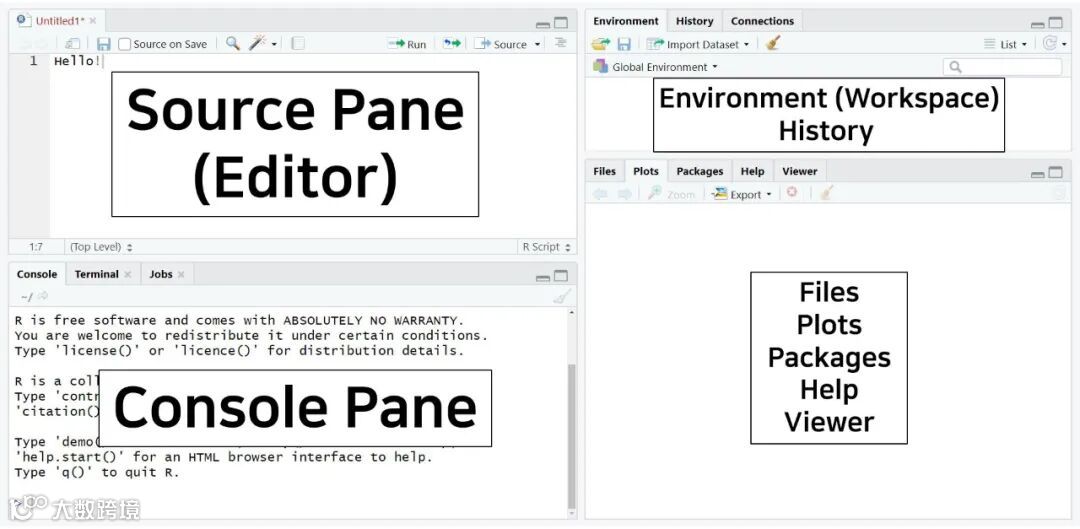
Are you scared of those four panes? No worries! This structure is beneficial. You can observe and perform all the processes simultaneously.
Think about the situation in SPSS. You always have multiple pop-ups such as data editor, syntax editor, viewer, etc. Consequently, you have to switch one another to proceed with your analyses. In R, you can do everything all together on one screen. Thus, four panes make the work efficient (indeed, no ‘pain’)!
What do the four panes do?
Out of four panes, the two on the left side are the panes you will use a lot.
Source pane: located at the top left side of the screen. It is also called as an editor because we can command everything in this pane. Therefore, we will type code in the source pane.
Console pane: located at the bottom left side of the screen. R will tell you what it is doing to us. In other words, we can communicate with R through the console pane. Besides, the output of statistical analyses is printed in the console pane.
The panels on the right side of the screen contain various tabs. Among those tabs, it is worth looking at the Environment tab at the upper pane and the Plots tab at the lower pane.
The Environment tab contains all the ‘materials’ we will use. You can always check your current materials under the environment tab. This environment tab is also called as a workspace.
The Plots tab shows various graphs and figures we draw. If you click Zoom with the magnifying glass, you can see plots in a bigger size.
(To be continued………)
Mplus 多水平(跨层)建模分析 (线上特训营)
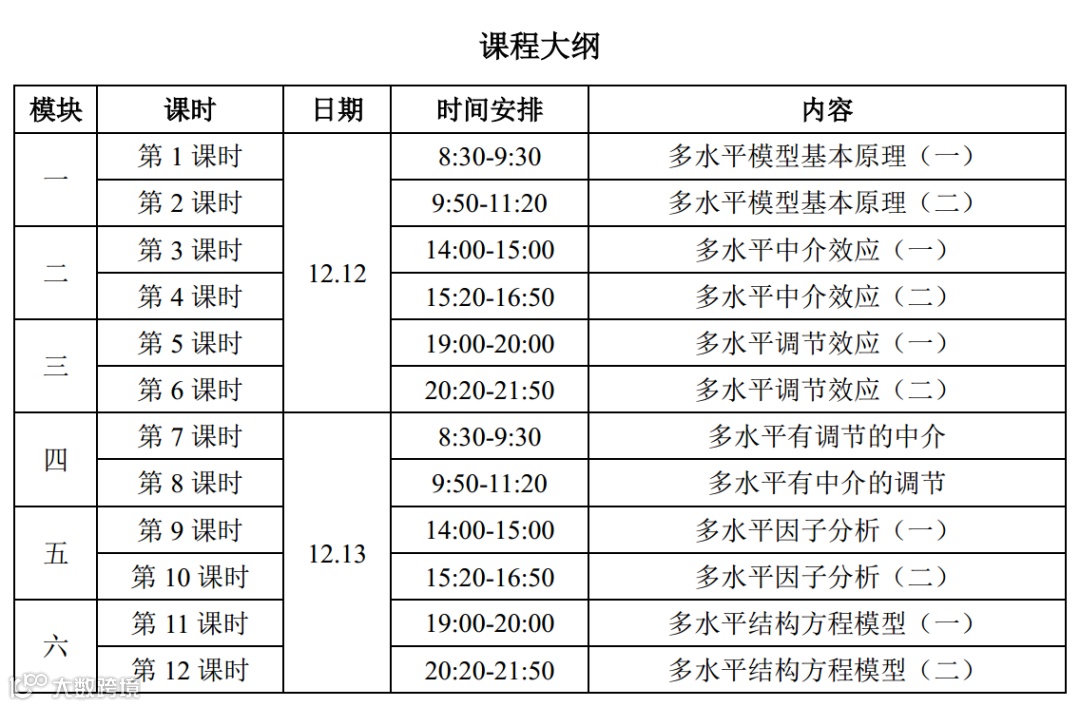
课程简介:本次讲习班将从基本原理、建模方法、软件实操这三个方面带领学员系统掌握多水平建模技术。讲习班包含6个模块,每个模块2个课时,见如下课程大纲安排。第1模块介绍基本的多水平模型及建模思路,第2-4模块介绍各种多水平中介或调节模型,着重于各种模型的检验方法与软件实操,辅以课后练习和课上讲解。第5模块介绍多水平EFA和多水平CFA,在此基础上,第6模块拓展到对于多水平结构方程模型的分析。课程的核心部分为第2-4模块。本次课程的软件实操部分使用Mplus实现,课程结束后向学员提供课程中所有用到的模型语句包,以及课程PPT资料,以供进行复习与后期使用,此外,课程结束后12月19日晚将举行在线返场答疑讲座,以巩固学员在课程结束后的复习效果。
课程费用:2000元(在校学生减免200元)
课程名额:为保证小班特训效果,此次课程的学员名额限定为10人
报名咨询:请欲报名的学员尽快联系助理老师进行登记确认(QQ:3401771532)